
English
Automate PDF/A validation
A PDF/A is a specific version of the PDF format designed to ensure the long-term preservation of electronic documents, guaranteeing their accessibility even a century from now.
Before this new feature, users wanting to use a PDF/A document with eZsign had to validate it in Acrobat. With our new feature, you can now validate your documents directly within your eZsign application.
NOTE: Some features are not available for all accounts. Please contact us for more information.
Automate PDF/A validation
NOTE: This configuration is done by folder type.
From the Administration menu >> Select Folder Types >> Choose the folder in which you want to enable PDF/A validation.
- Click on Edit Folder Type.
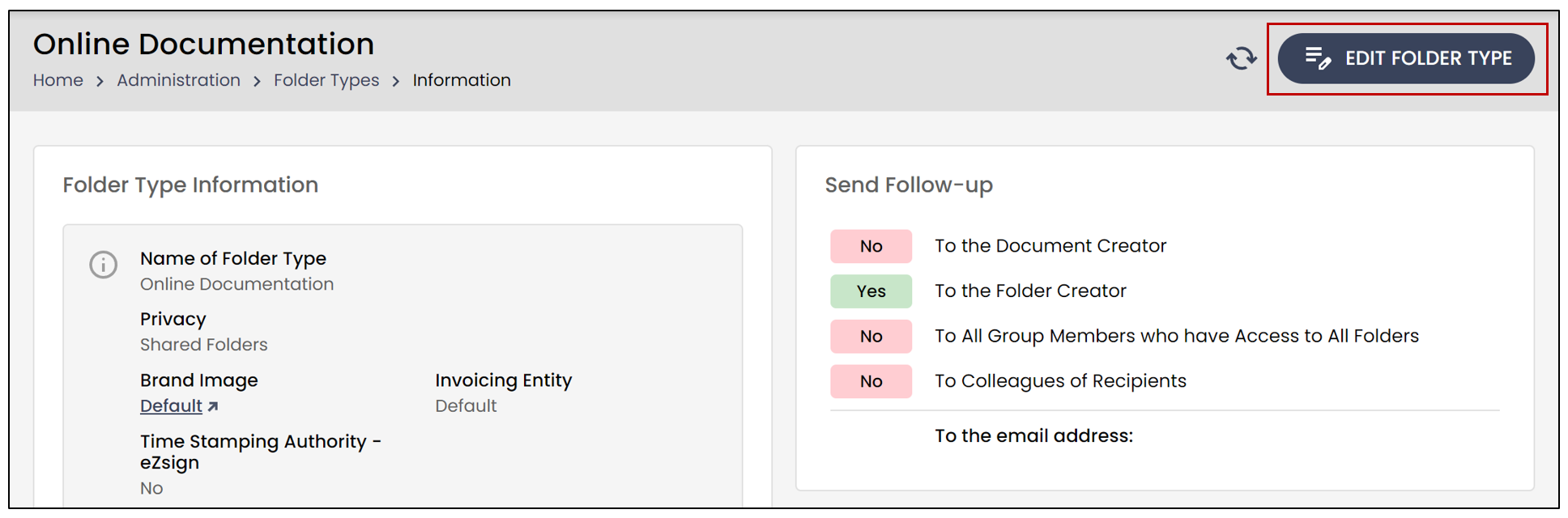
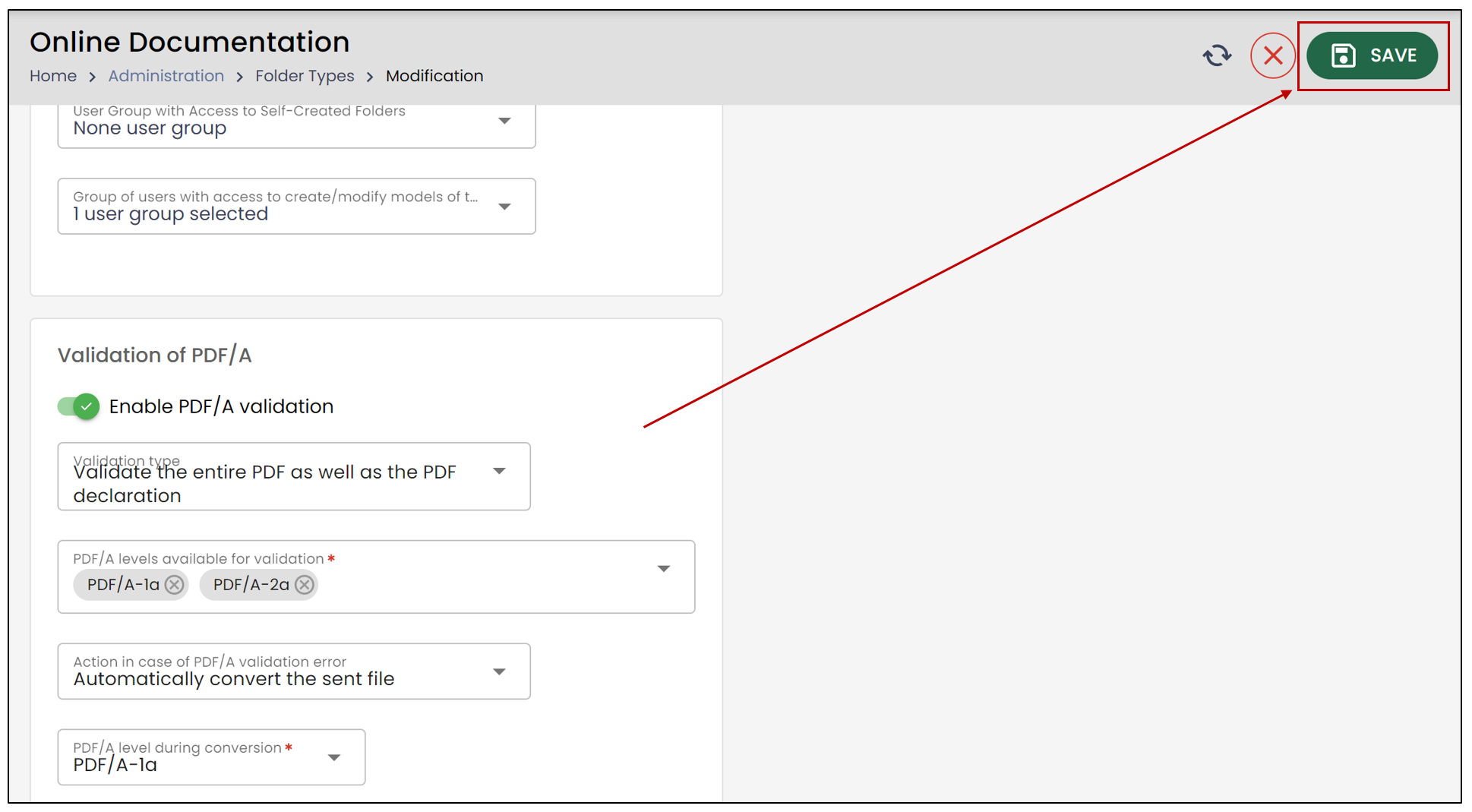
- At the bottom of the page, in the Validation of****PDF/A section, you will have the option to Enable PDF/A validation.
NOTE: If this feature is not enabled, you can still add PDF/A documents, but eZsign will not be able to validate their compliance.
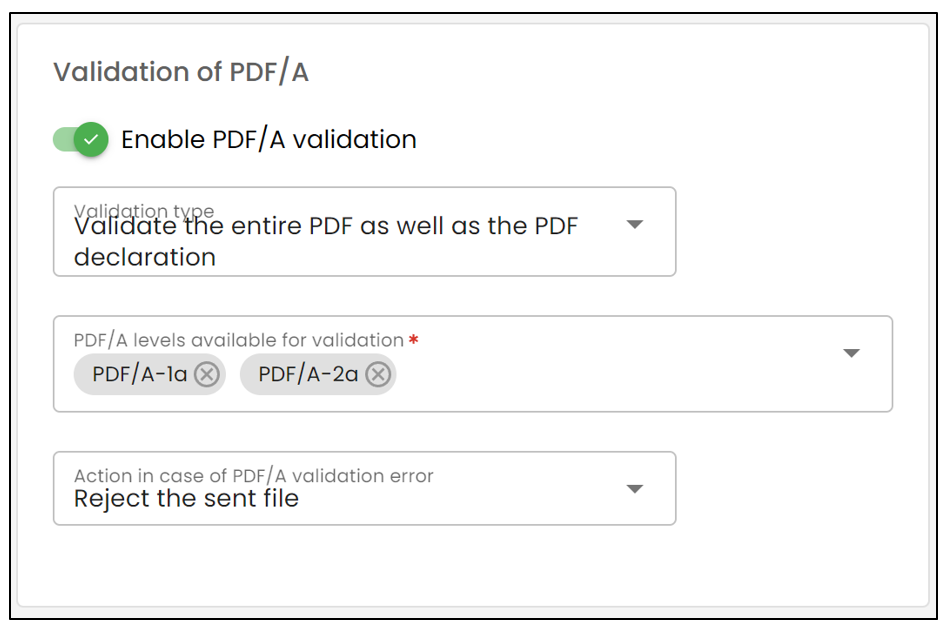
- Validation Type:
- Validate with the PDF declaration : eZsign can confirm that the document is indeed in PDF/A format, but it will not verify compliance with all required standards. This option is recommended if you are already certain that the document meets PDF/A standards.
- Validate the entire PDF as well as the PDF declaration : eZsign can certify that the document is in PDF/A format and that it meets all required standards.
- PDF/A Levels Available for Validation : The system will only accept the selected types of PDF/A.
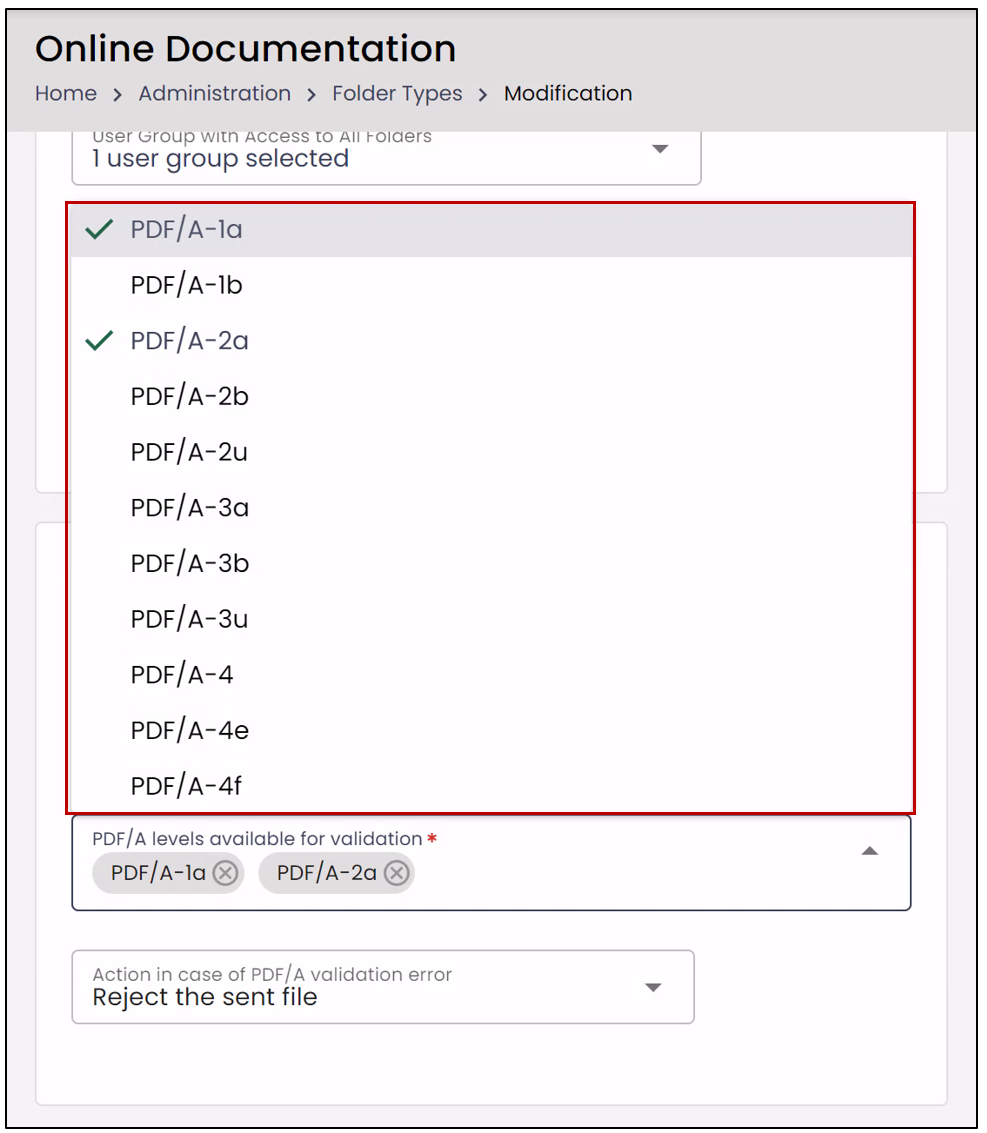
NOTE: If you add a PDF/A document but its level has not been selected, the document will either be rejected by the system or converted depending on the A****ction in case of PDF/A validation error you have chosen.
Action in case of PDF/A validation error:
- Automatically convert the sent file : If your document's level is not among those available for validation, it will be automatically converted to the level selected in the PDF/A level during conversion section.
- Reject the sent file : You will receive a message explaining the reason for the file rejection.
PDF/A level during conversion : If a document is added and does not match the selected valid PDF/A levels, it will be automatically converted to the chosen level.
Click **Save **to apply your changes.
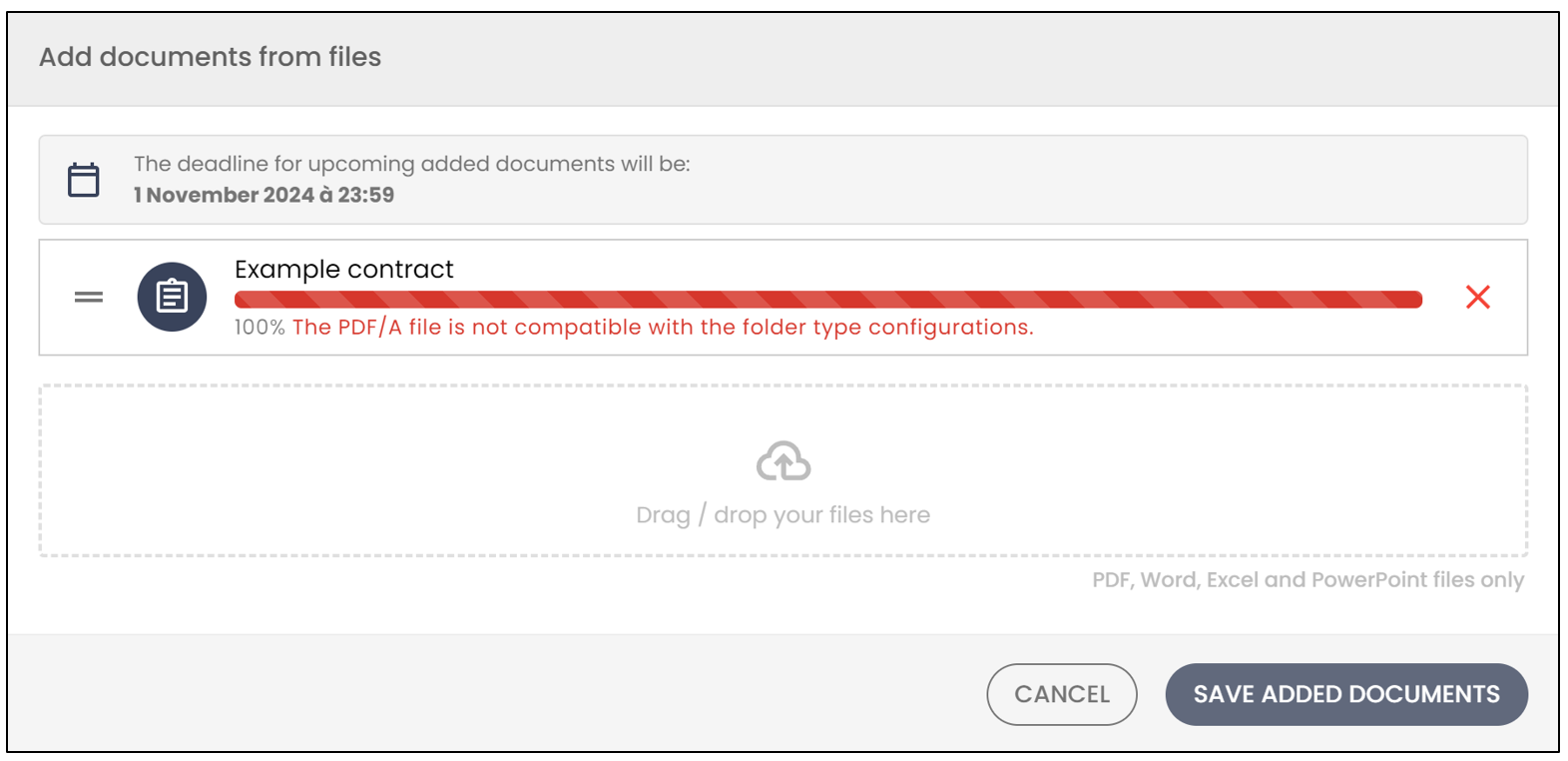
NOTE: Here is what will happen if you add a PDF/A document that is incompatible with the selected level in the system and you have chosen the option to Reject the sent file.