

English
Configure the Sending of the Signed Document
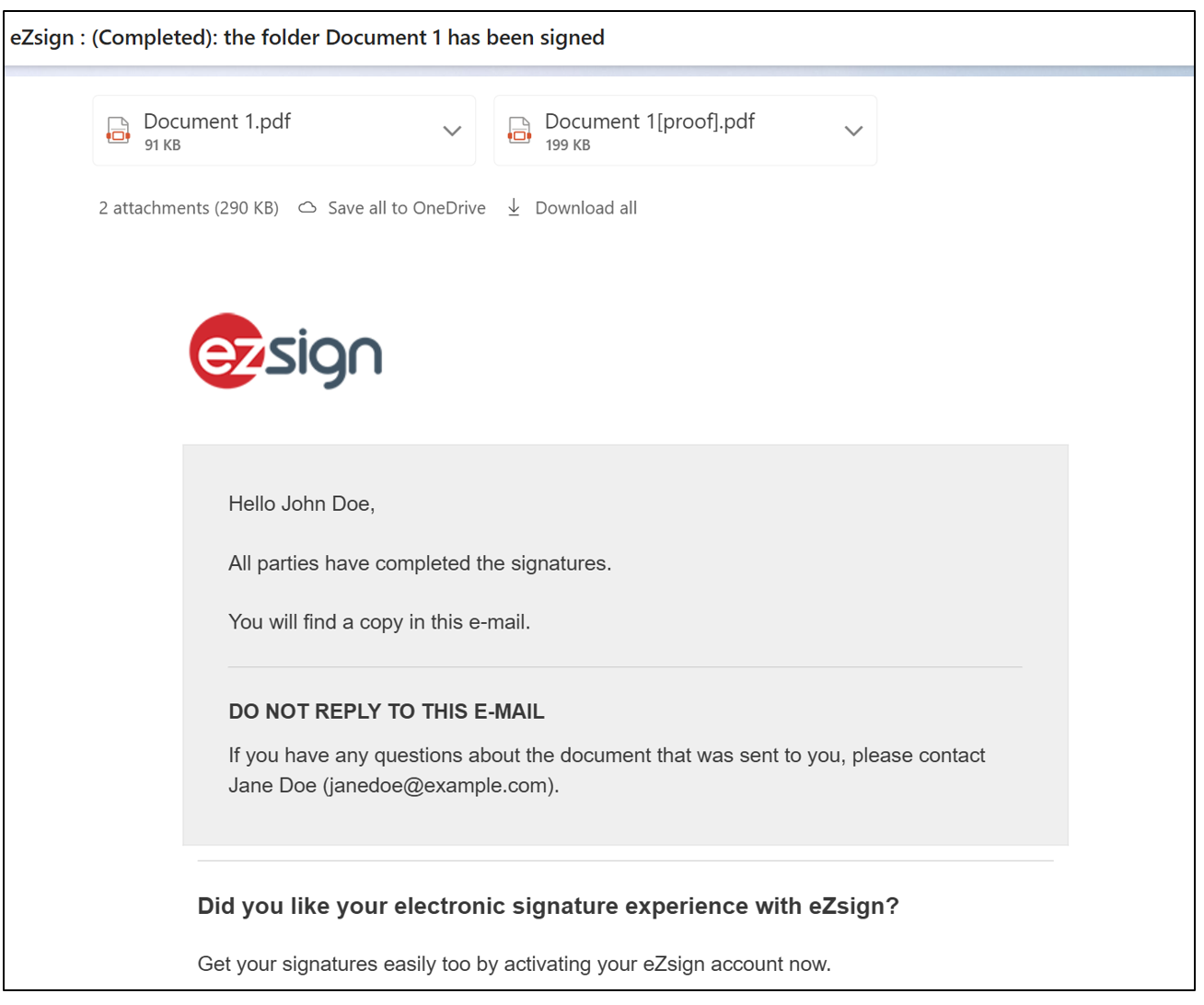
When all parties have completed their signatures on a document, it is possible to send an email to the desired recipient containing a copy of the completed document as well as the electronic proof of signature.
Here is an example of the email that will be sent:
Configure the Sending of the Signed Document
From the left menu >> Administration >> Folder Types.
If you are adding a folder type, click on New Folder Type.
If you are editing an existing folder type, select the desired folder type and click on Edit Folder Type.
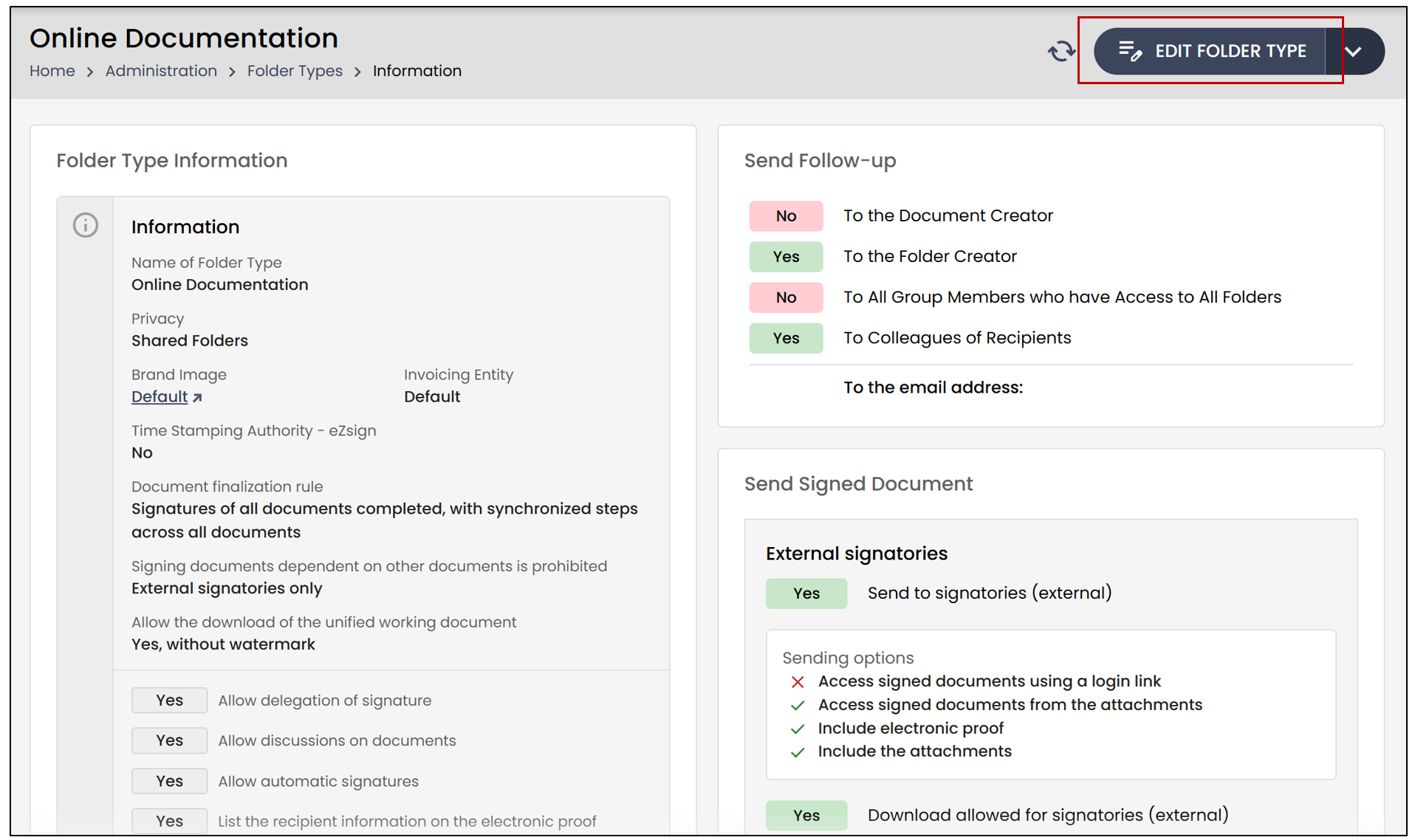
- Send Signed Document
External Signatories : One of the signers of a document in this folder. To receive the signed document, the signer must be authenticated by email.
Users : The folder creator, the document creator, a document signer, or a system user.
External Recipient : A person who is not a signer of a document in this folder but is added to the sending list using their email address.
Others : Additional sendings.
External Signatories
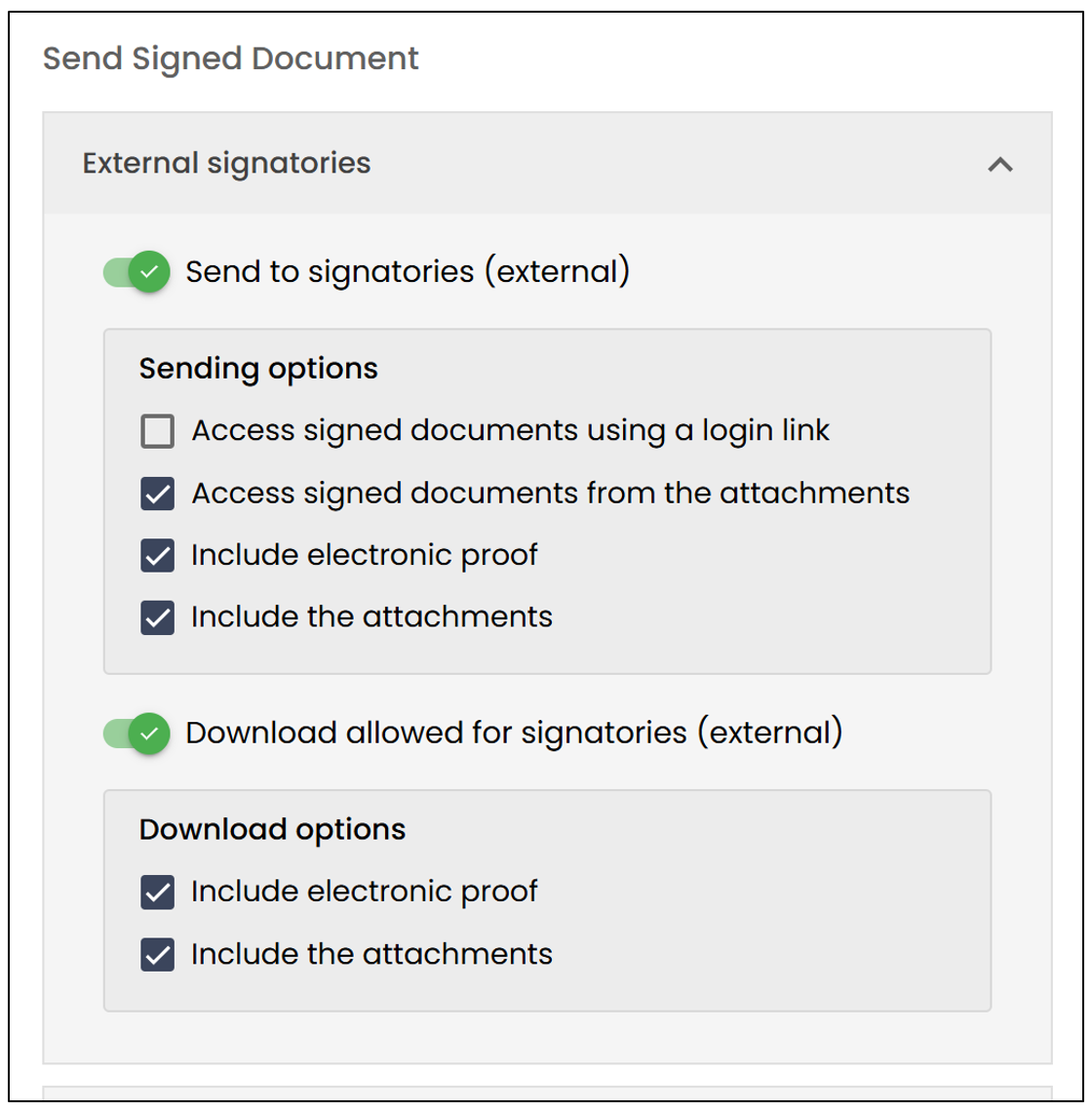
- Send to signatories (external) : If this option is disabled, the external signatory of the document will not receive the signed document.
- Sending options
Access signed documents using a login link : The signed documents will be accessible by clicking on a link in the received email. External signatories will need to authenticate to access the document. By default, external signers will be able to download the signed document.
Access signed documents from the attachments : The signed documents will be available as attachments in the received email.
Include electronic proof : The electronic proof of the signed document will be accessible to users.
Include the attachments : External signers will receive the attached PDF files in the email.
- Download allowed for signatories (external) : If this option is disabled, the external signer will not be able to download the signed document. By default, the sending option “Include files as attachments” will be checked.
- Download options
- I****nclude electronic proof : The external signer will be able to download the electronic proof.
- Include the attachments : The external signer will be able to download the attachments.
Users
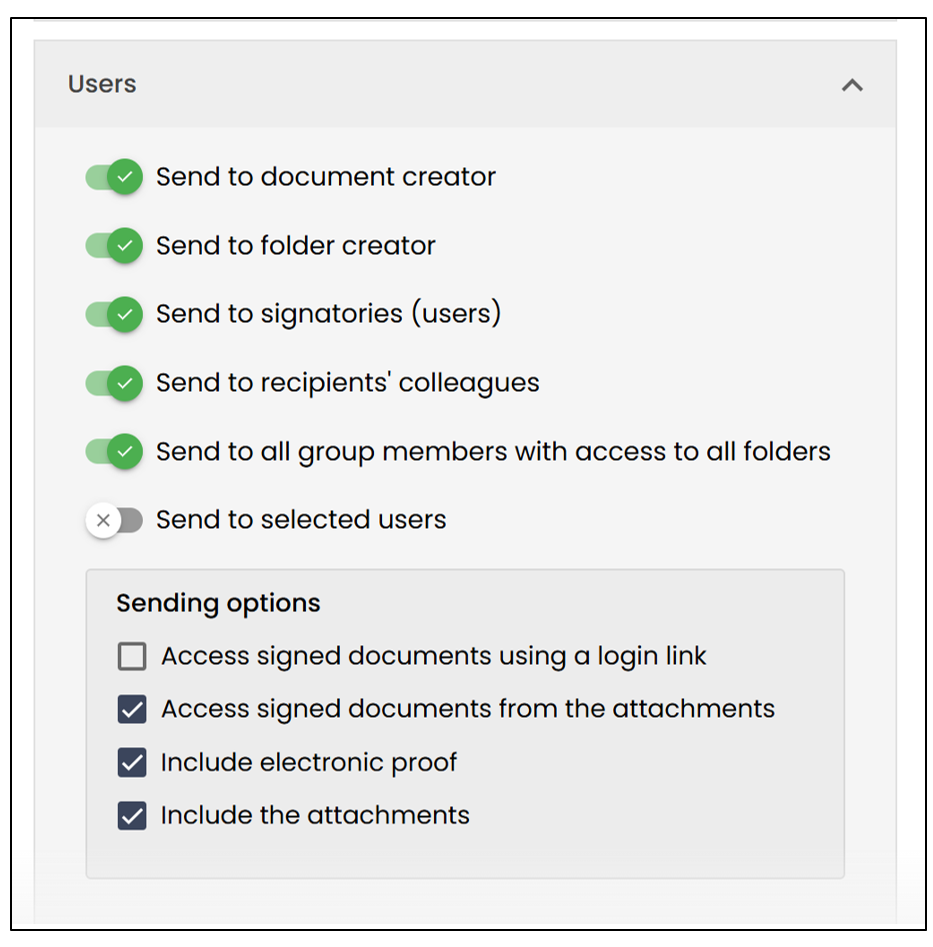
- Send to document creator : The signed document will be sent to the person who created the document, even if they are not a signer.
- Send to folder creator : The signed document will be sent to the person who created the folder, even if they are not a signer.
- Send to signatories (users) : The signed document will be sent to signers who are system users.
- Send to recipients’ colleagues : Mainly applies in real estate.
- Send to all group members with access to all folders : The signed document will be sent to all users in the group.
- Send to selected users : From the drop-down list, select the desired user, whether they are a signer or not.
- Sending Options
- Access signed documents using a login link : The signed documents will be accessible by clicking on a link in the received email.
- Access signed documents from the attachments : The signed documents will be available as attachments in the received email.
- Include electronic proof : The user will be able to download the electronic proof.
- Include the attachments : The user will be able to download the attachments.
External Recipient
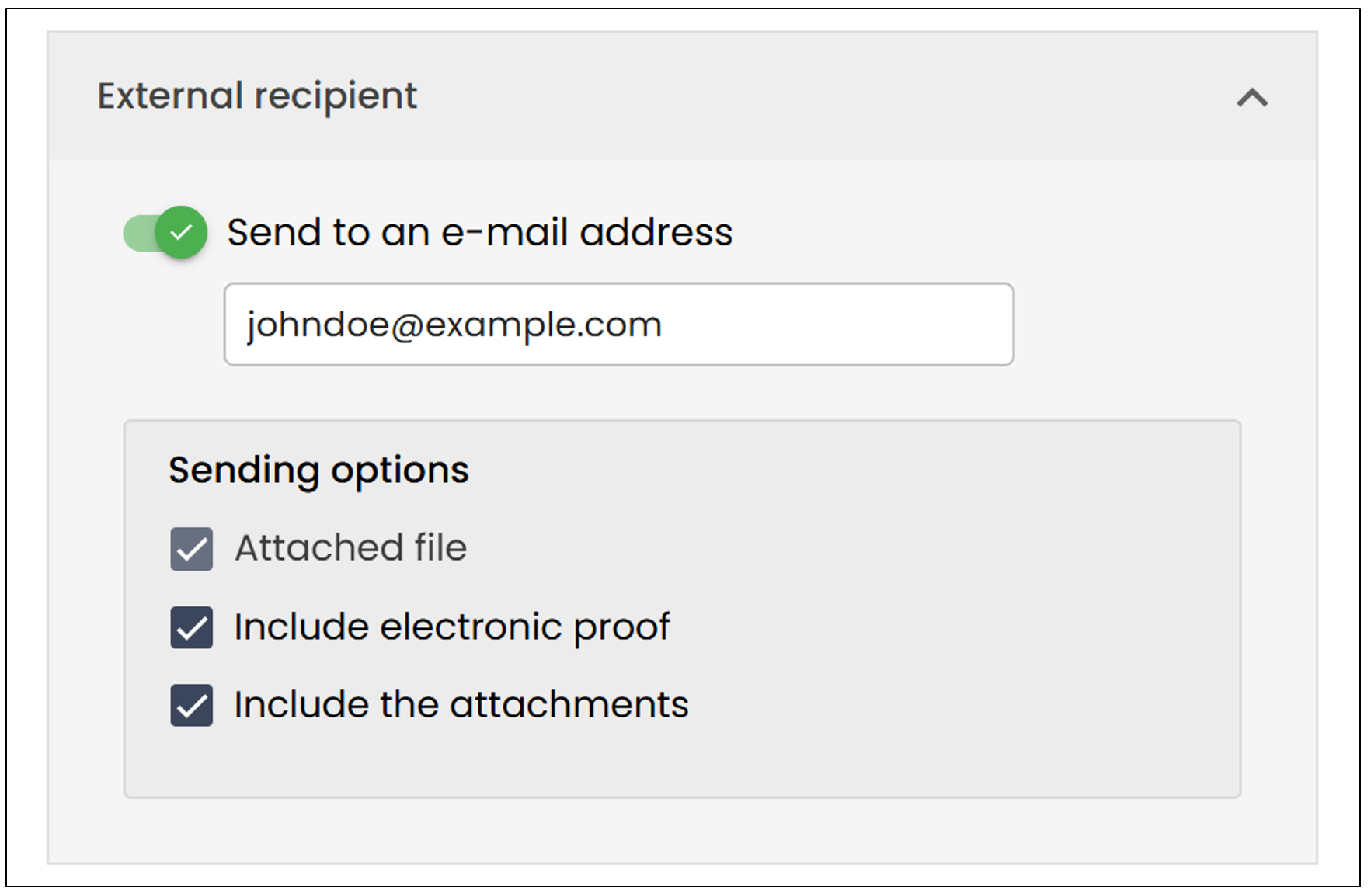
- Send to an email address : Enter the desired email address. The completed documents will automatically be sent to this recipient
- Sending options
- Attached file : The external recipient will receive the PDF files in the email.
- Include electronic proof : The recipient will be able to download the electronic proof.
- Include the attachments : The recipient will be able to download the attachments.
Other
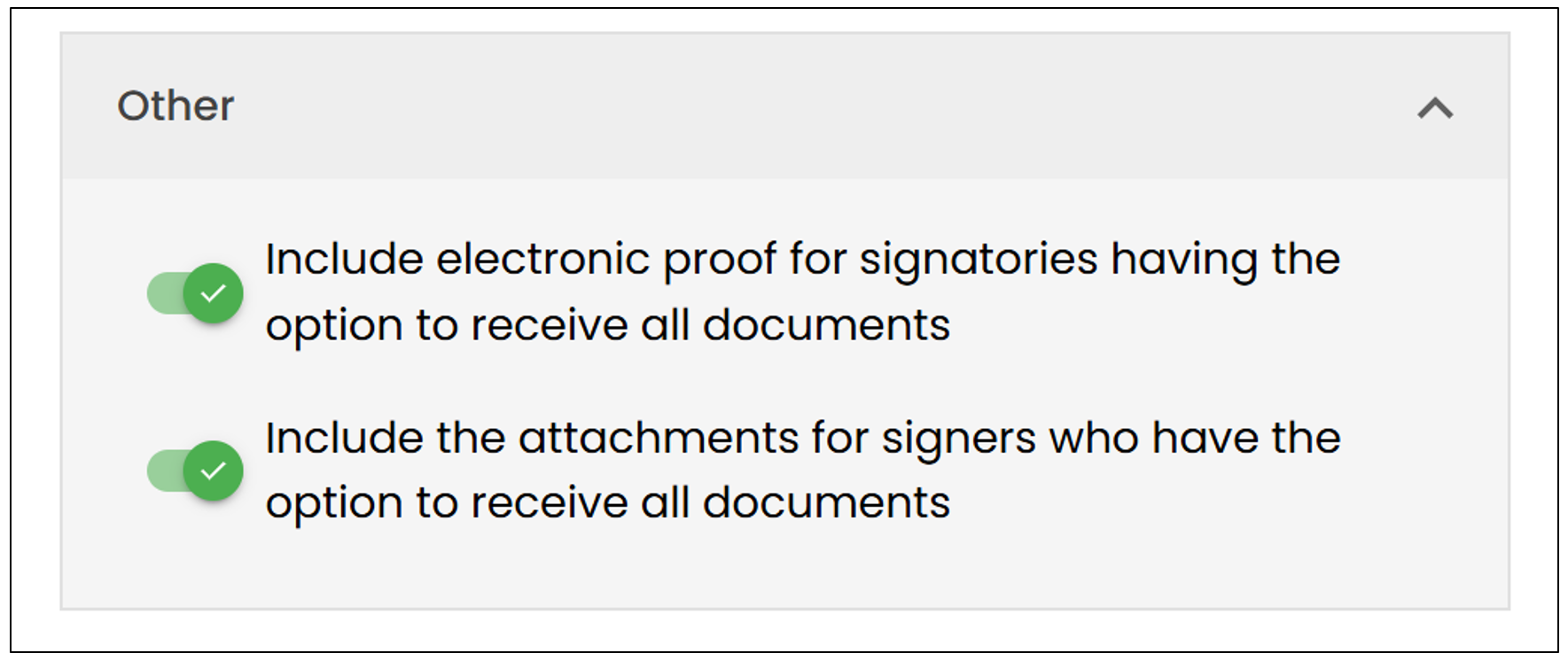
You will have the option to Include electronic proof for signatories having the option to receive all documents.
You will also have the option to Include the attachments for signers who have the option to receive all documents.