

English
Signature : Steps for the client (eZsign Web Version)
Signature : Steps for the client
Here’s how to do it in eZsign:
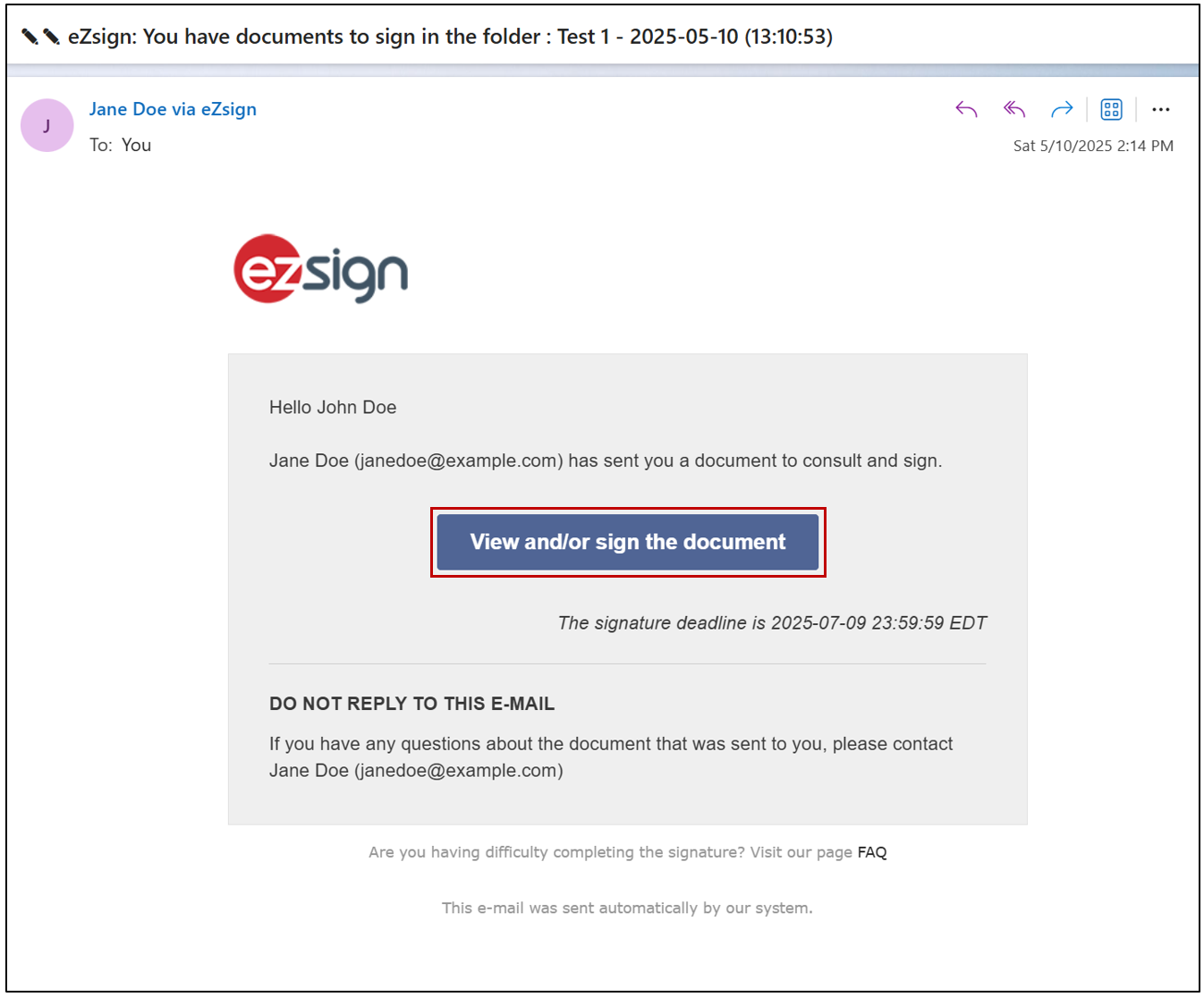
- Once the eZsign folder has been sent, the signer will receive an email informing them that there are documents to sign. The signer can then click on View and/or sign the document.
- The signer can then click on Begin the process.
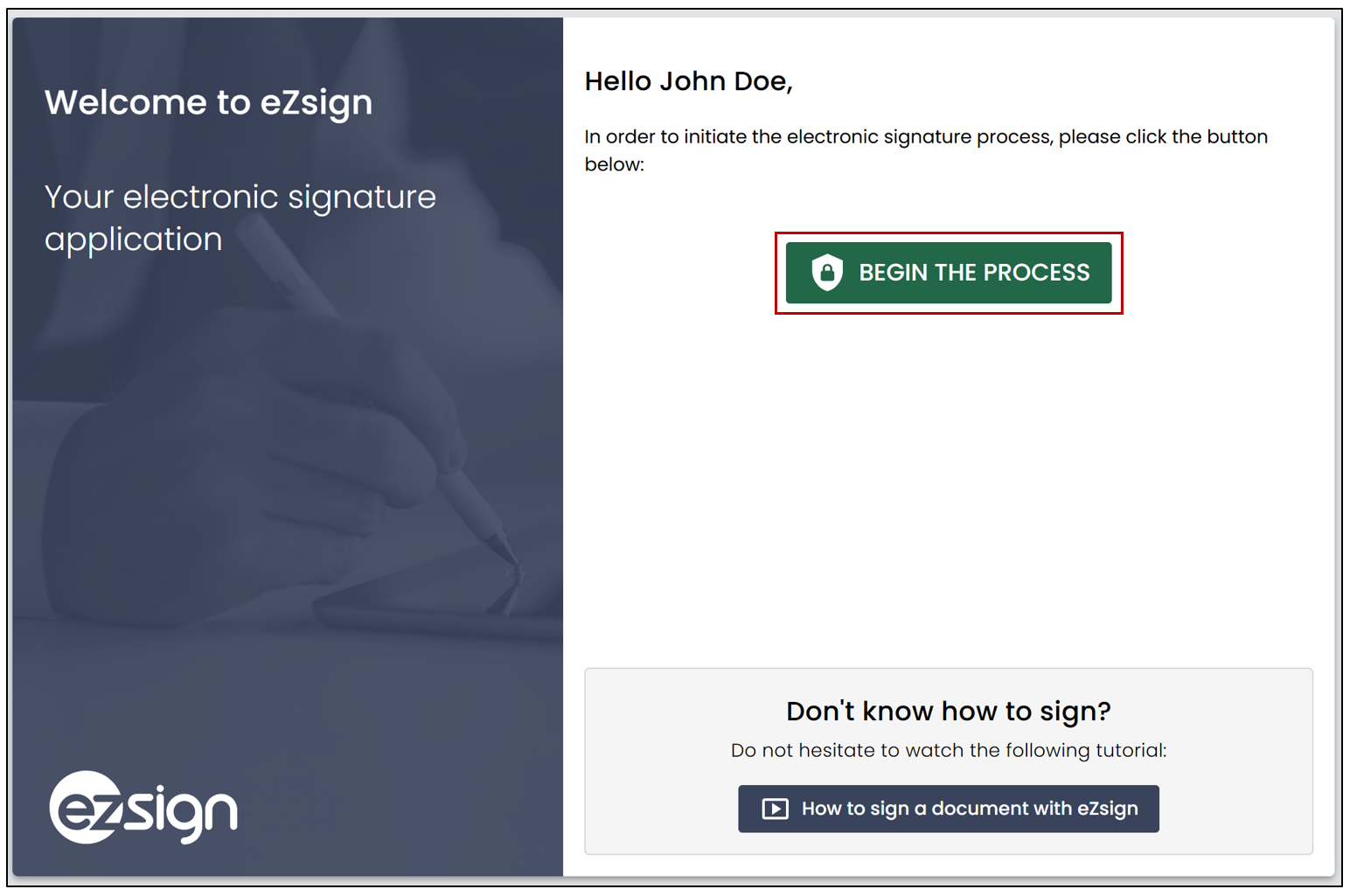
NOTE: In this example, the authentication type is Email Only. For instance, if you had selected the Email + Security Question authentication type, the signer would need to enter the answer in a field before accessing the document for signing. For more information, please refer to the article Types of Signatory Authentication.
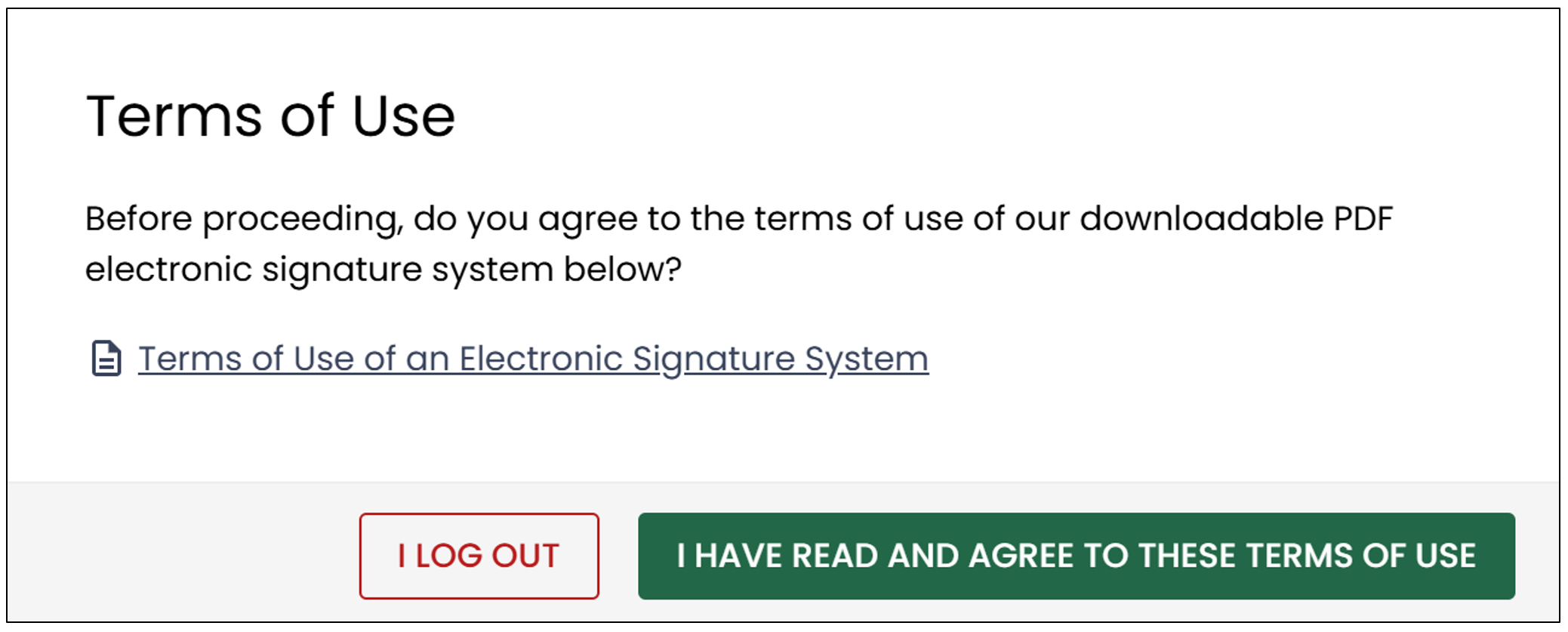
- To sign the document, the signer must agree to the terms of use. They will be able to download them.
- The signer can click on Start to go directly to the first signature field.
NOTE: Form fields must always be completed before signature fields.
NOTE: If you add the Signature City field to the document, the city entered by the signer will be recorded, even if a second document is signed as part of the same folder.
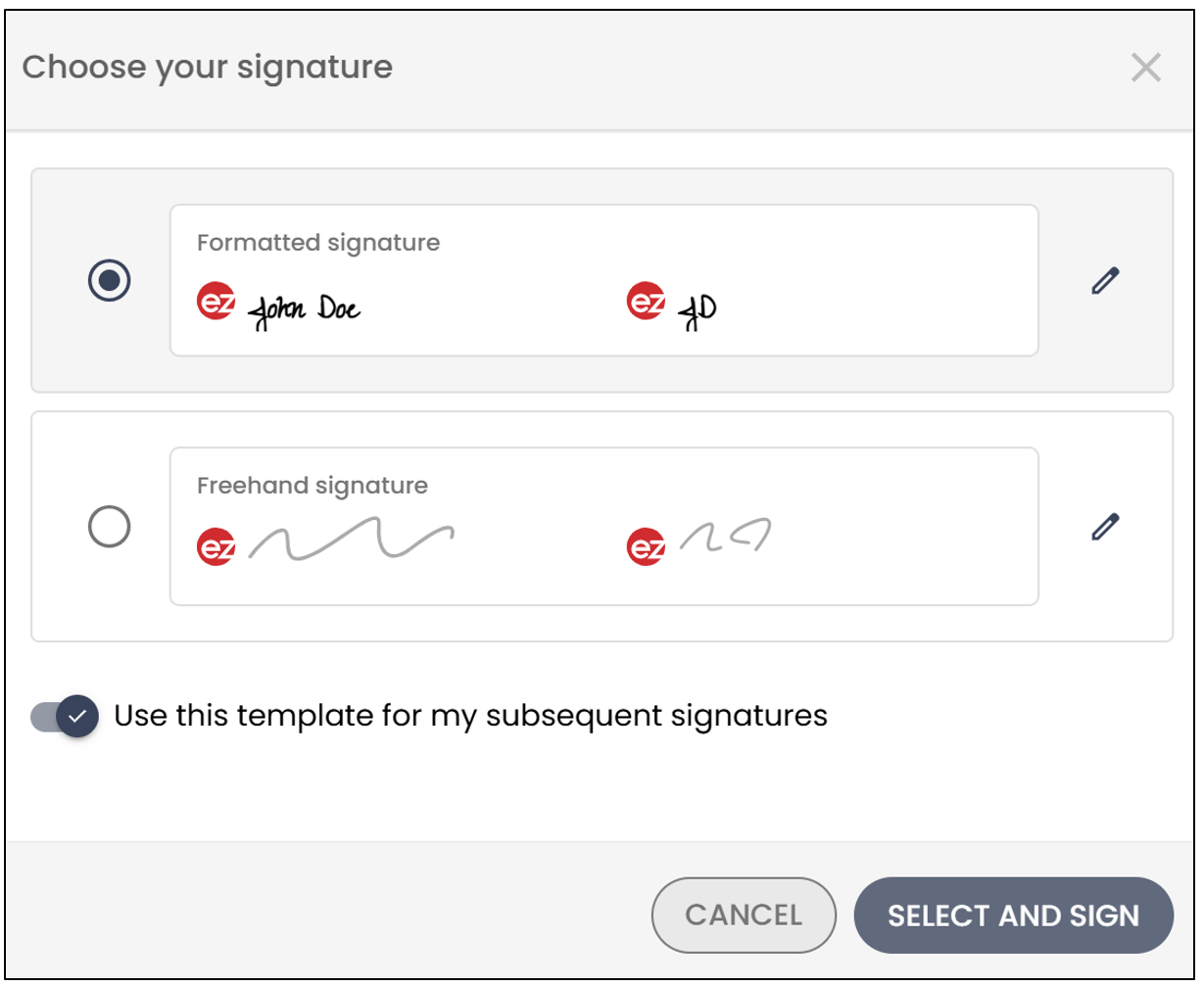
- To sign the document, the signer just needs to click on Signature.
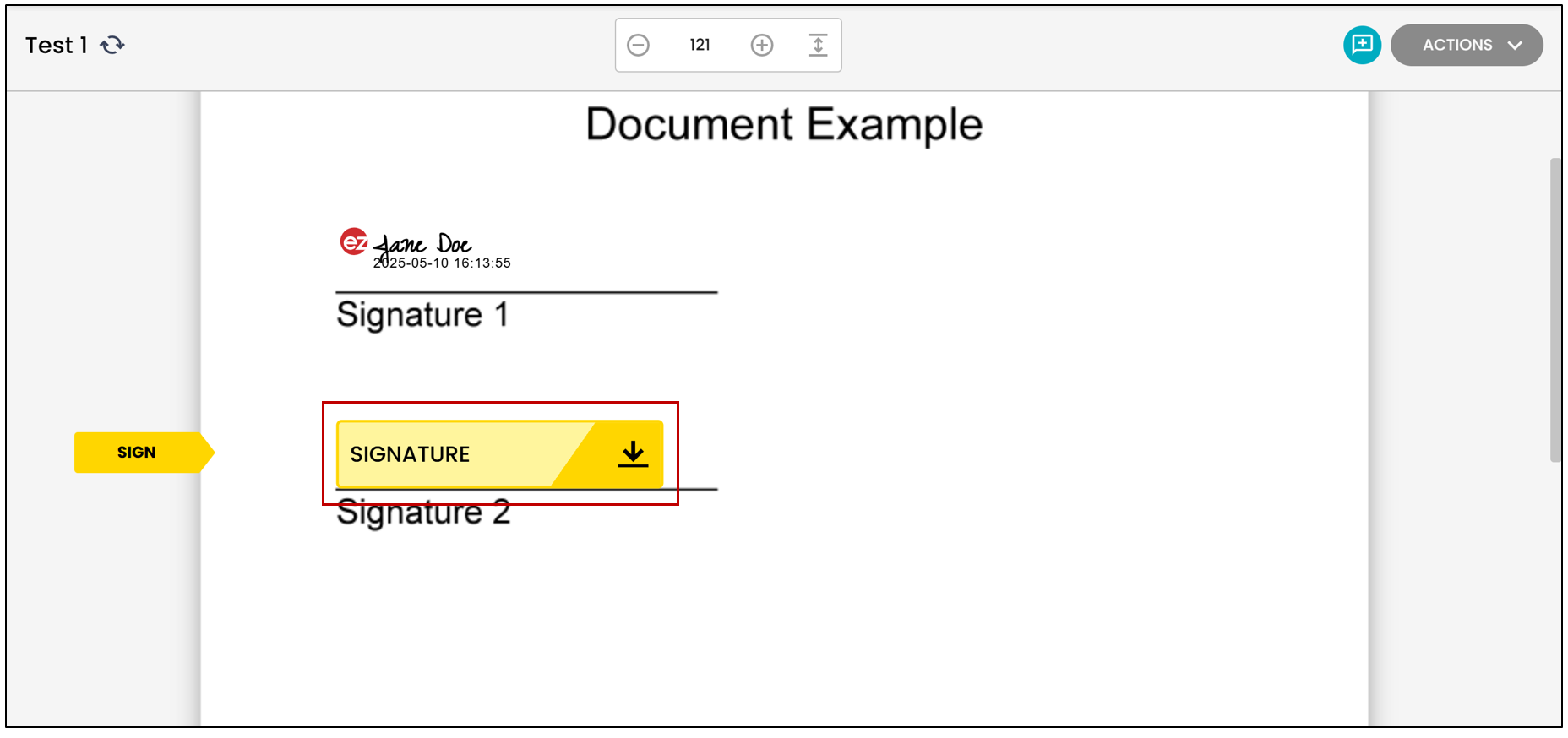
- If the option is added during document creation, the signer will be able to select the format of their signature.
If all the signatures on the document have been completed, this message will appear:
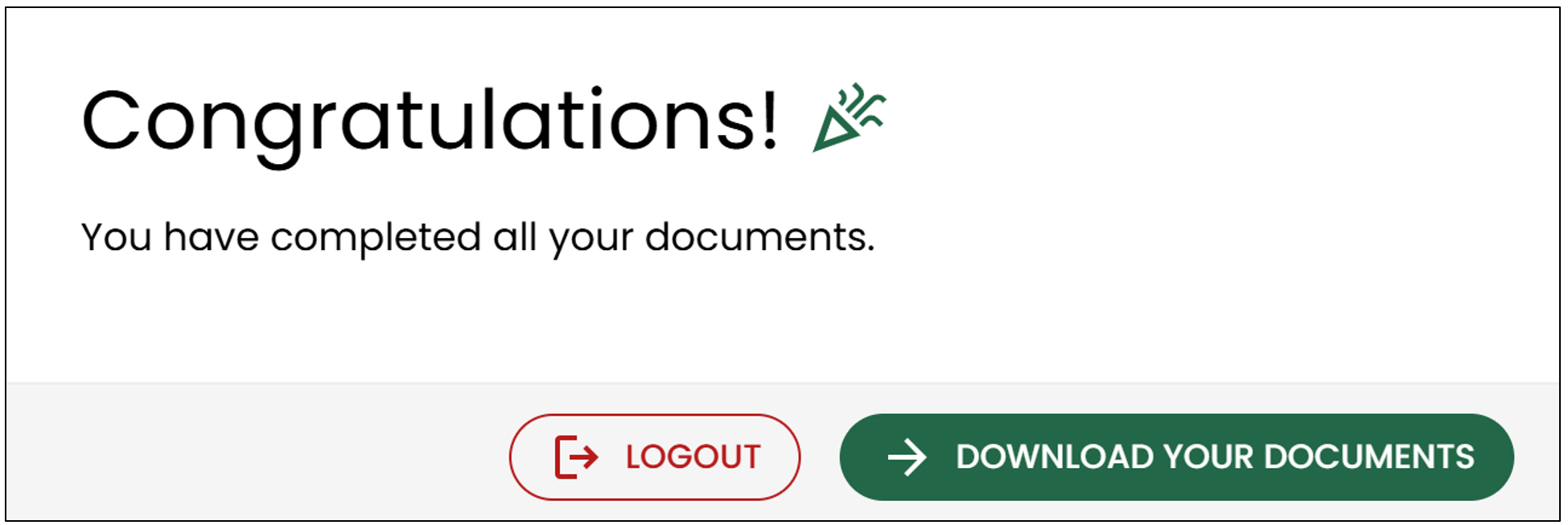
- The signer will be able to download their documents by clicking on Download your documents.
NOTE: The signer will also receive an email with the signed documents.