

English
Adding/Editing/Deleting a Document in an eZsign Folder
Adding a Document in an eZsign Folder
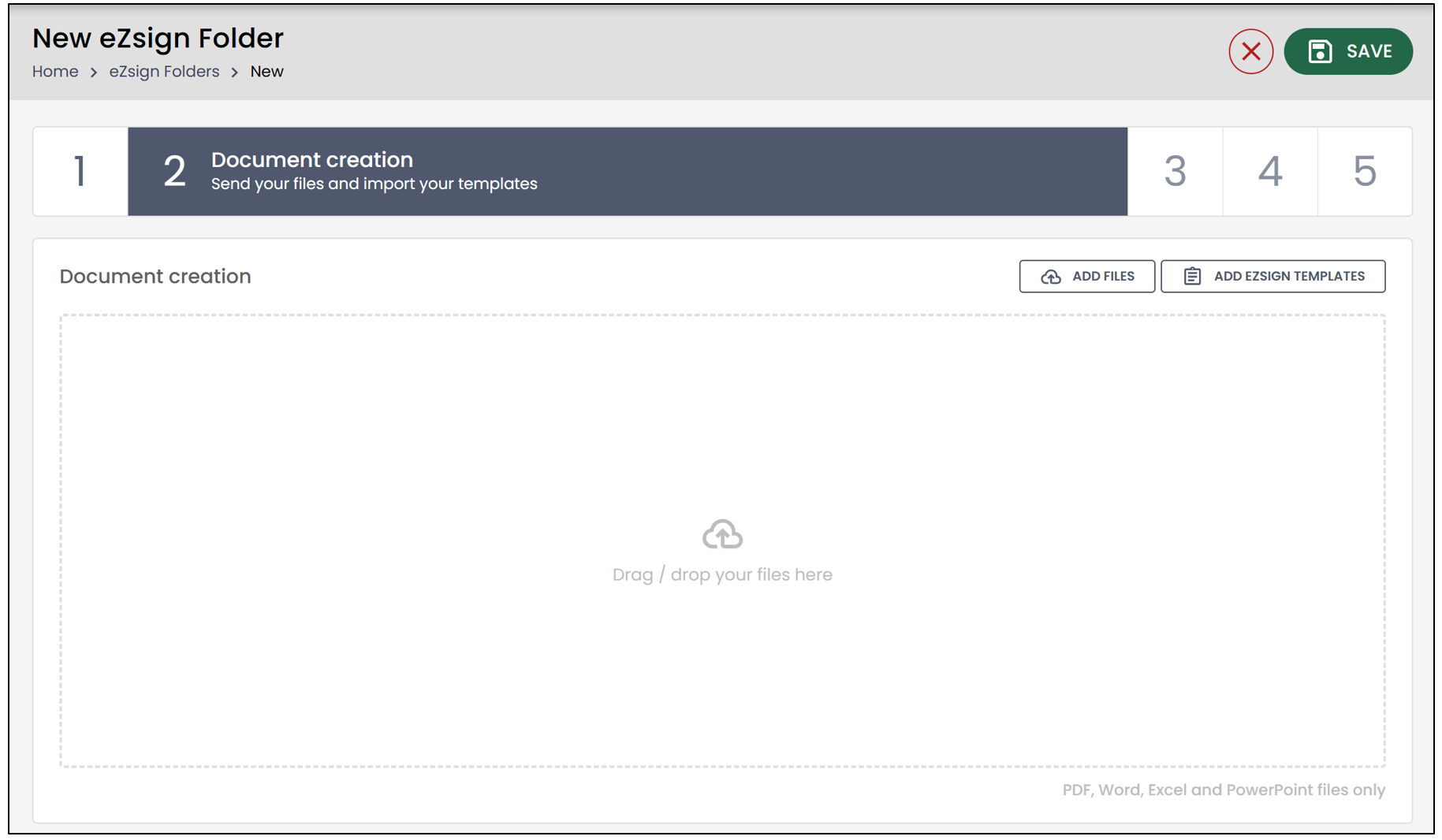
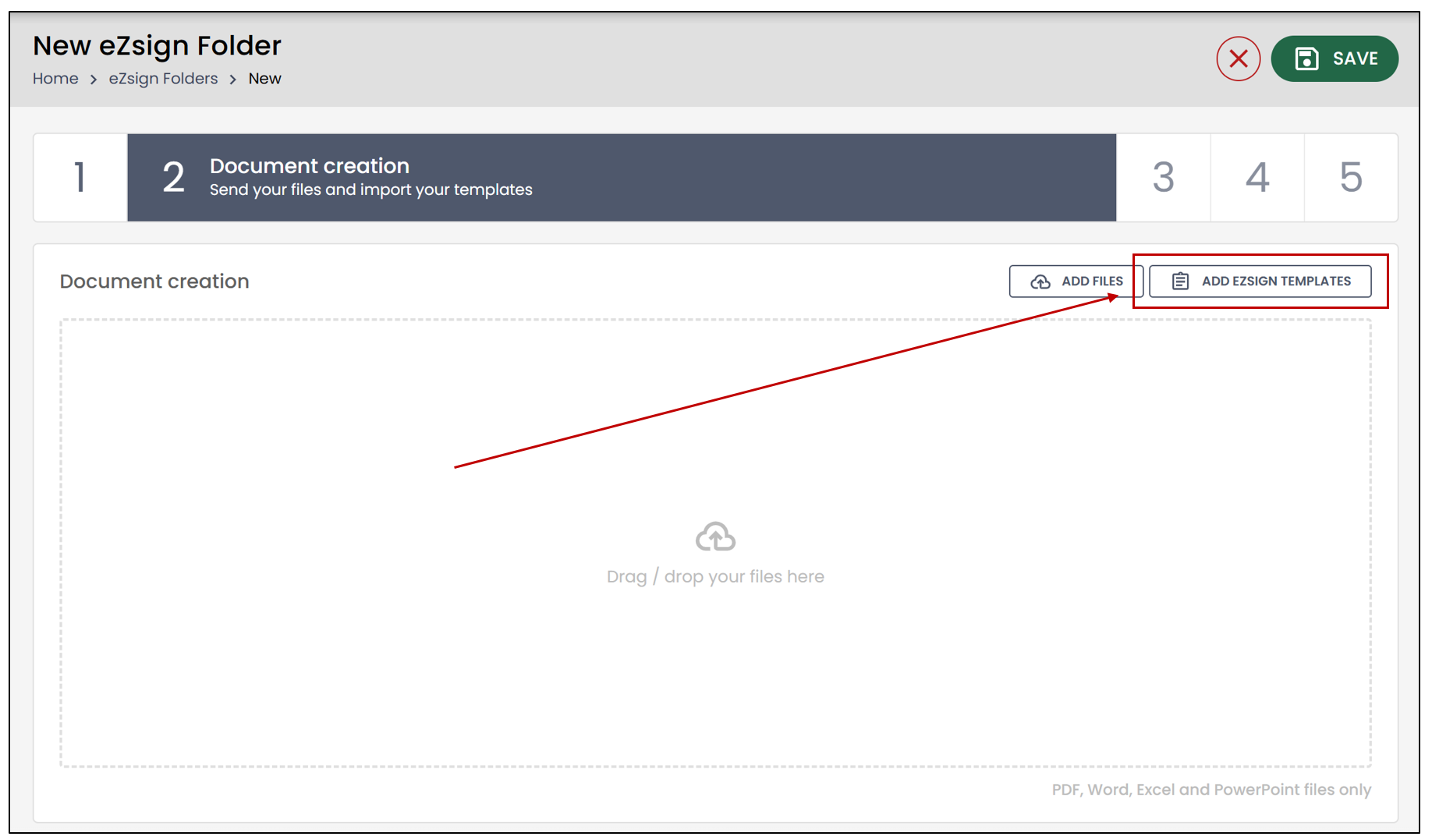
During the document creation step, you need to add the files intended for signature. There are two ways to add files to the folder: upload files directly from your computer or add eZsign Templates.
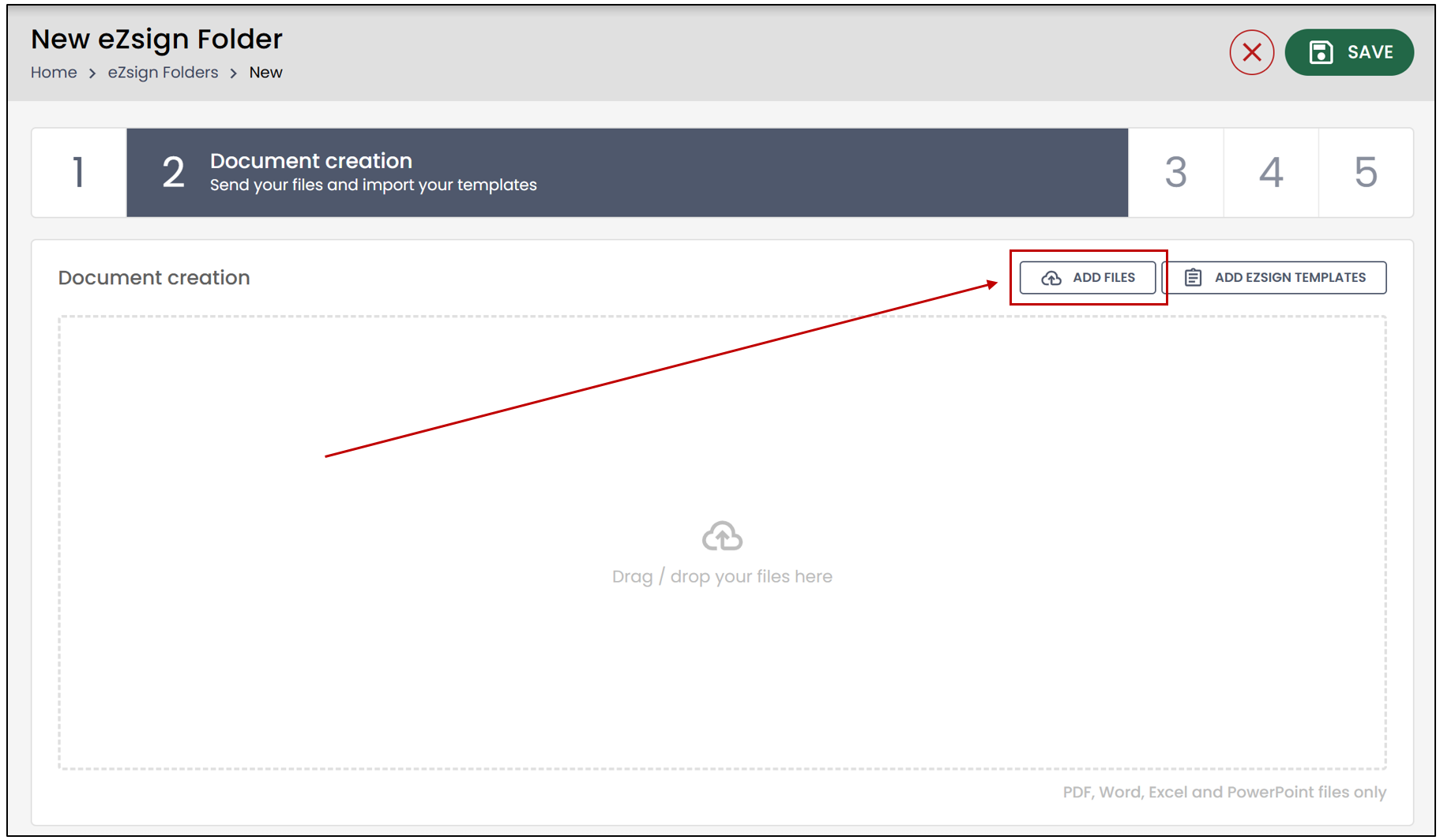
- To upload files from your computer, you can drag and drop the documents or click the Add Files button.
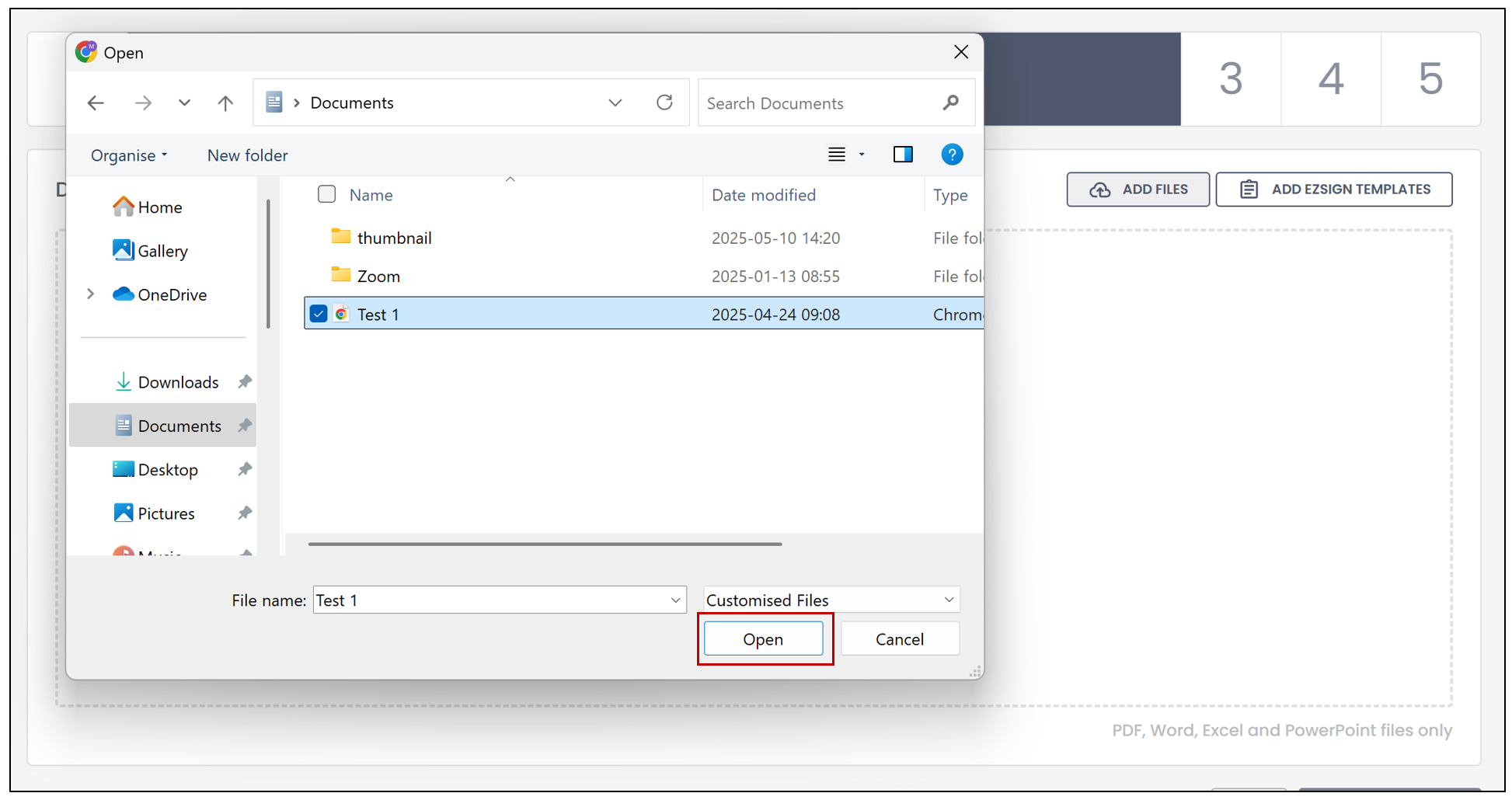
- Select the desired document from your computer, then click Open.
NOTE: The fonts used in eZsign are:
- Arial (the most reliable)
- Times New Roman
- Verdana
- Courier New
- Tahoma
- Trebuchet MS
- Georgia
If you import a Word document for signature and it contains a font other than those listed above, the document will be automatically adjusted to use our fonts.
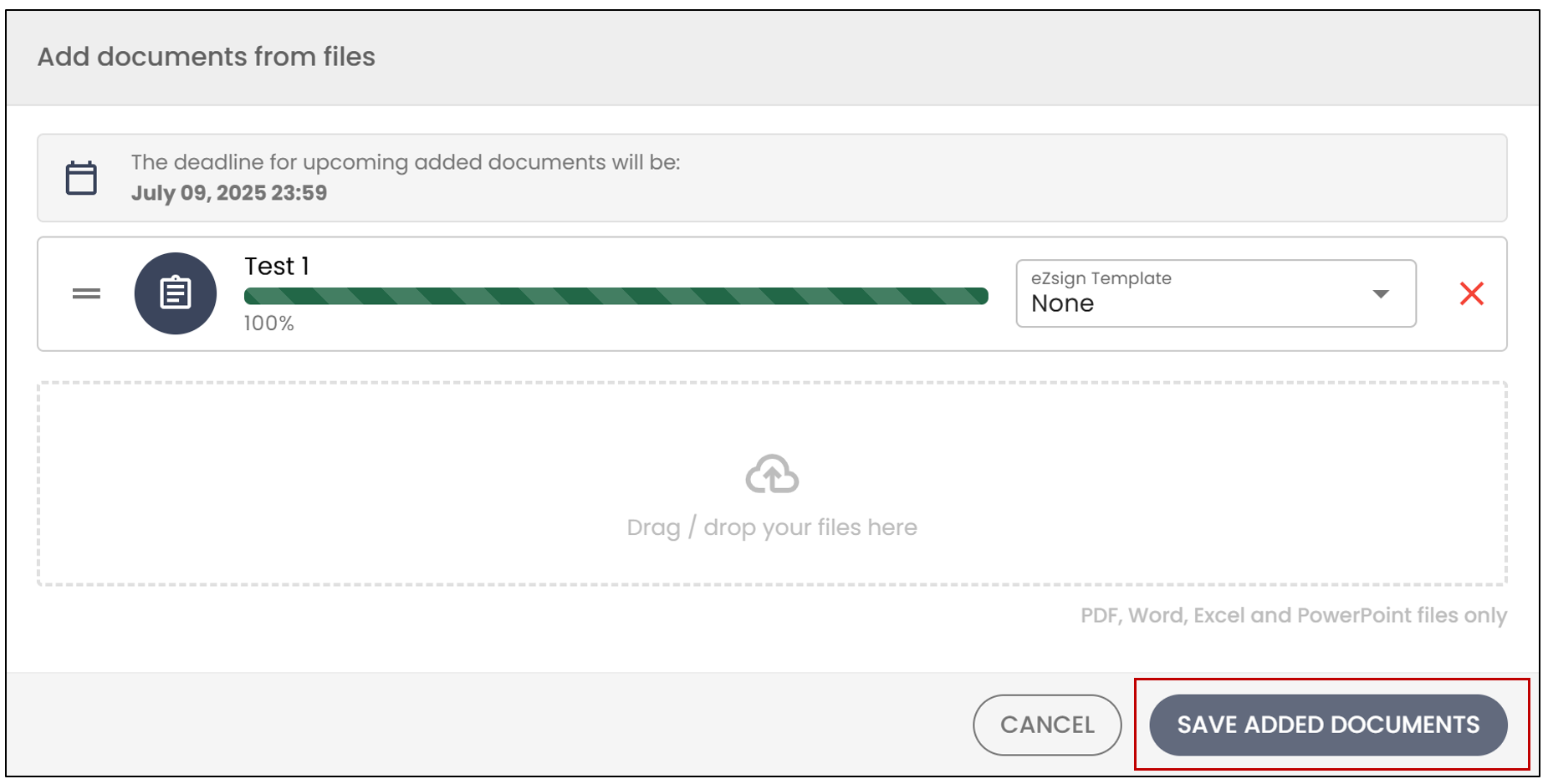
- You will be able to modify the deadline for upcoming added documents.
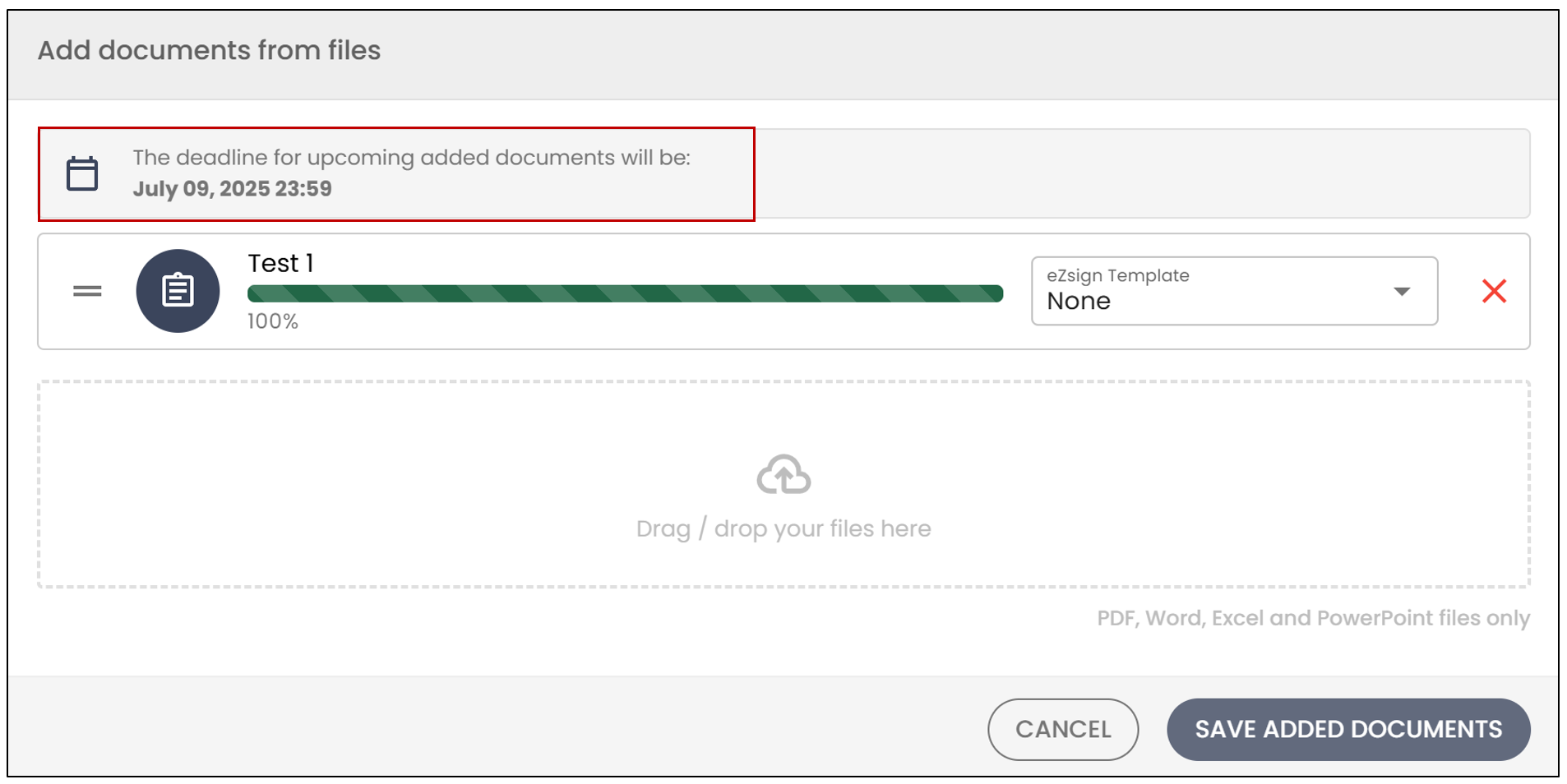
- You will also have the option to apply an eZsign Template to the document by selecting it from the drop-down list.
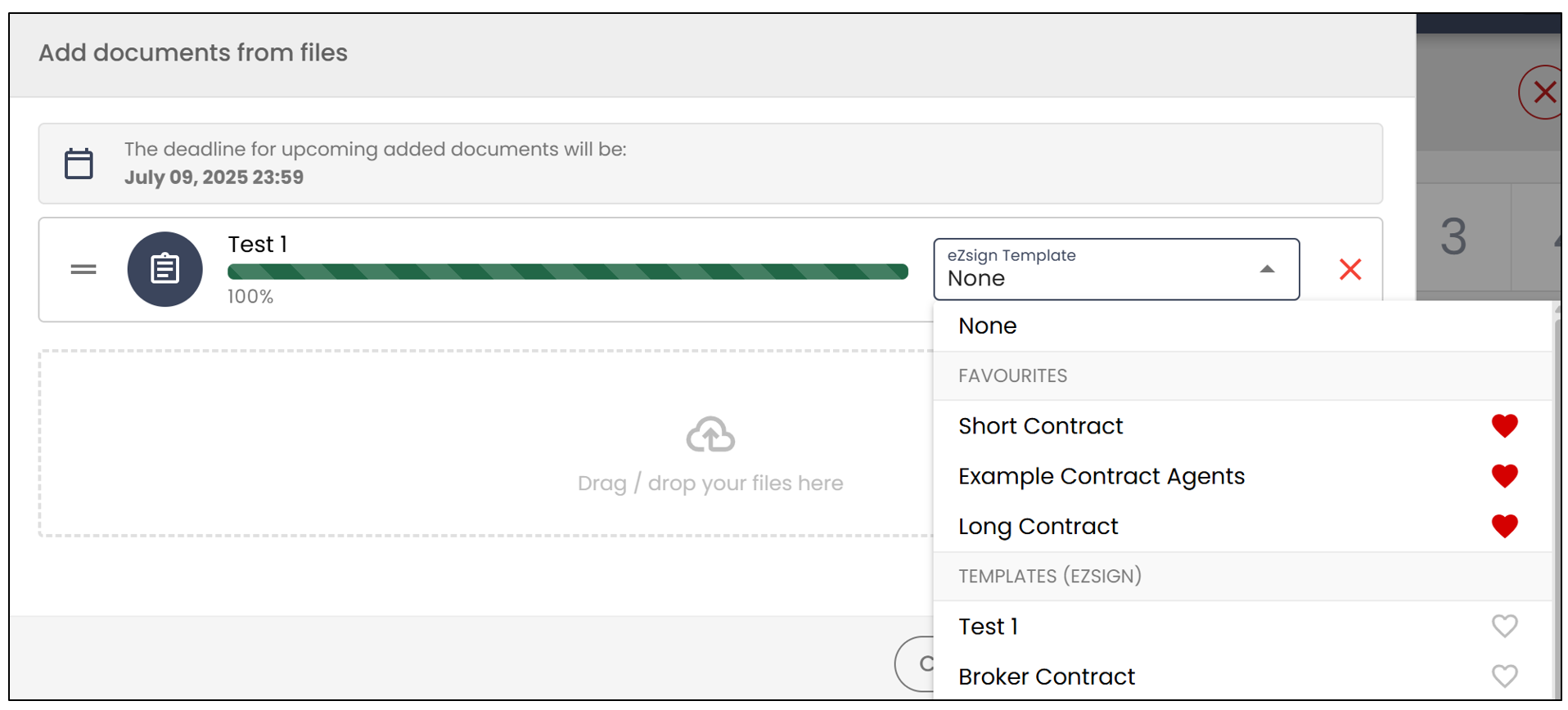
NOTE: To add a template to your Favourites , click on the heart icon to the right of the desired template.
- To add the document to the folder, click Save Added Documents.
- If you wish to add a template, click on Add eZsign Templates.
- Click on the "+" to the right of the desired eZsign template.
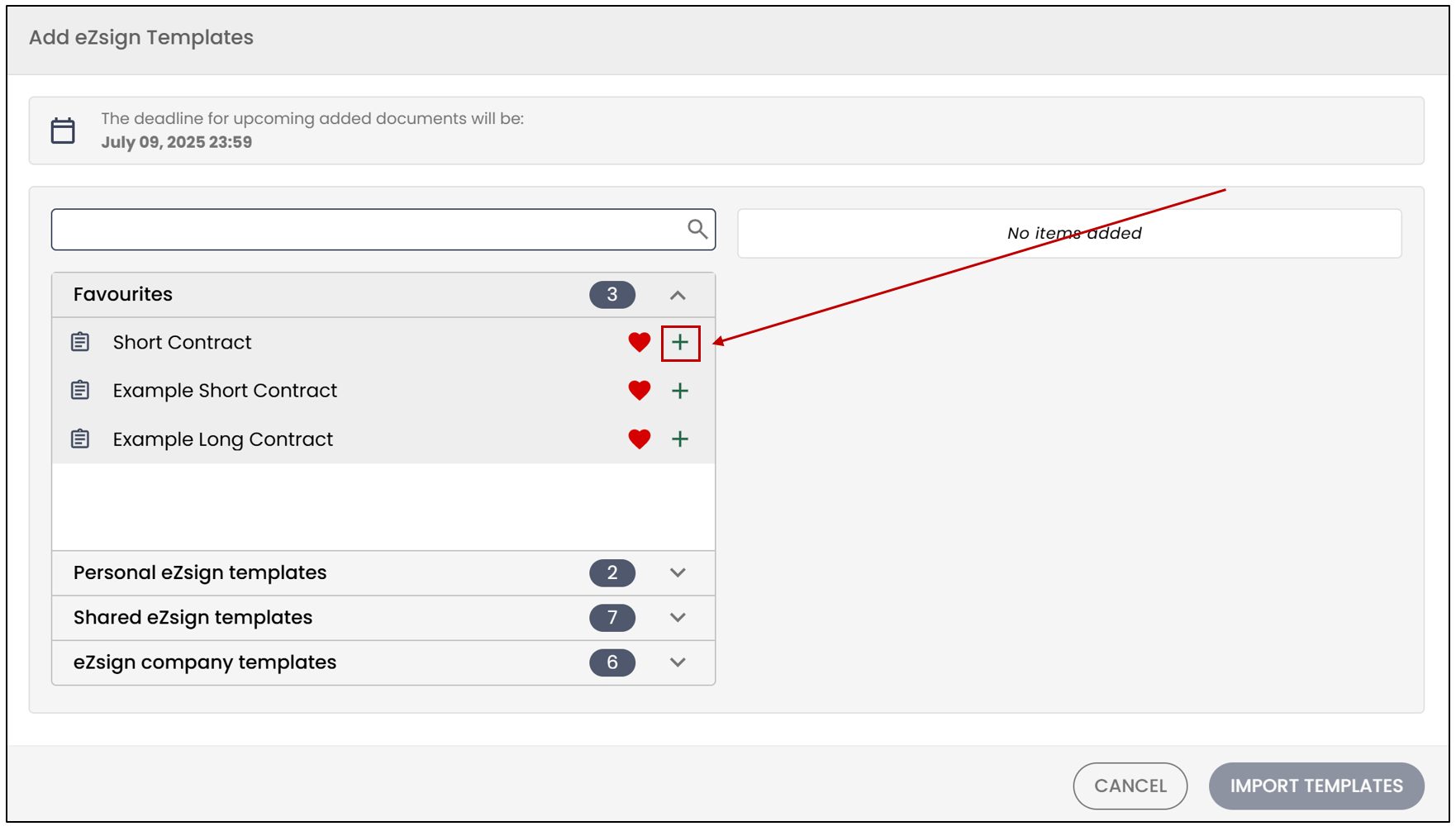
- To add the template to the folder, click on Import Templates.
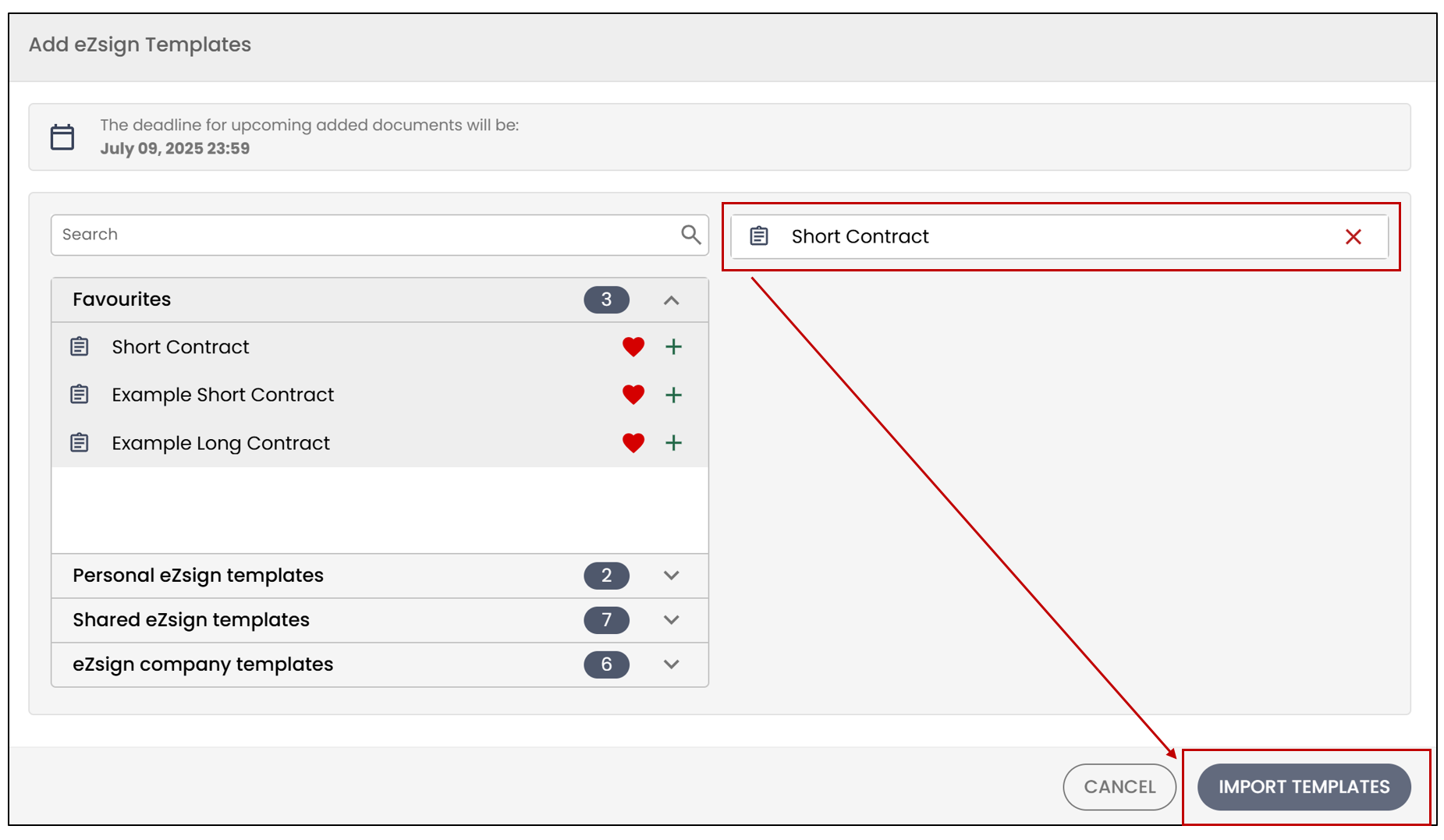
NOTE: In this example, only one document is added to the folder, but it is possible to include multiple documents.
- When all the desired documents are added to the folder, click on Next Step.
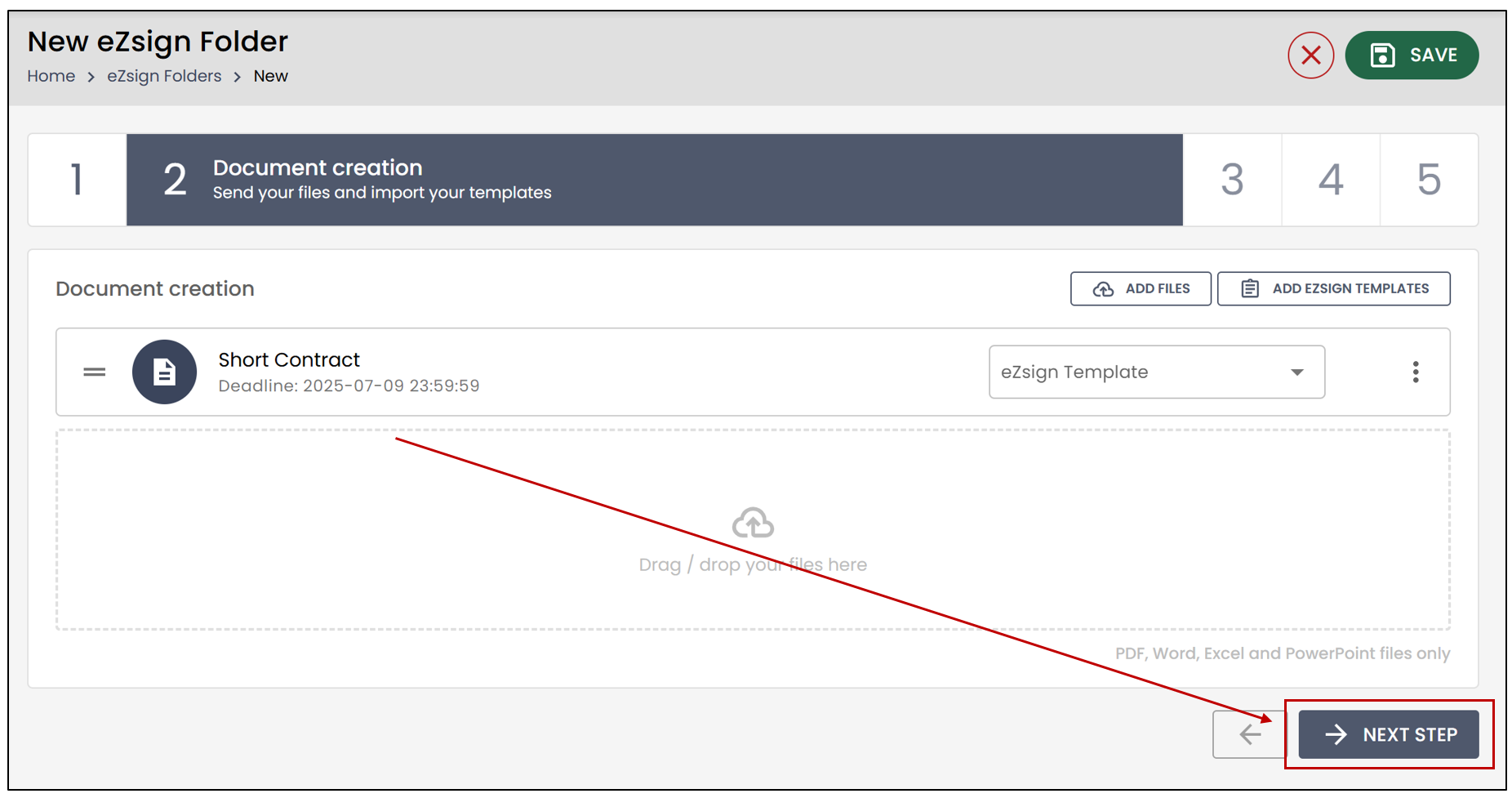
Editing a Document in an eZsign Folder
Once a document has been added to an eZsign folder, you can edit its name and signature deadline.
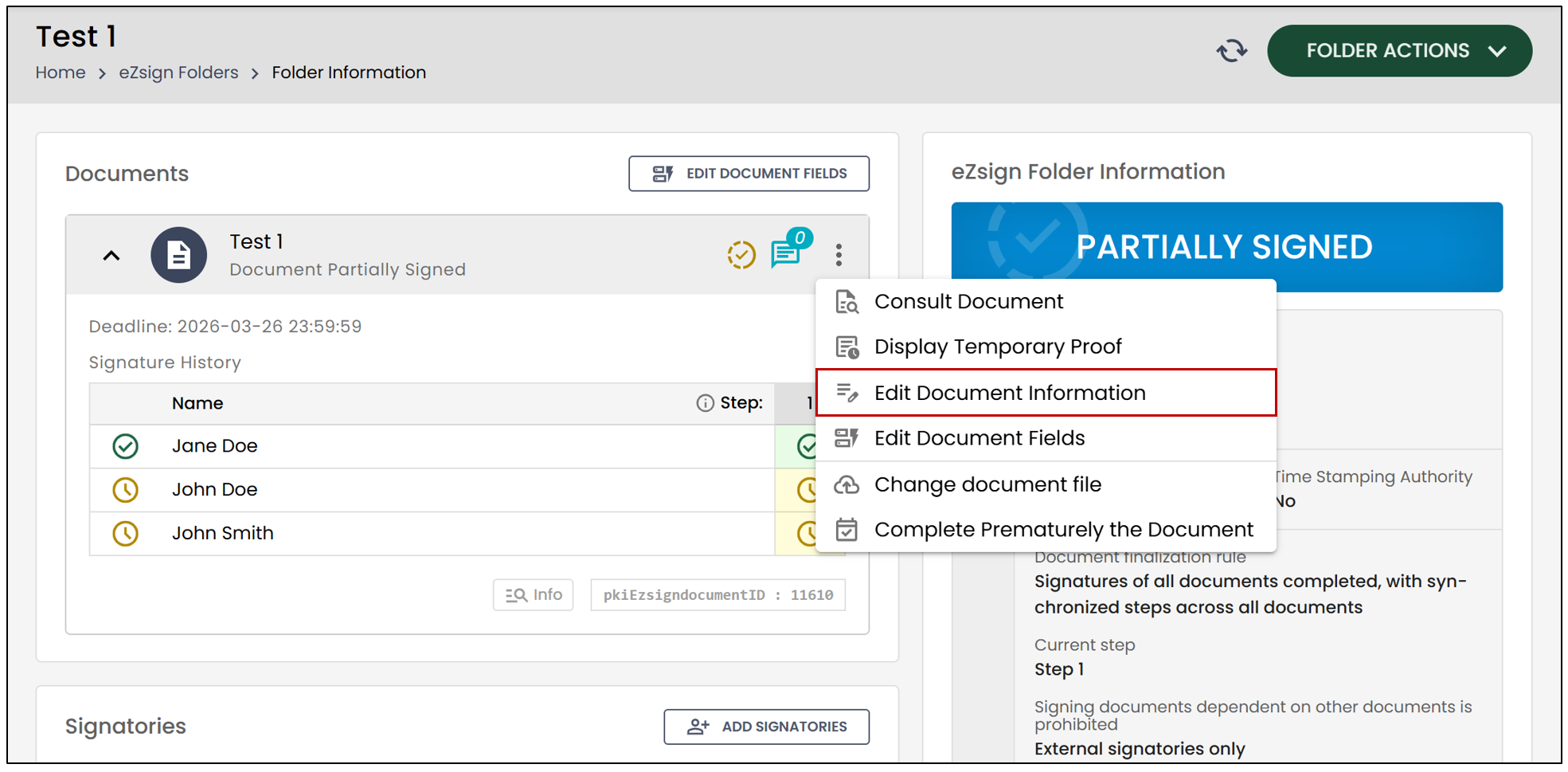
- From the menu on the right side of the document (three vertical dots icon), click Edit Document Information.
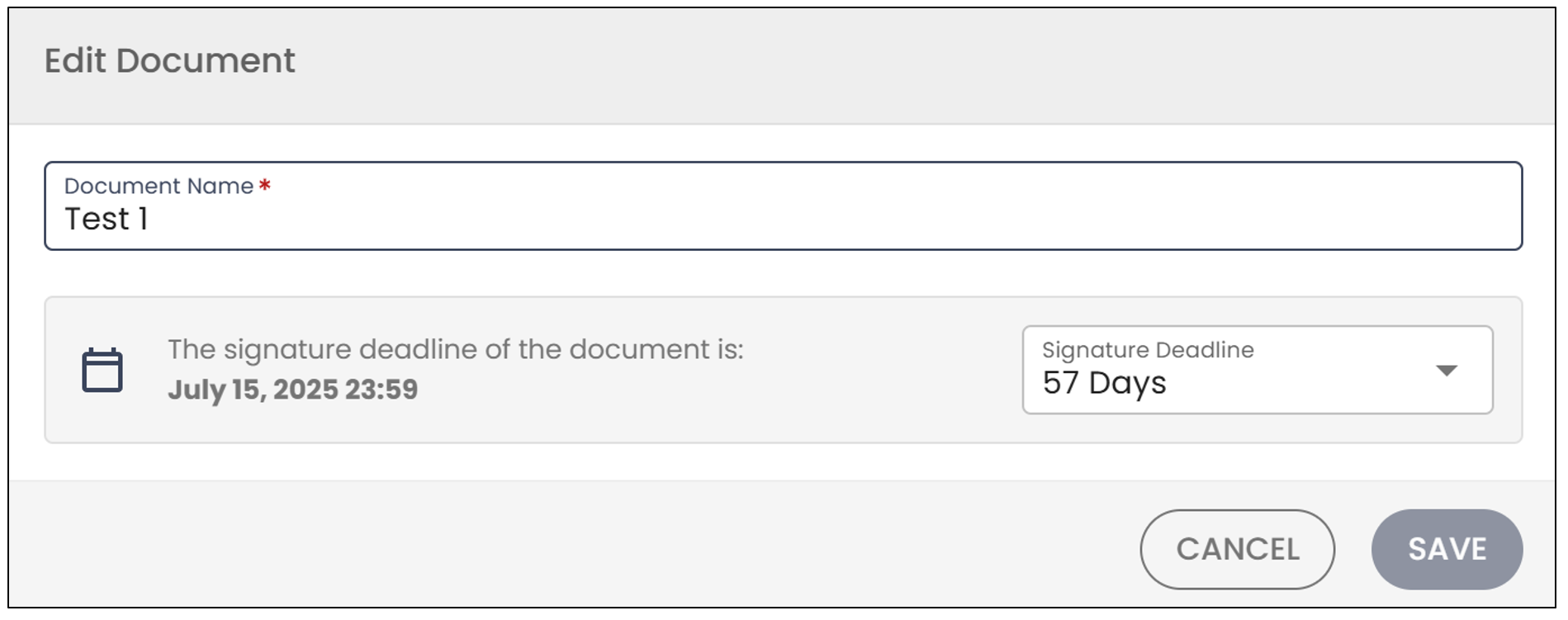
Select the desired number of days for the Signature Deadline (1 to 60), and the document’s signature deadline date will be automatically generated. The email link will no longer be valid after this date.
Make the desired changes and click Save to apply them.
Bulk Actions
Thanks to the new Bulk Actions feature, you can now perform actions on one or multiple incomplete documents at the same time.
- Check the box to the left of each desired document or click Select All.
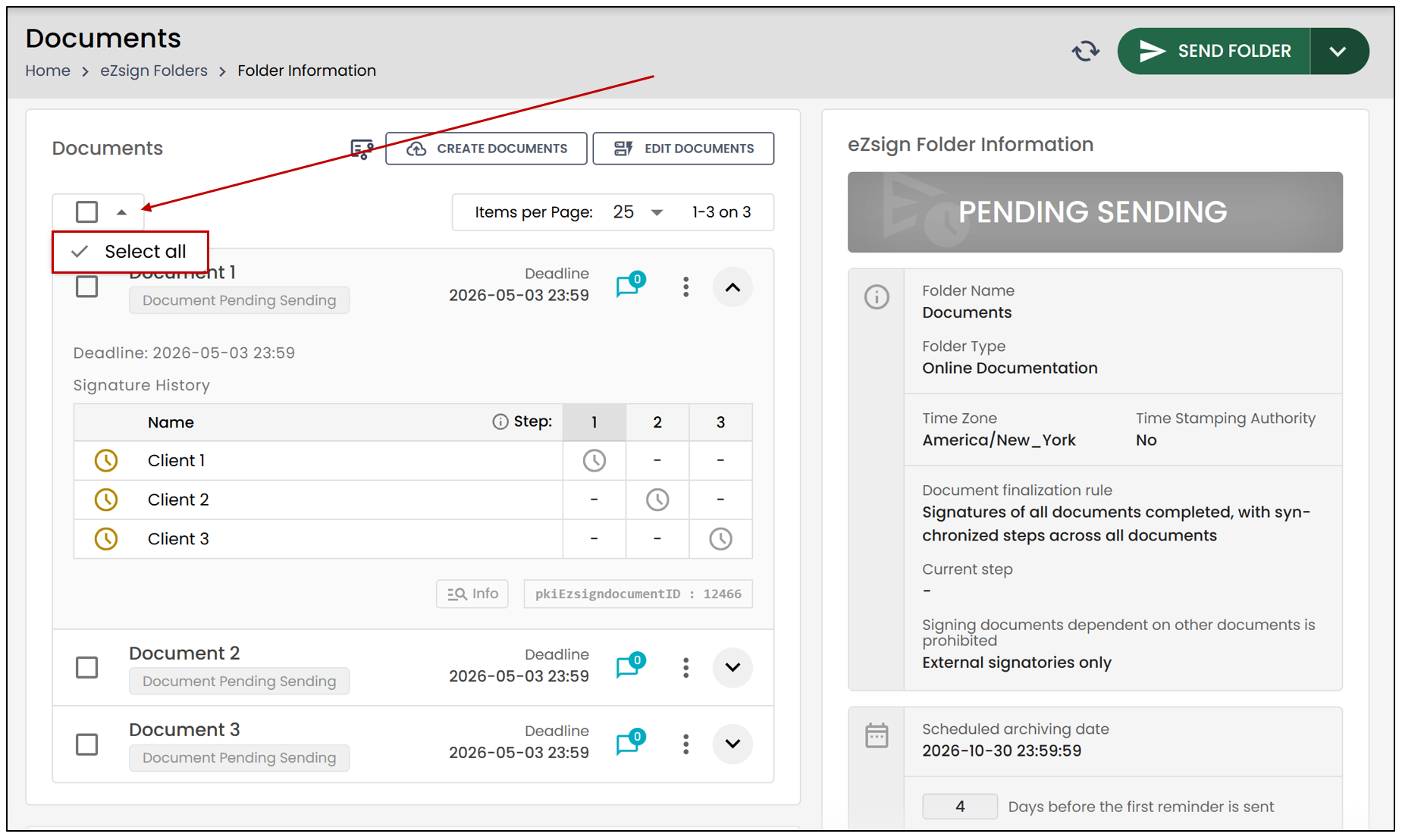
Once the documents are selected, you can perform the following actions:
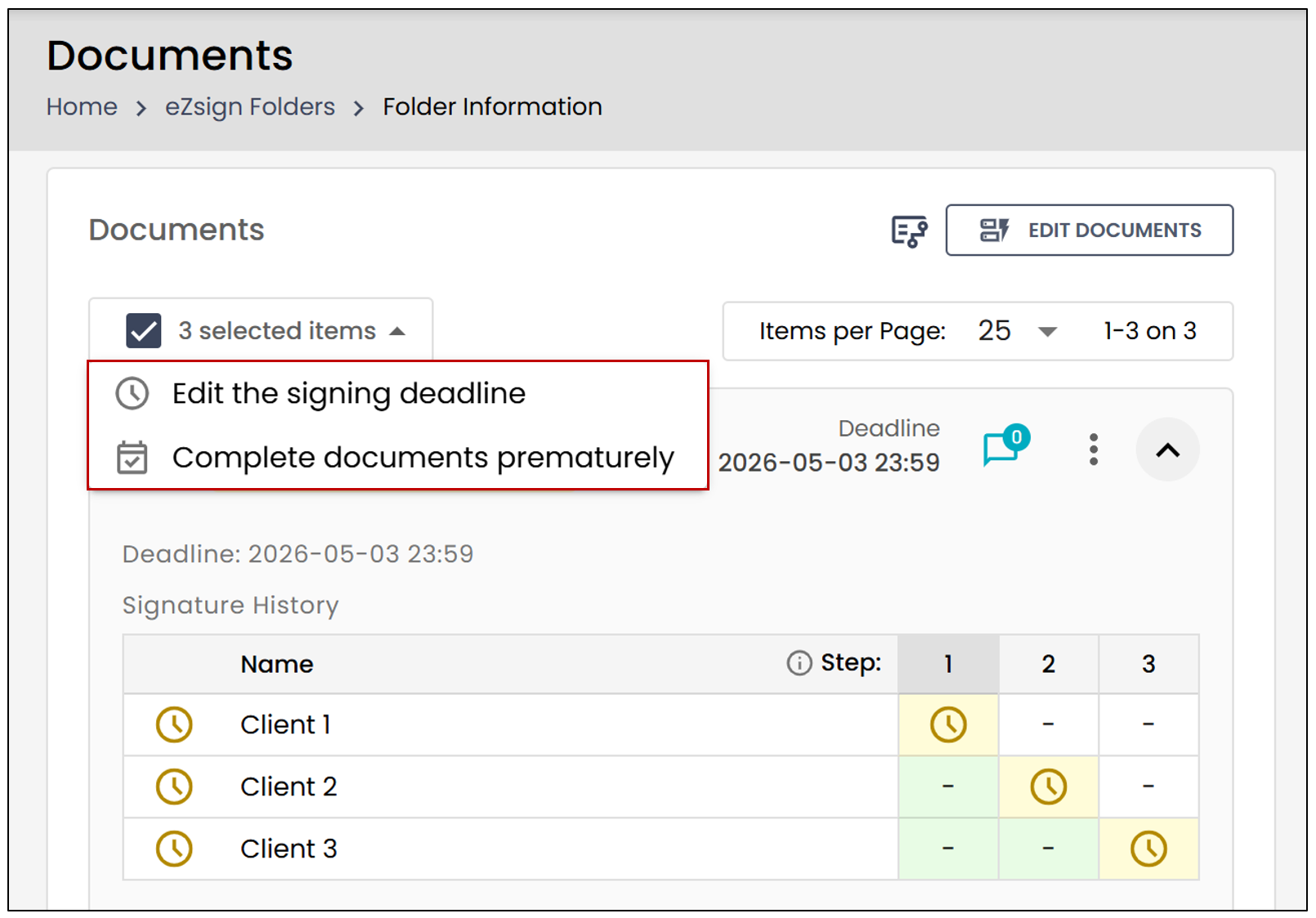
- Edit the signing deadline : For more information, please refer to the article Modify the signature deadline of a document.
- Complete documents prematurely : For more information, please refer to the article Signatory No Longer Wants to Sign: Complete Prematurely the Document .
Deleting a Document in an eZsign Folder
It is possible to delete a document from an eZsign folder, provided that the document is still in the signing process — in other words, it must not have a Completed status.
Pending Sending
- From the menu on the right side of a document (three vertical dots icon), click Delete Document.
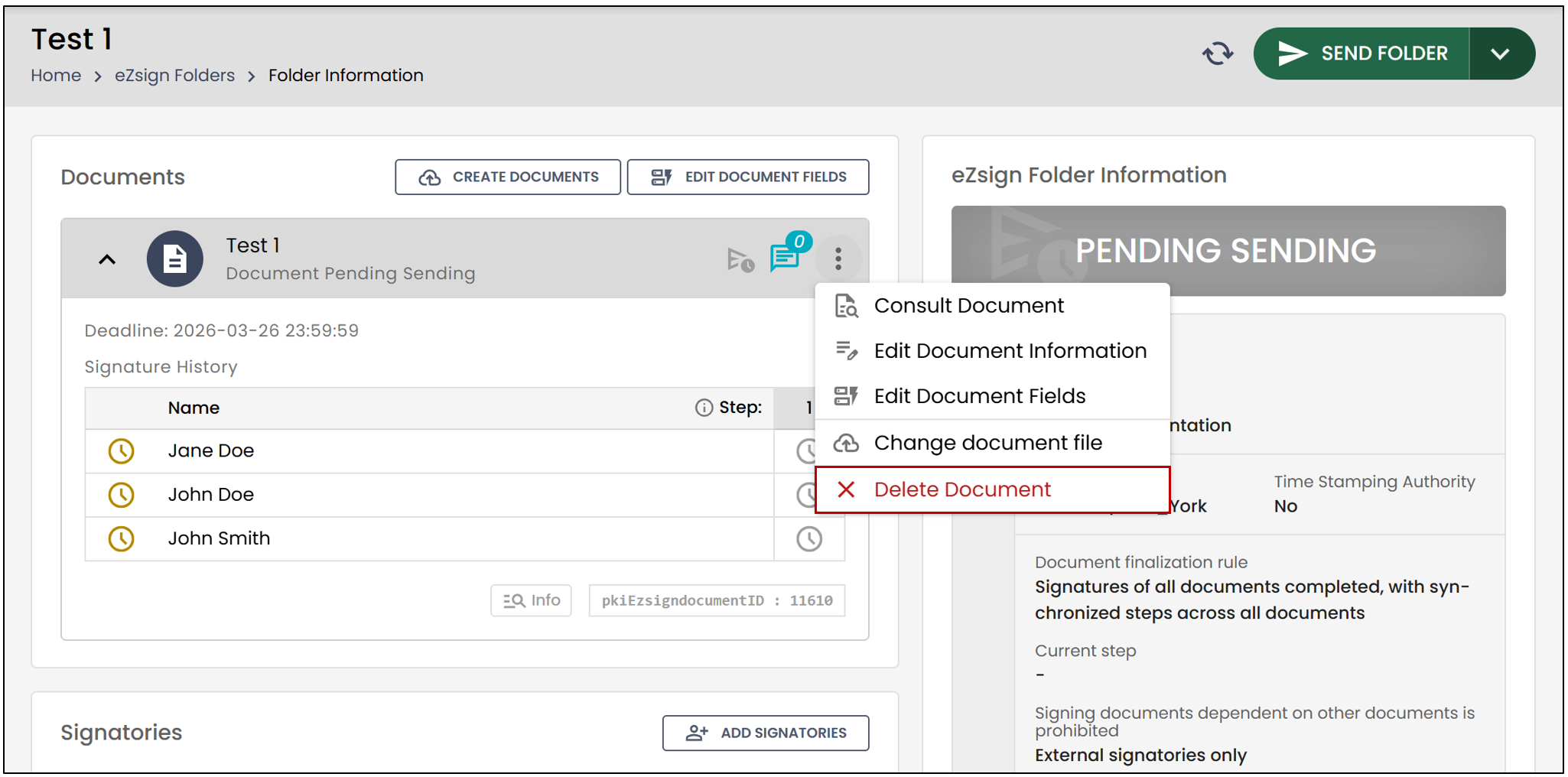
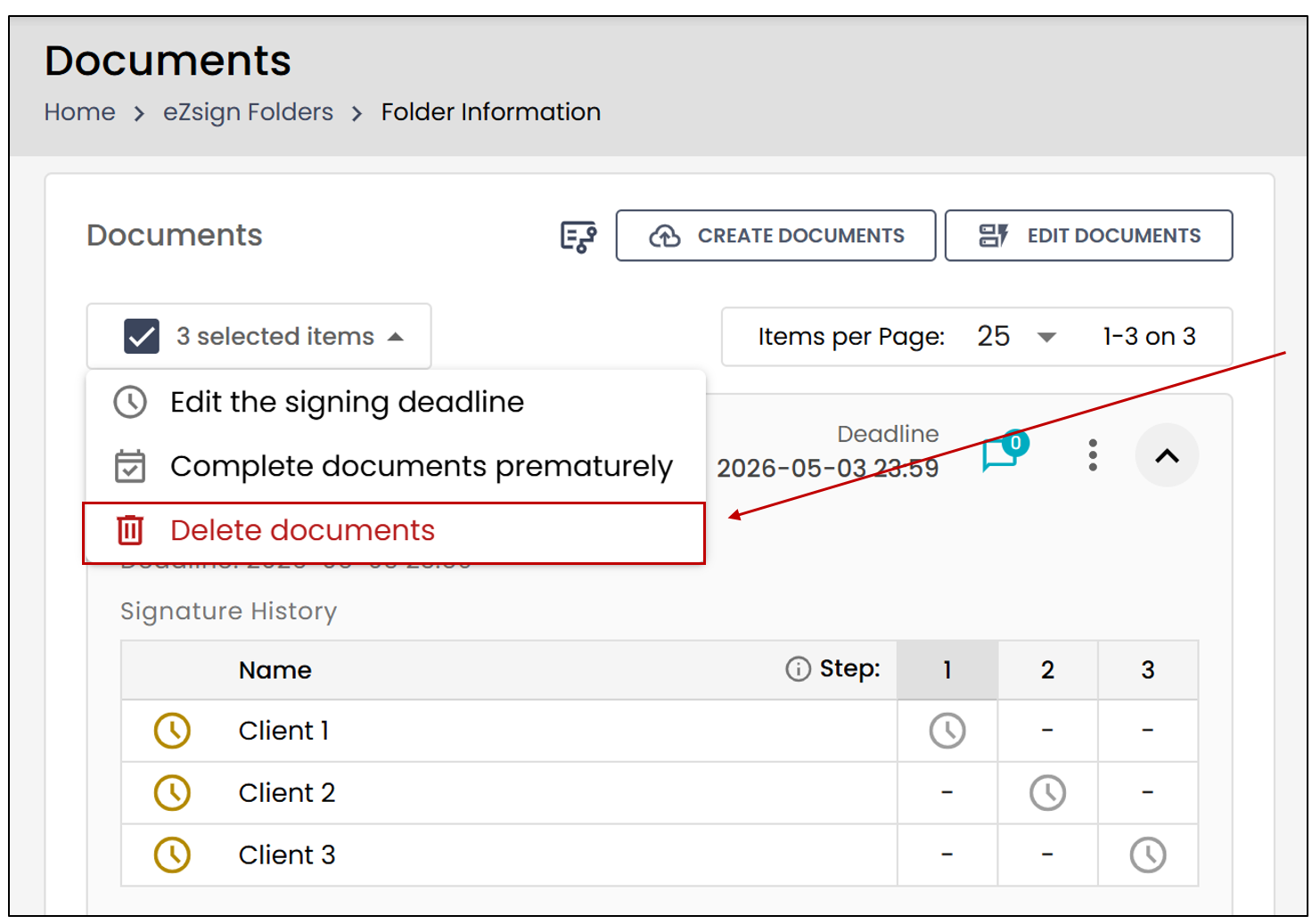
To delete multiple Pending Sending documents at the same time, check the desired documents, then select Delete documents
Sent (With or Without Signatures Obtained)
- From the menu on the right side of a document (three vertical dots icon), click Edit Document Fields.
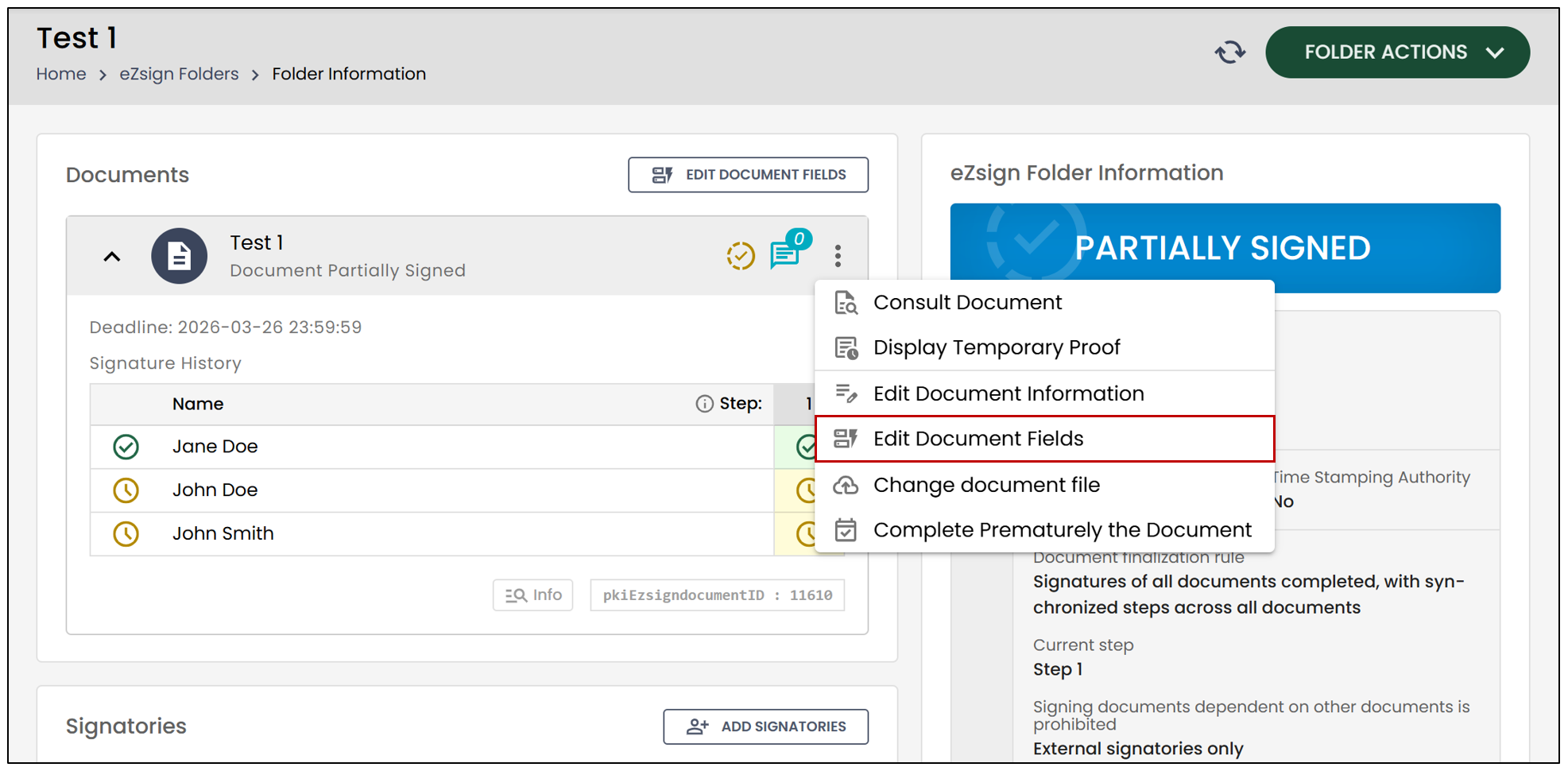
This message will appear:
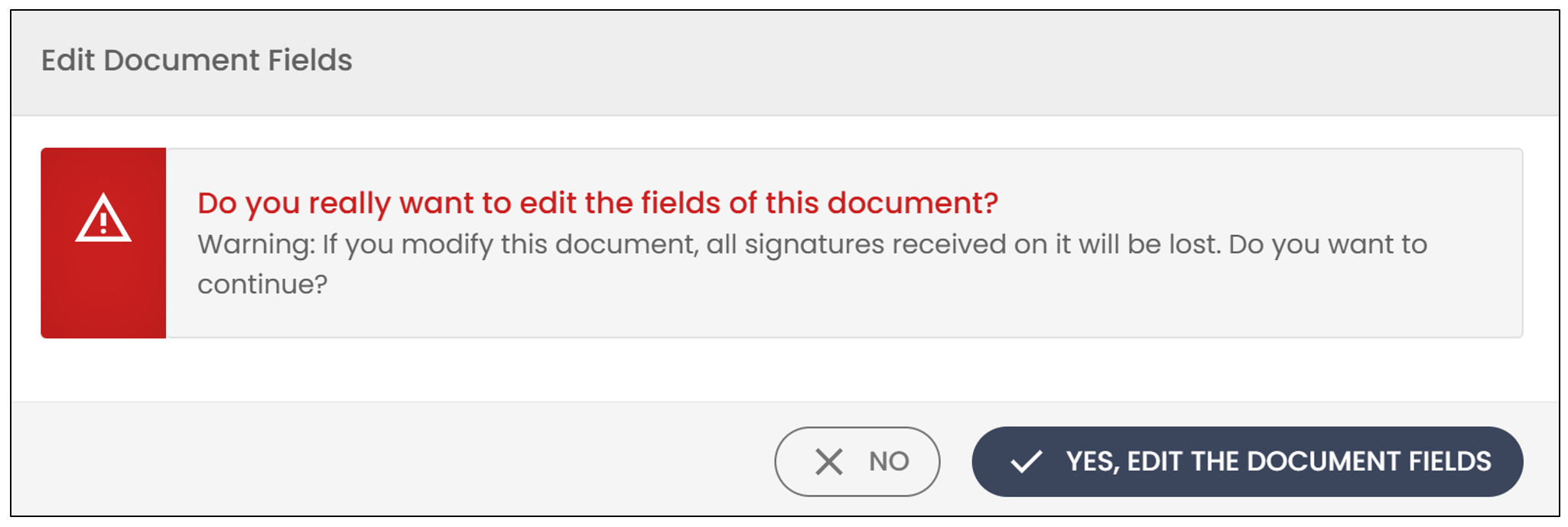
- Click Yes, edit the document fields to confirm.
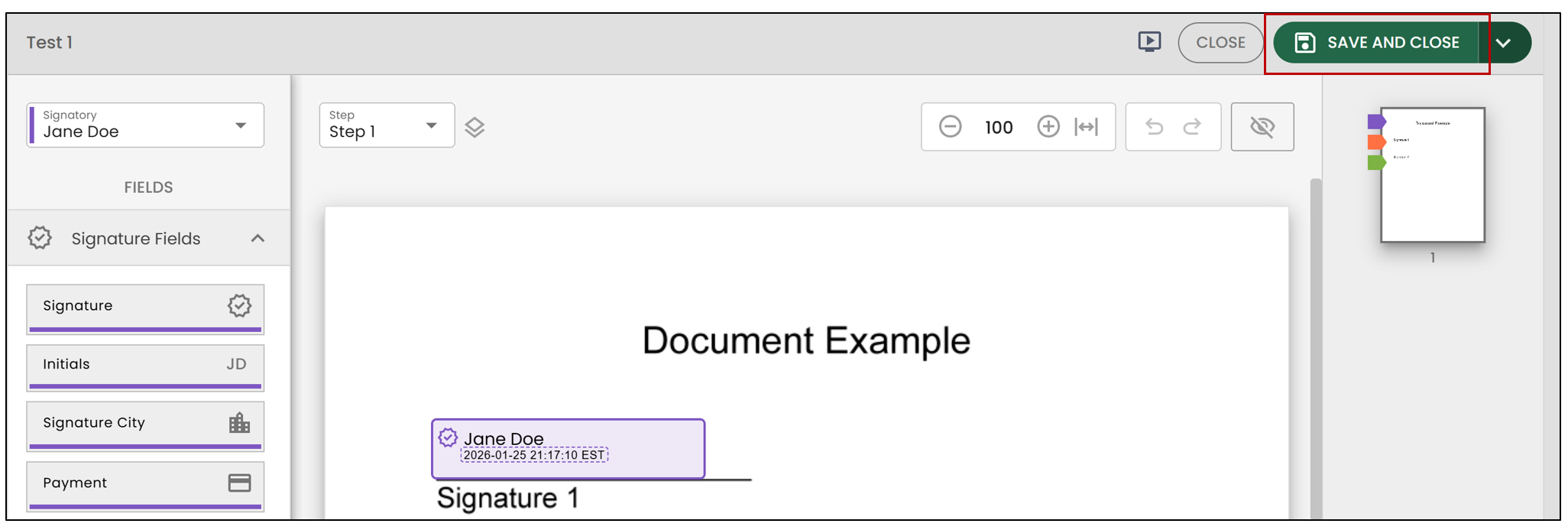
Click Save and Close.
Once the folder has returned to the Pending Sending status, you will be able to delete the document.