English
Shared eZsign Links
The feature of shared links allows the user to create a link from one of the system’s templates. This link can be accessible on a website or an intranet site, for example.
Create a Shared eZsign Link
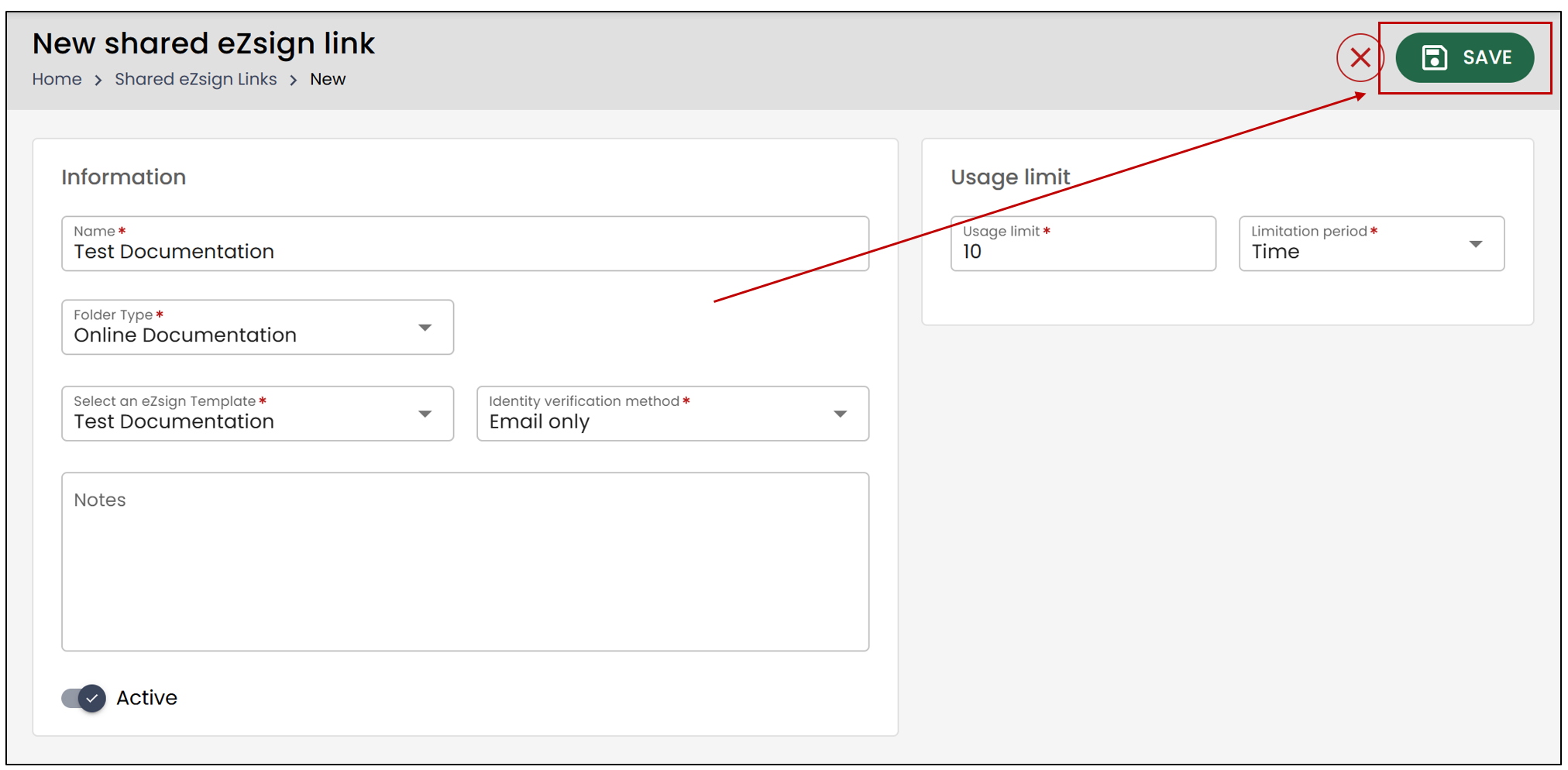
From your eZsign application >> Select Shared eZsign links >> New shared eZsign link.
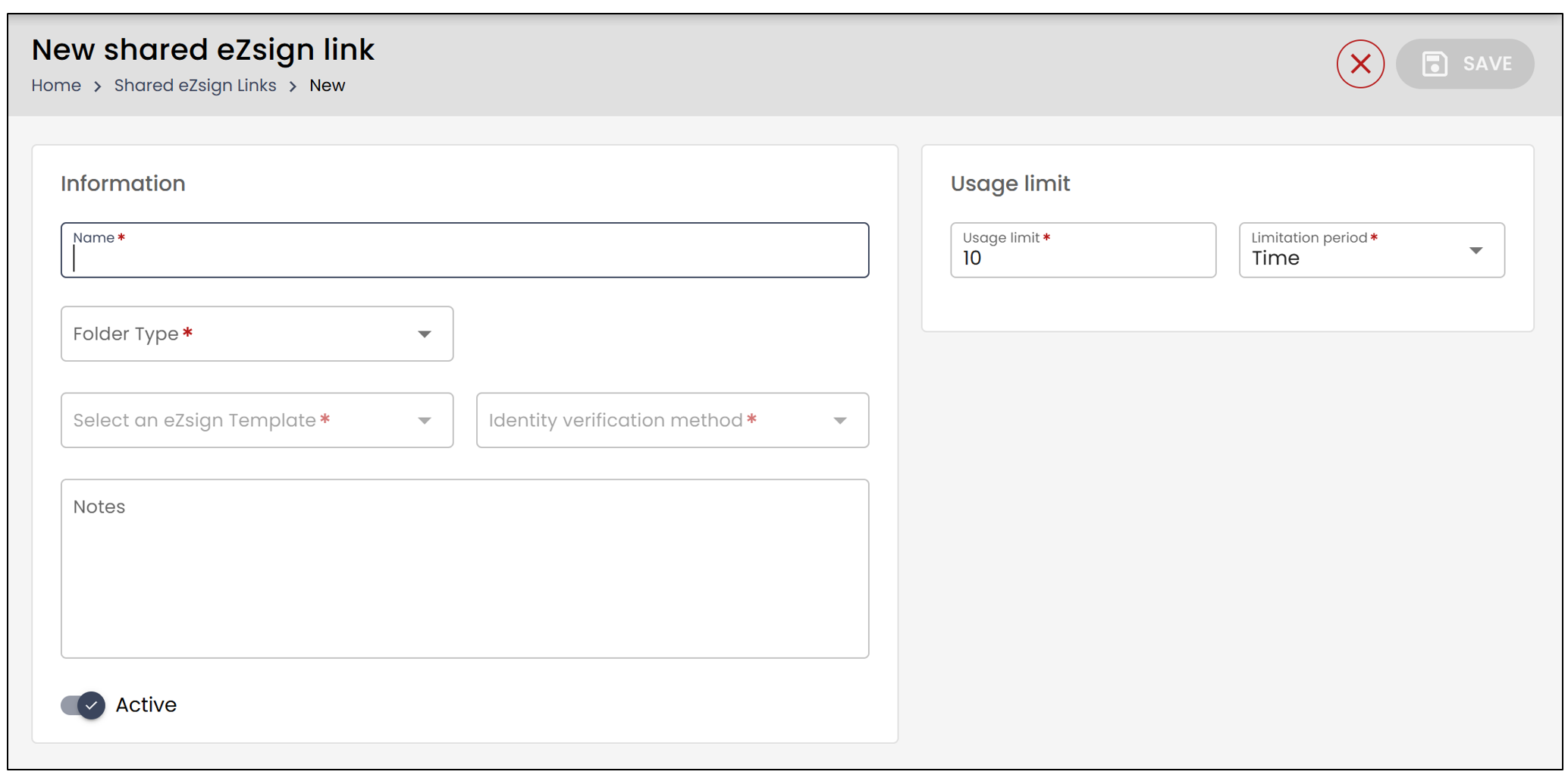
You will need to enter the following information:
Name : Enter the name of the link.
Folder Type : Select the folder where the template you want to link is located.
eZsign Template : Select a template belonging to the selected folder type from the drop-down list.
Authentication Method : Choose one of the authentication methods from the drop-down list.
- Email only : The signer will receive an email informing them that they have a document to review or sign.
- Email and phone or SMS : The signer will receive an email and a code via SMS or phone.
- No Validation : The signer will be able to access the document and sign it directly.
- SMS only : The signer can choose between receiving a code via SMS or phone.
Notes : You have the option to add personal notes to the eZsign shared link
You will also need to select the Usage Limit. This limit allows the user to be alerted if the limit is exceeded and serves as protection against hacking. If the limit is exceeded, the link will no longer be functional, and the user will be notified.
NOTE: You can adjust the limit according to your preferences.
- Once all the information is entered, click Save to save your changes.
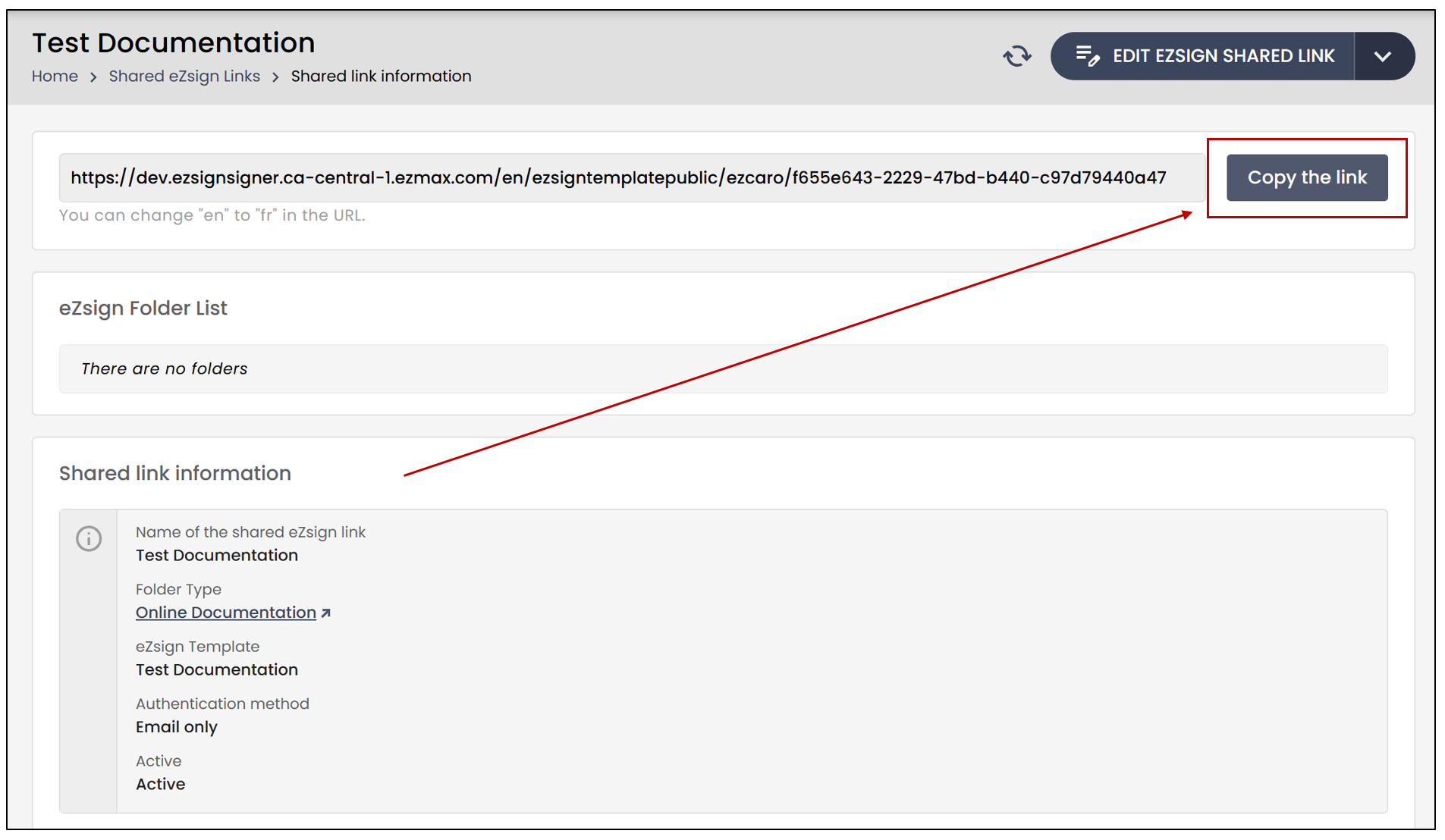
- You can then Copy the link and integrate it into your website or intranet site.
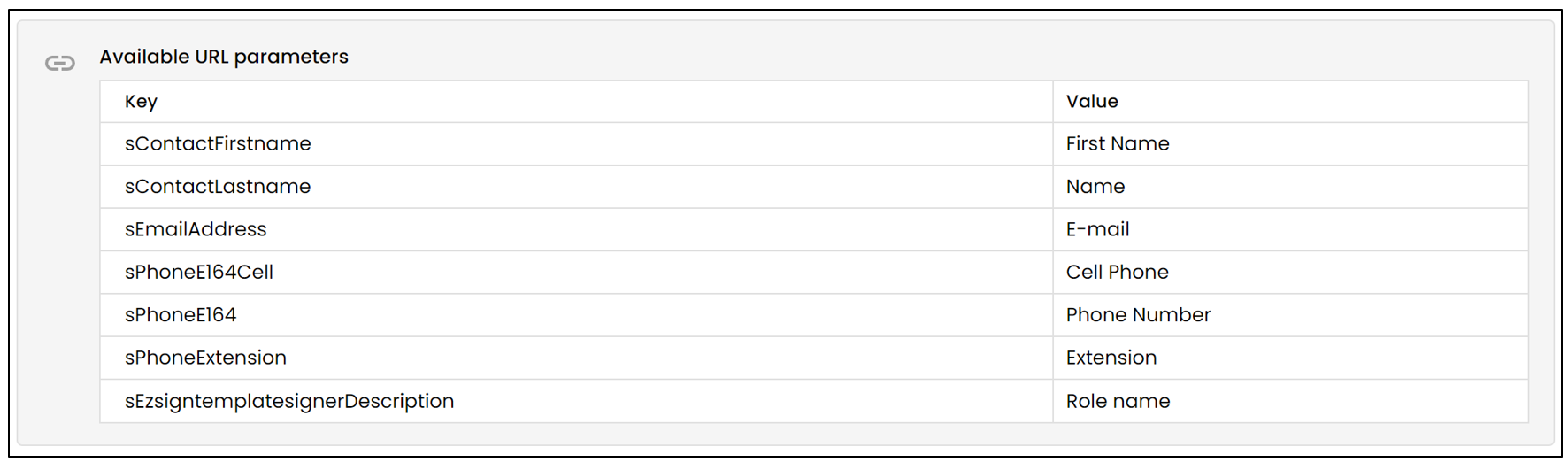
Available URL parameters:
You can pre-fill a form using these parameters, if desired.
Enter the Signer’s Information
Here is an example of what a signer would see after clicking on the document link from your website or intranet site.
- The signer’s personal information must be entered. The user of the link will then need to click on Begin the process.
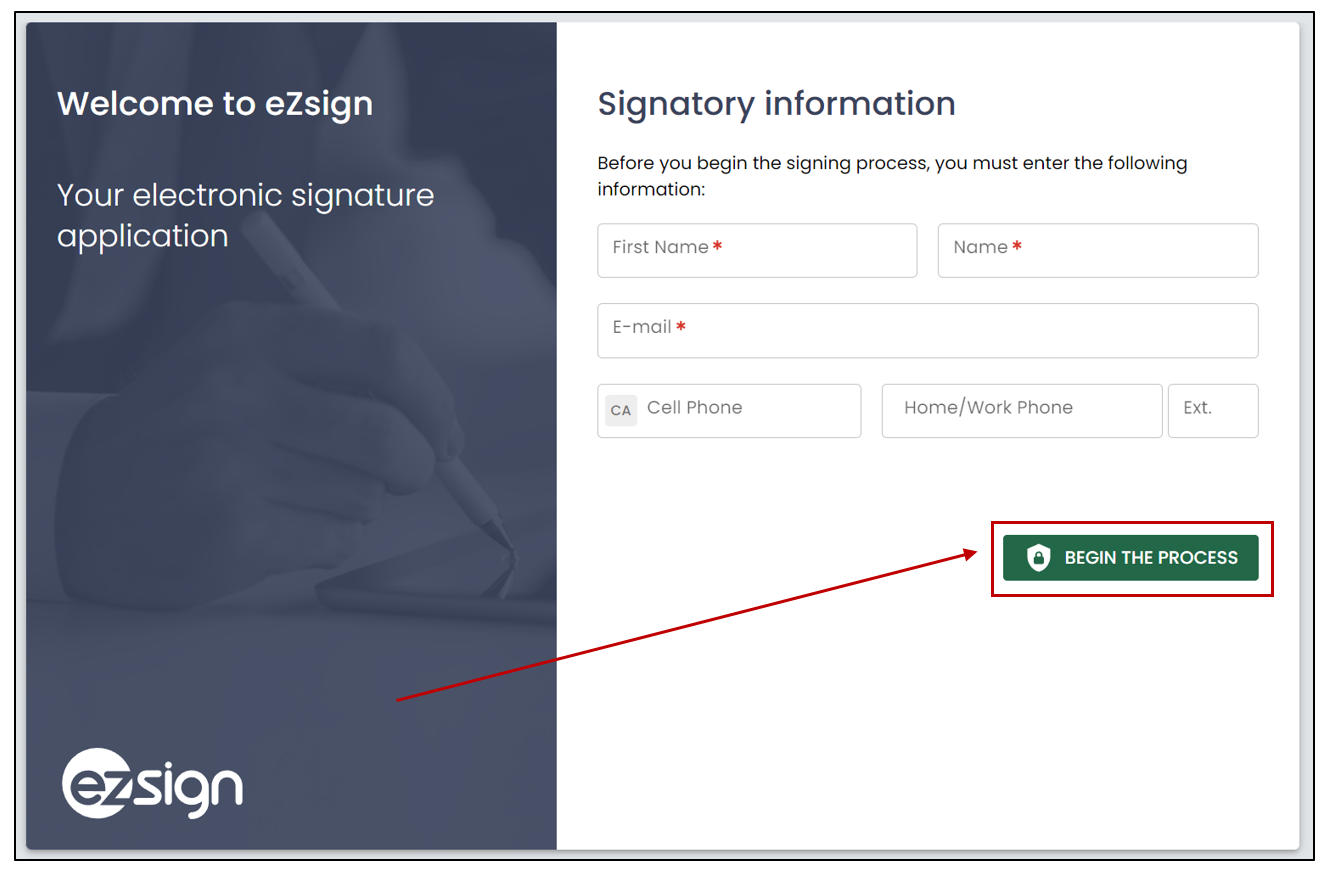
NOTE: In this example, the cell phone number and home/work phone number are not required since the chosen Authentication method was Email only.
- The message below confirming the creation of the document will appear.
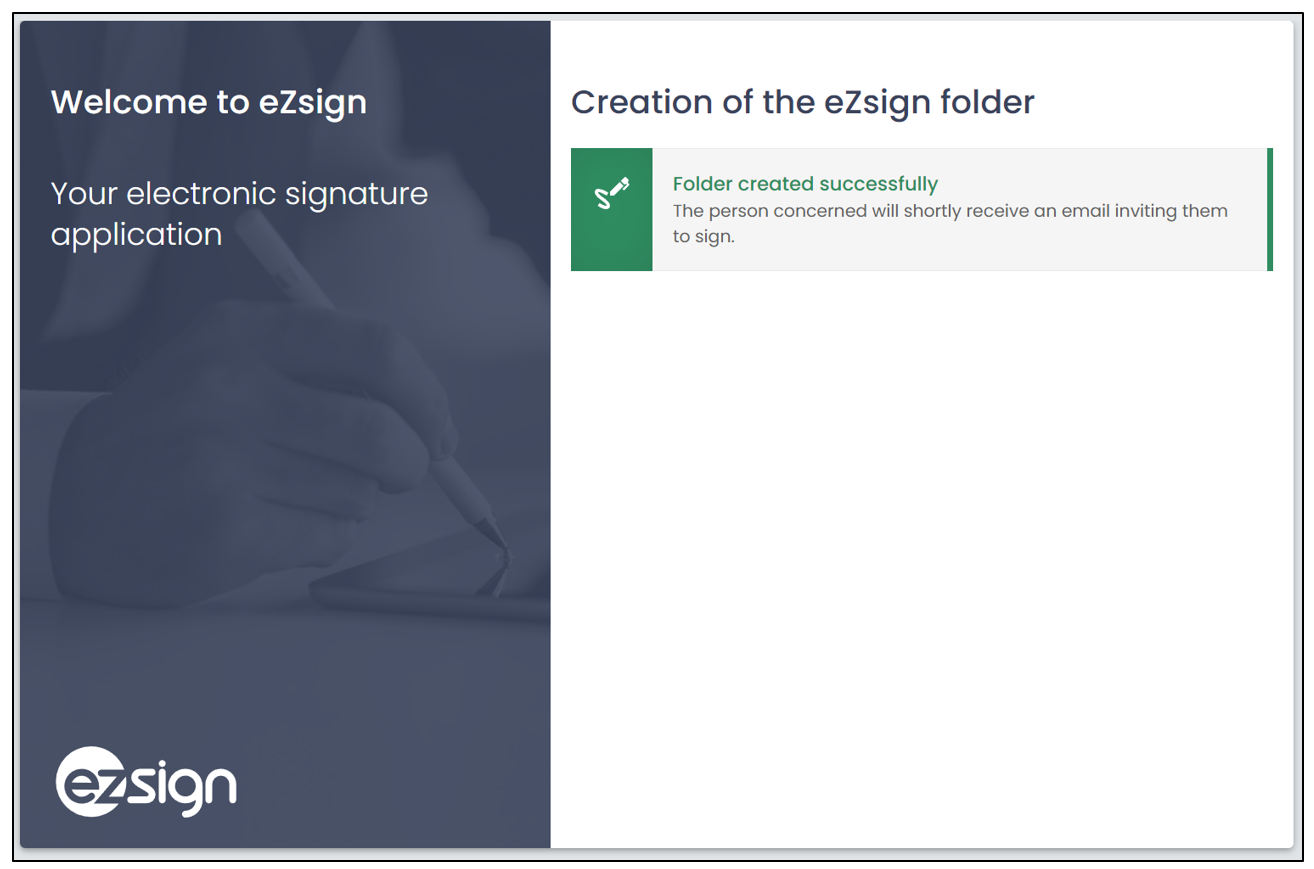
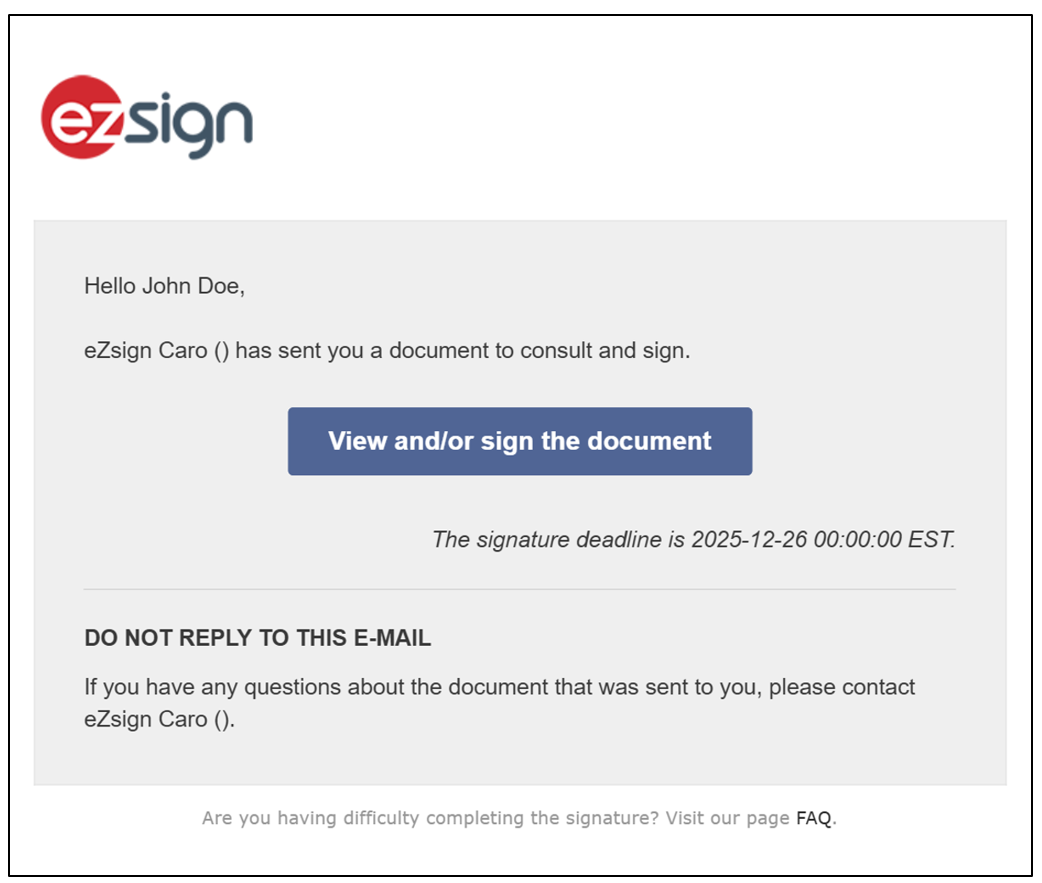
- The signer will then receive an email informing them that they have a document to review and/or sign or a code via phone or SMS, depending on the previously selected authentication method.
Folders Created via a Shared Link
NOTE: All folders created through a shared link will be grouped in the same location to facilitate searching.
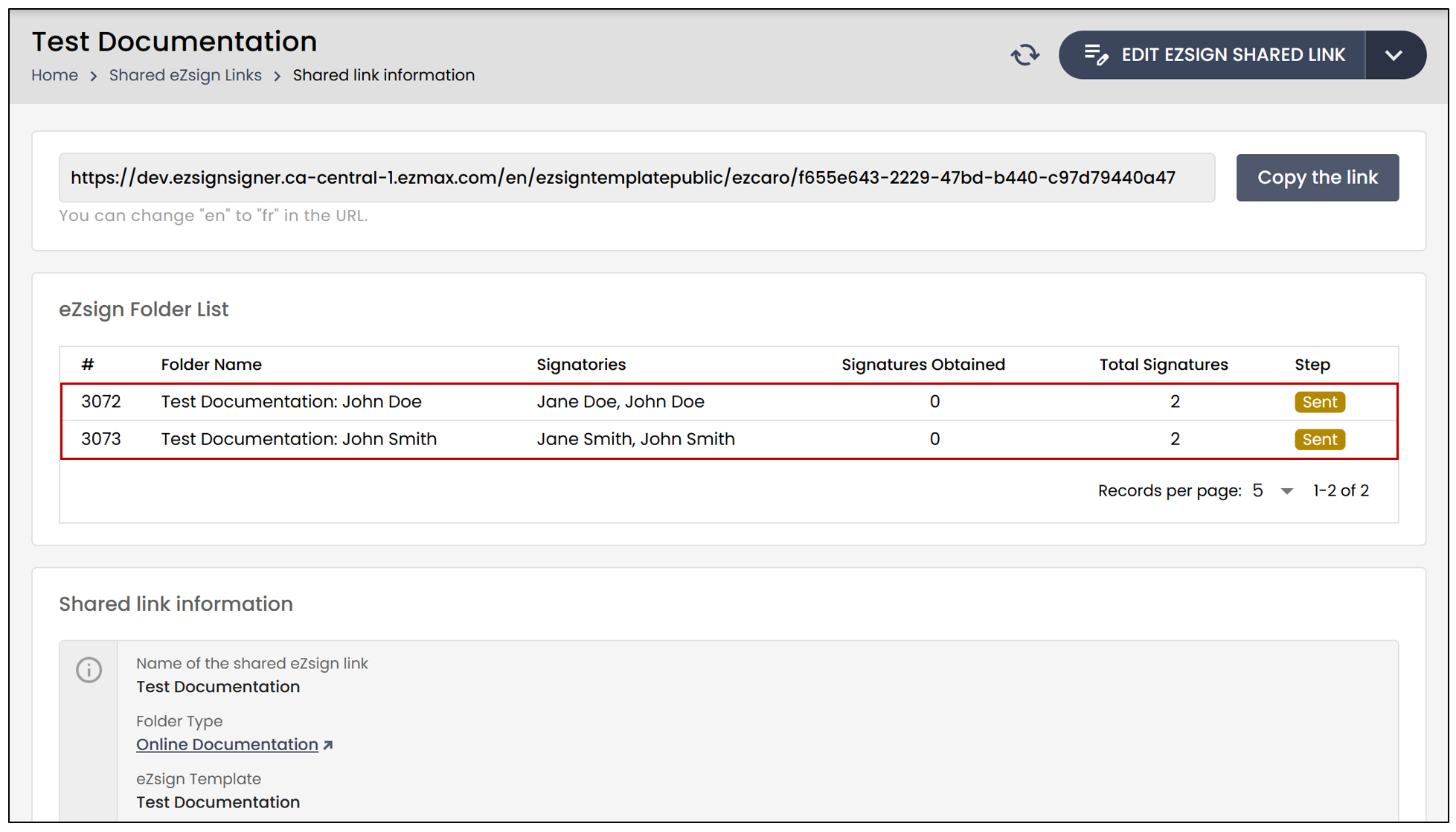
From your eZsign application >> Select Shared eZsign links >> Click on the desired link.
You will then be able to see the status of each folder and access the completed documents.