

English
Batch Download of Documents From a Bulk Send
Batch Download of Documents From a Bulk Send
To simplify the download process, it is now possible to download multiple documents simultaneously. This eliminates the need to go into each folder and download the documents one by one. A batch download of signed documents is now available.
- From the eZsign menu, select Bulk Sends , then select the desired bulk send.
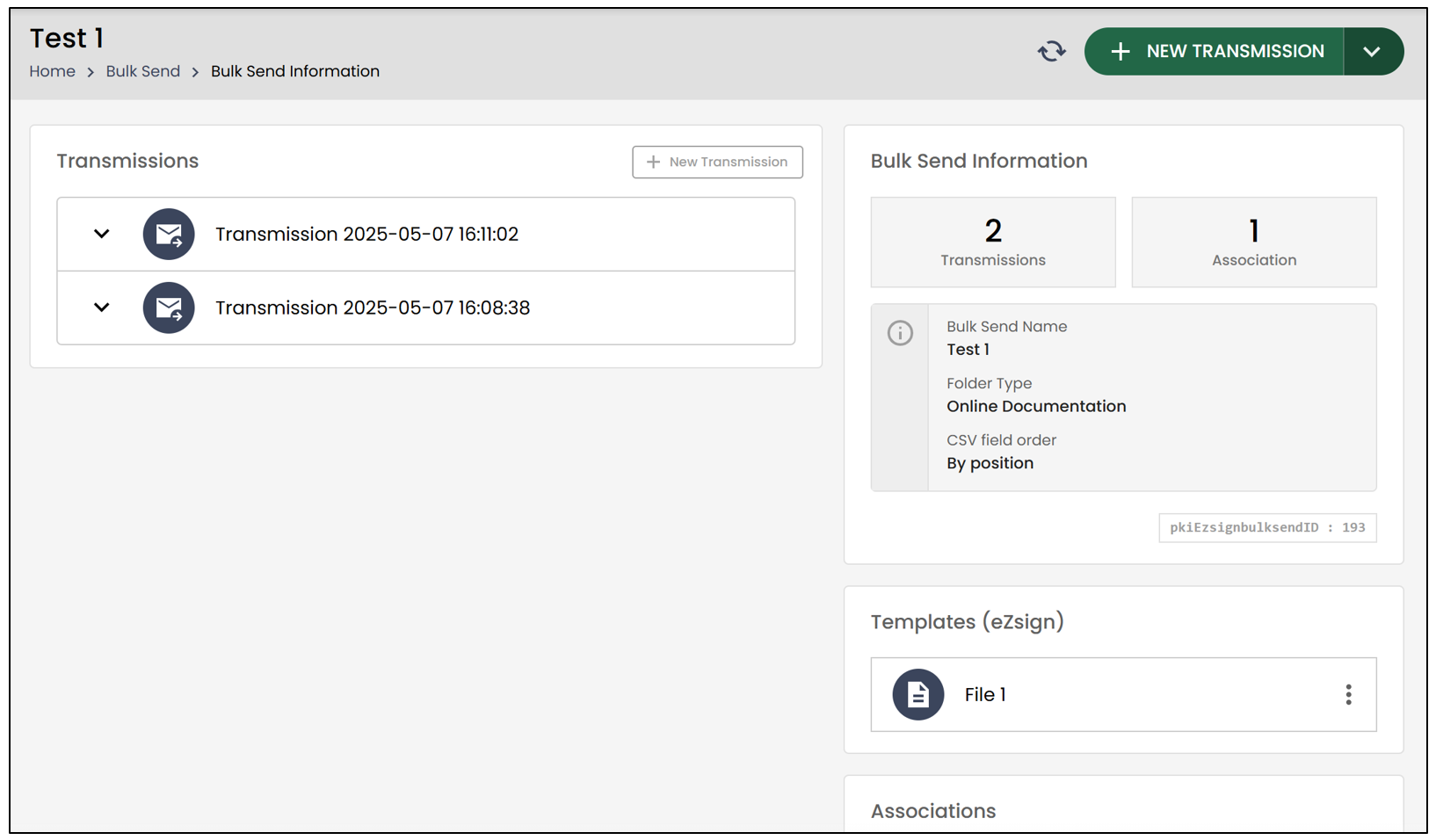
- By clicking the downward-pointing arrow to the left of a transmission, you will be able to view the folders.
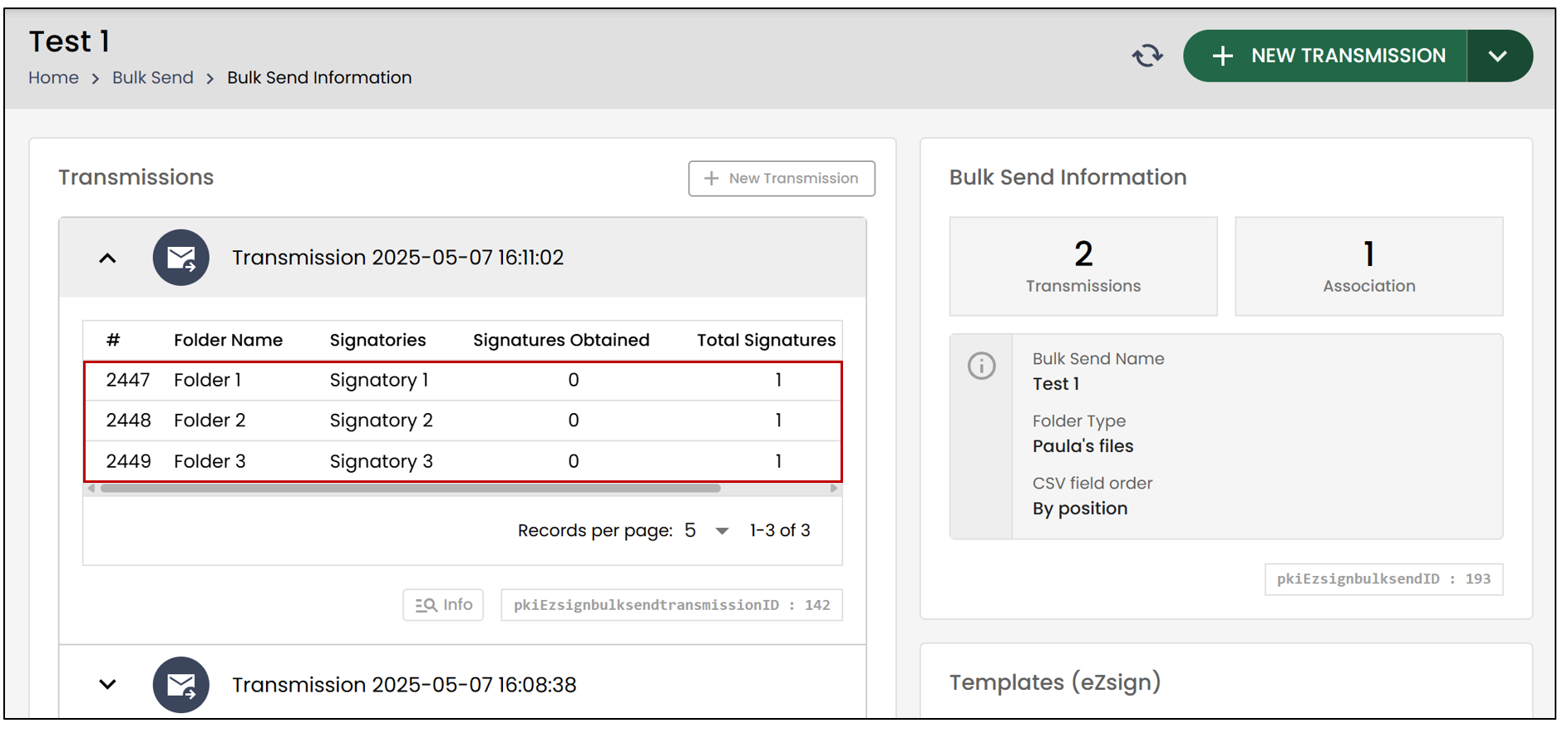
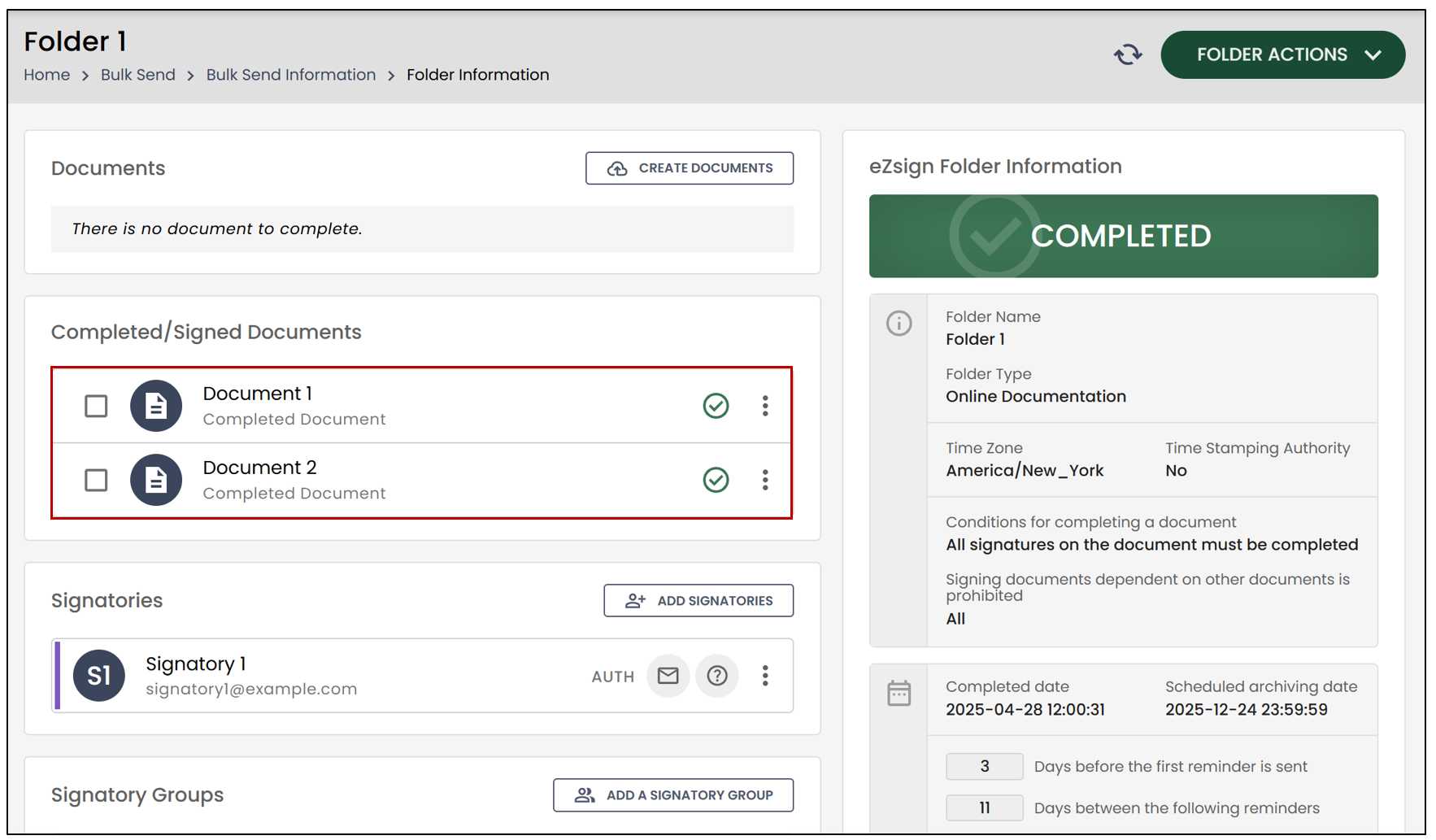
- If you click on one of the folders, you will be able to see all the information related to it.
In this example, the folder contains two completed/signed documents.
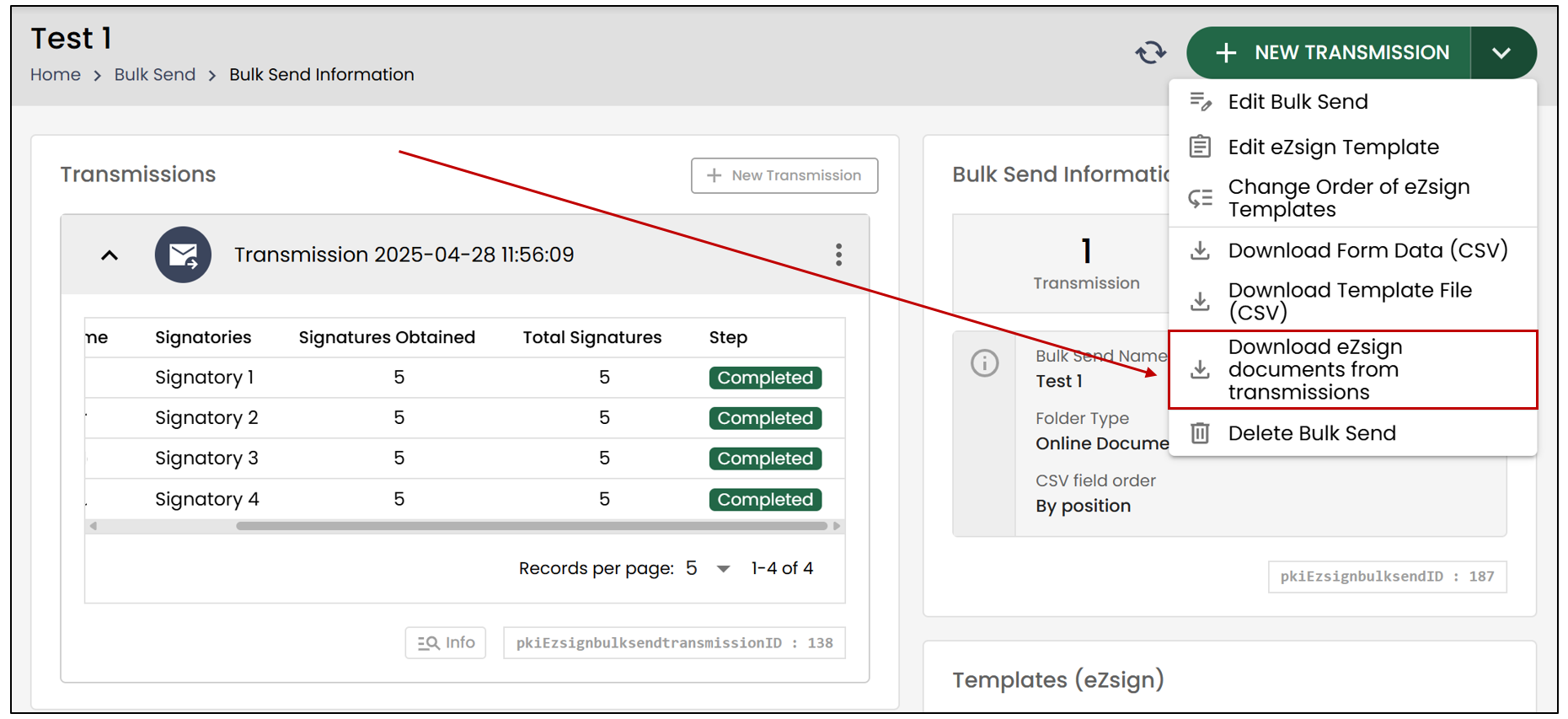
Instead of accessing each folder individually to select the documents to download, you can now perform a batch download of all signed documents.
- From the desired bulk send, click on the

icon, then select Download eZsign documents from transmissions.
- Select the documents you wish to download, then click Download.
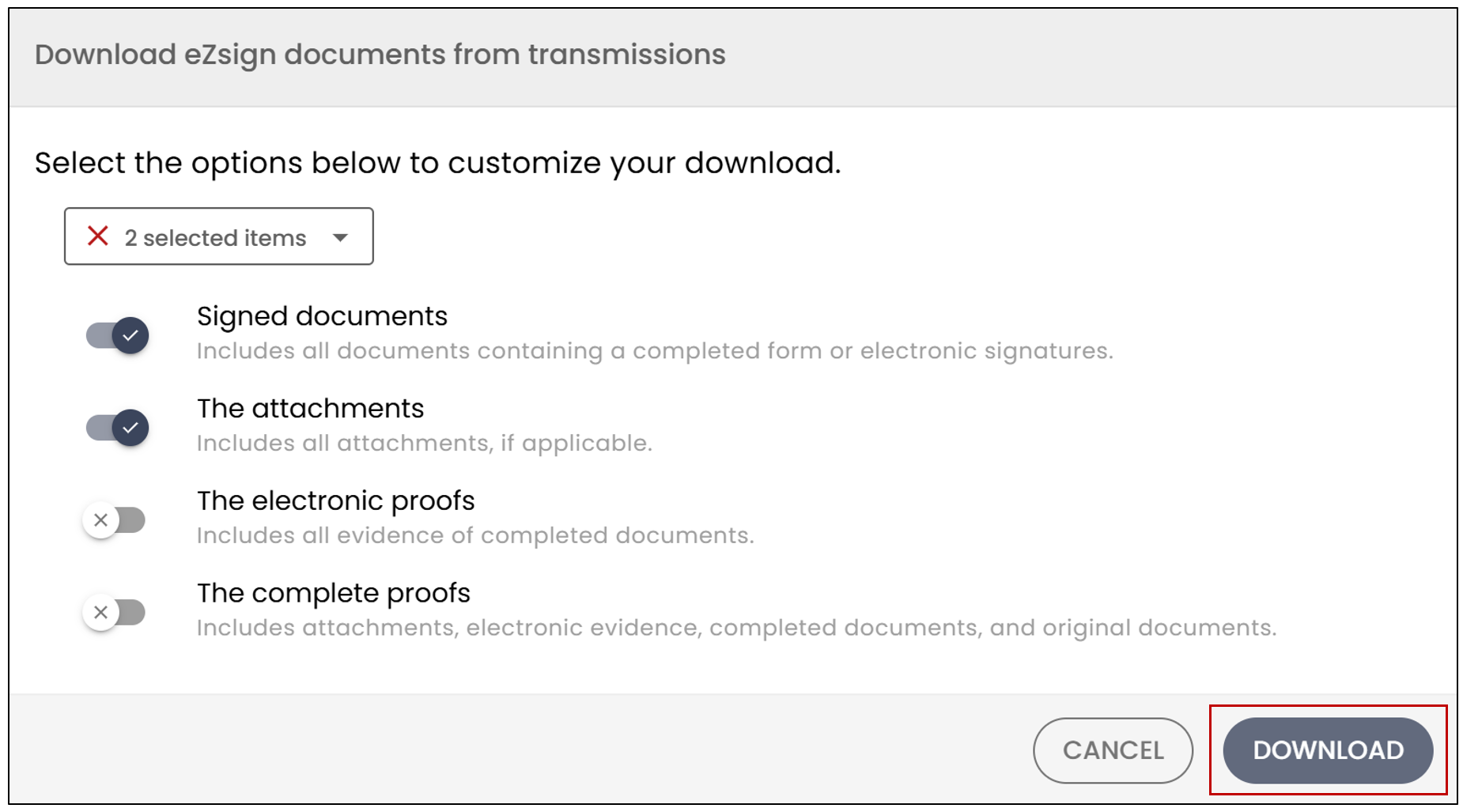
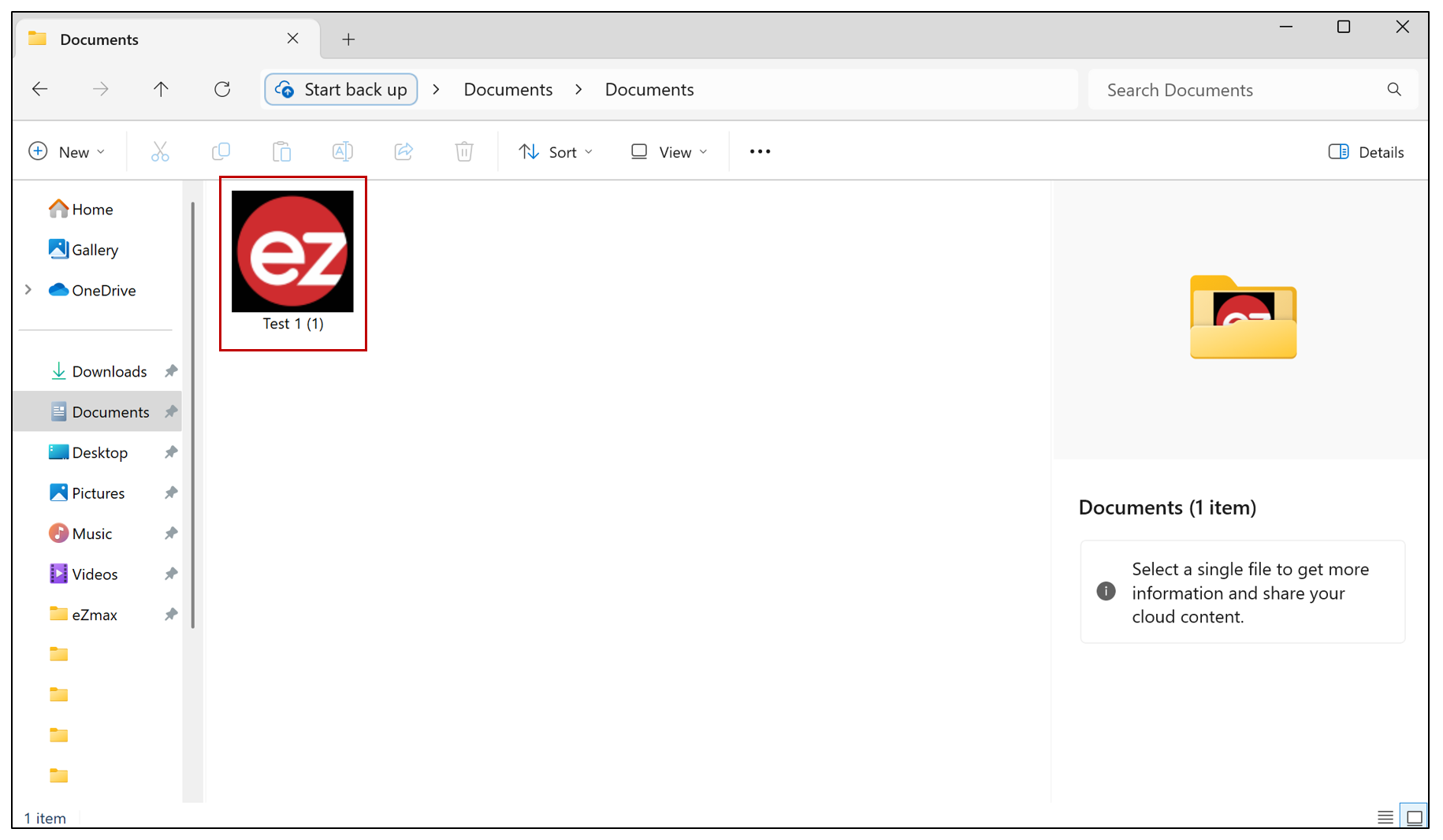
- An .ezmJob file will be downloaded to your computer.
Warning
To access the downloaded documents, it is essential to open the file using our eZmax application version 4+.
NOTE: You will not be required to log in to the application; simply opening it will be sufficient.
Install the eZmax Application
For detailed instructions on installing the application on Windows or iOS, please refer to the article Download the eZmax application.
Access the Downloaded Documents
From the eZmax application, you will need to right-click (or long click if you're on a Mac) on the

icon. By doing this, a context menu will appear, allowing you to select File Manager.
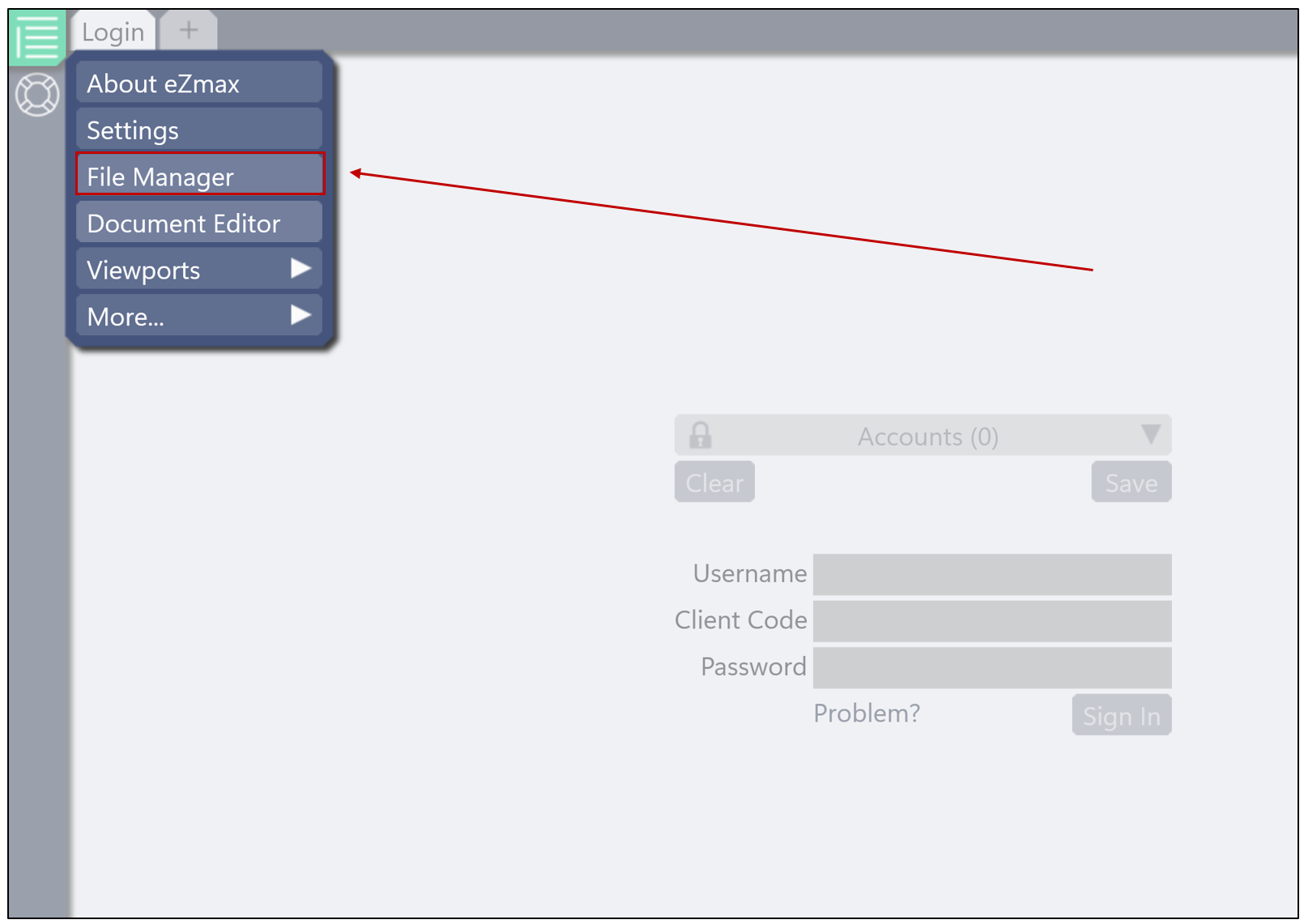
- If the previously downloaded file does not appear in the File Manager , you will need to select the

icon on the left side of the menu and then locate the file directly in your folders by clicking Open.
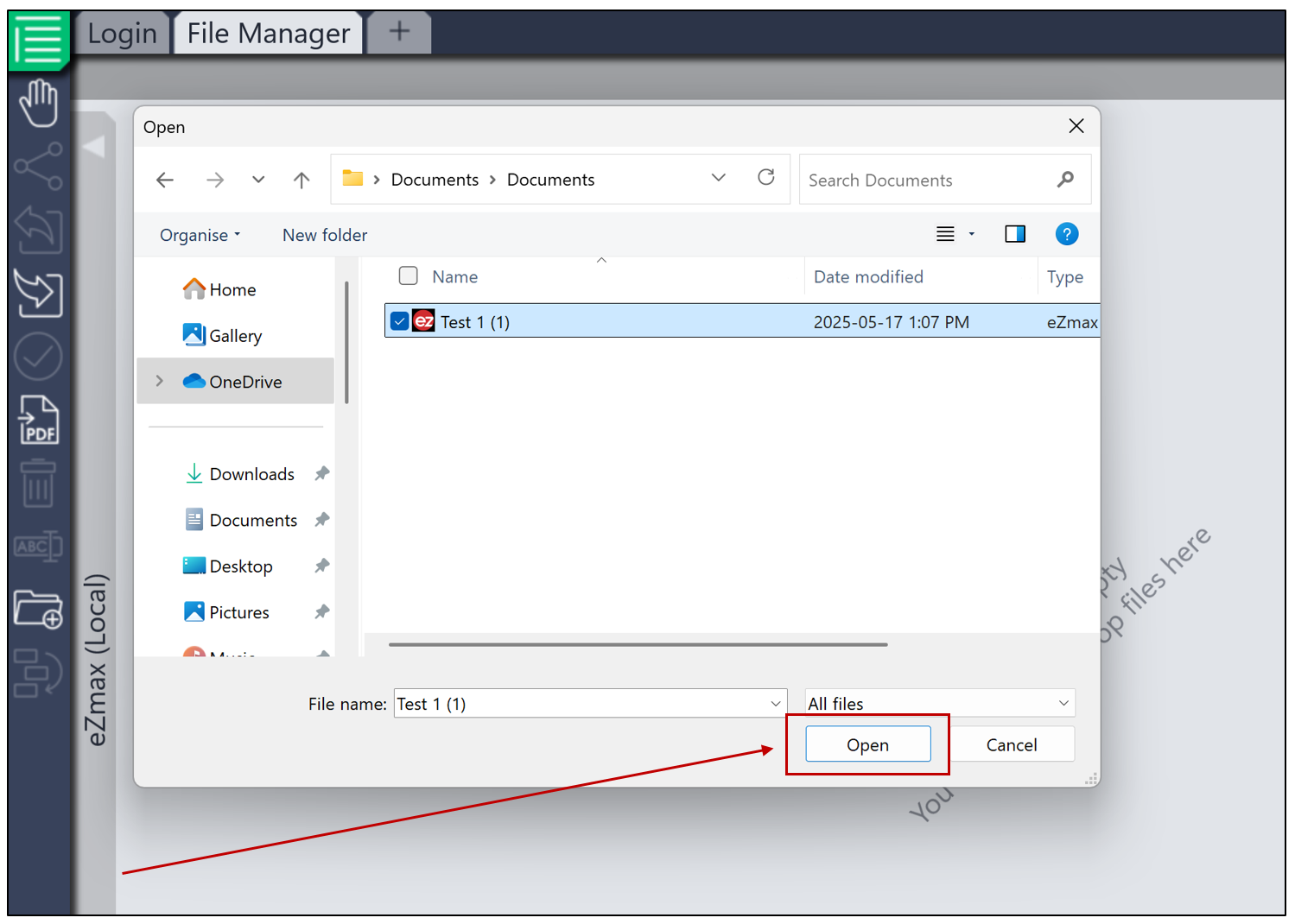
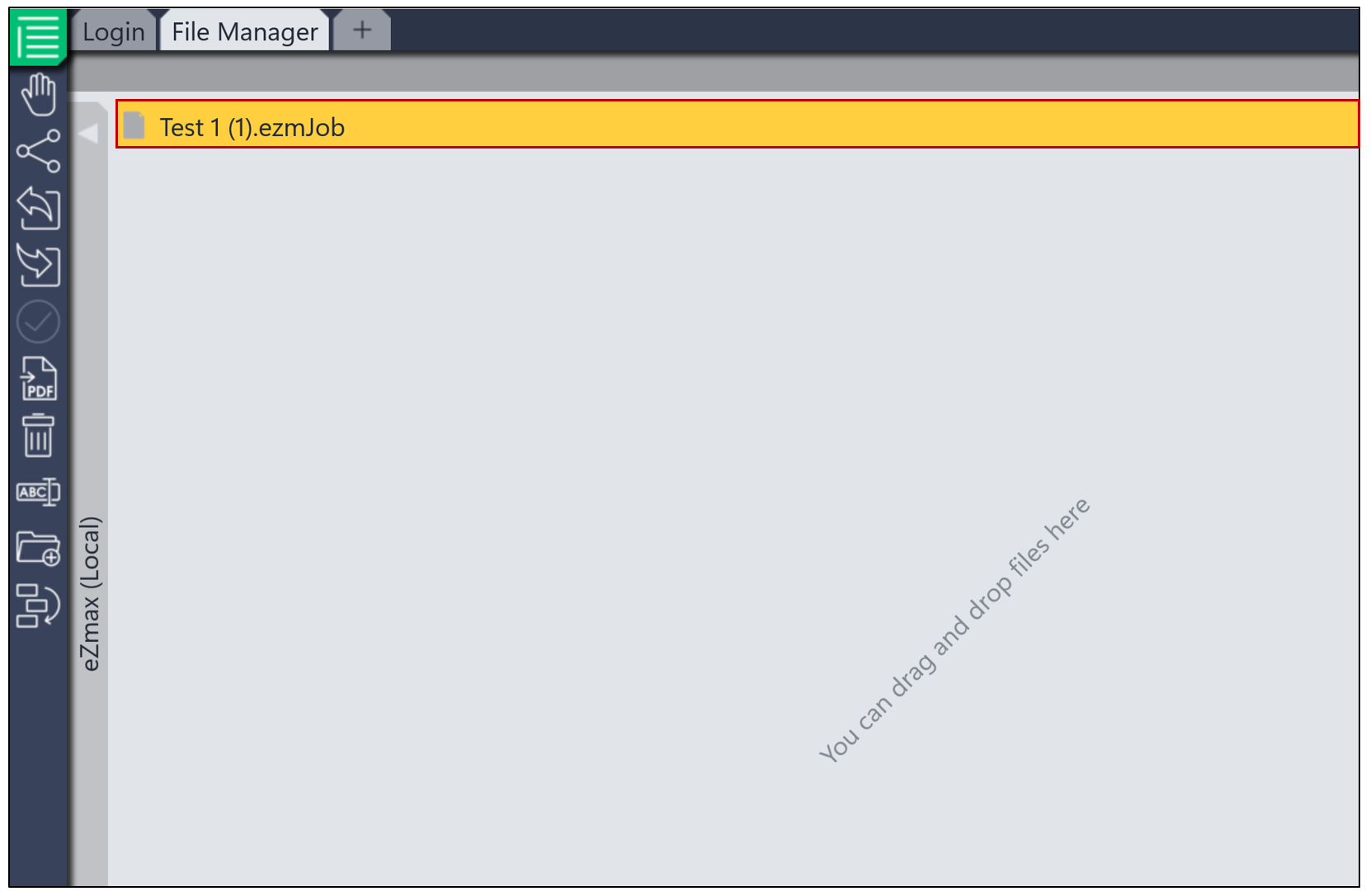
- Once the file is selected, you will need to double-click on it, and it will be ready to be downloaded, awaiting the start of the process.
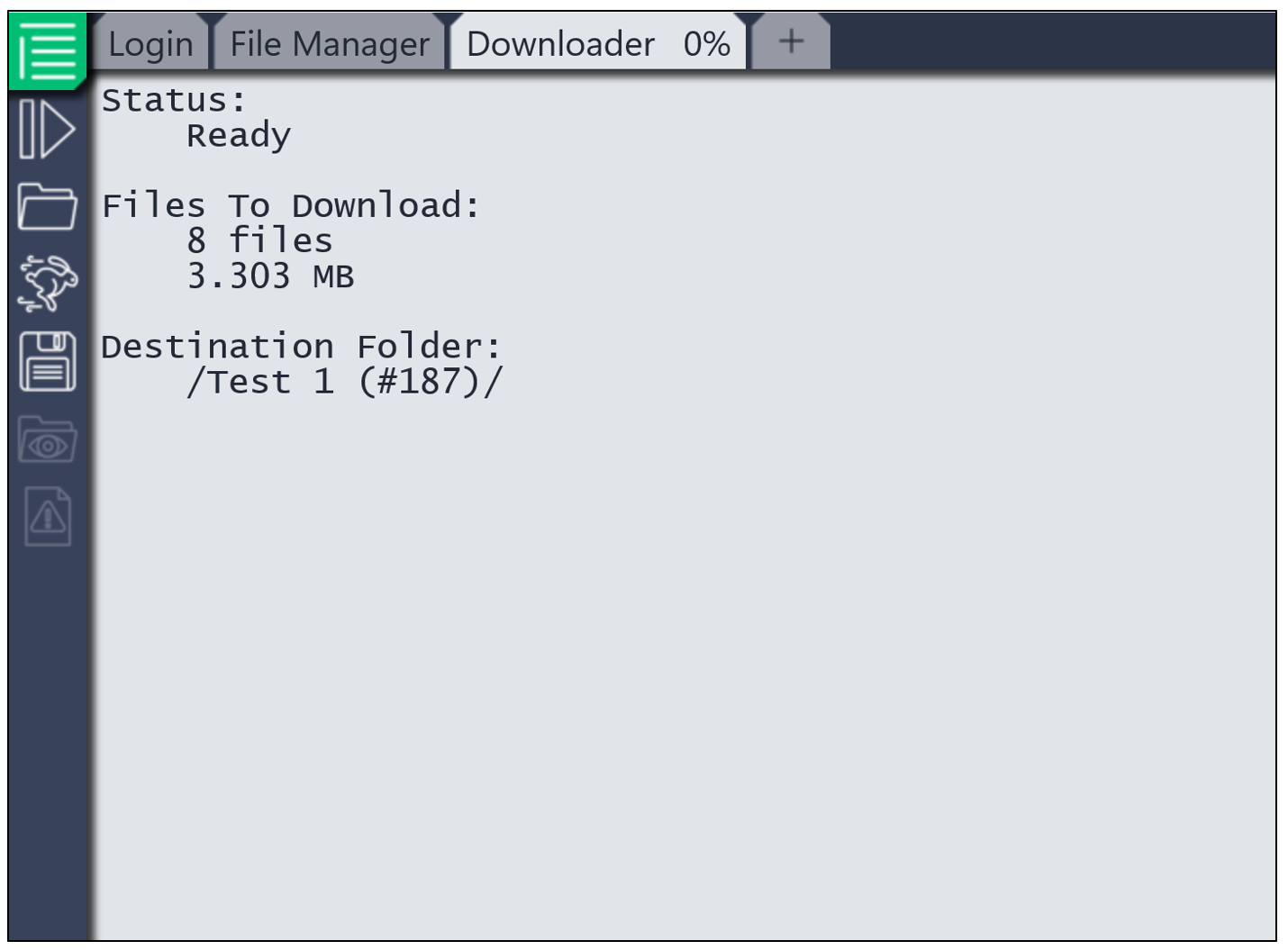
- Then, click on the

icon to start the download.
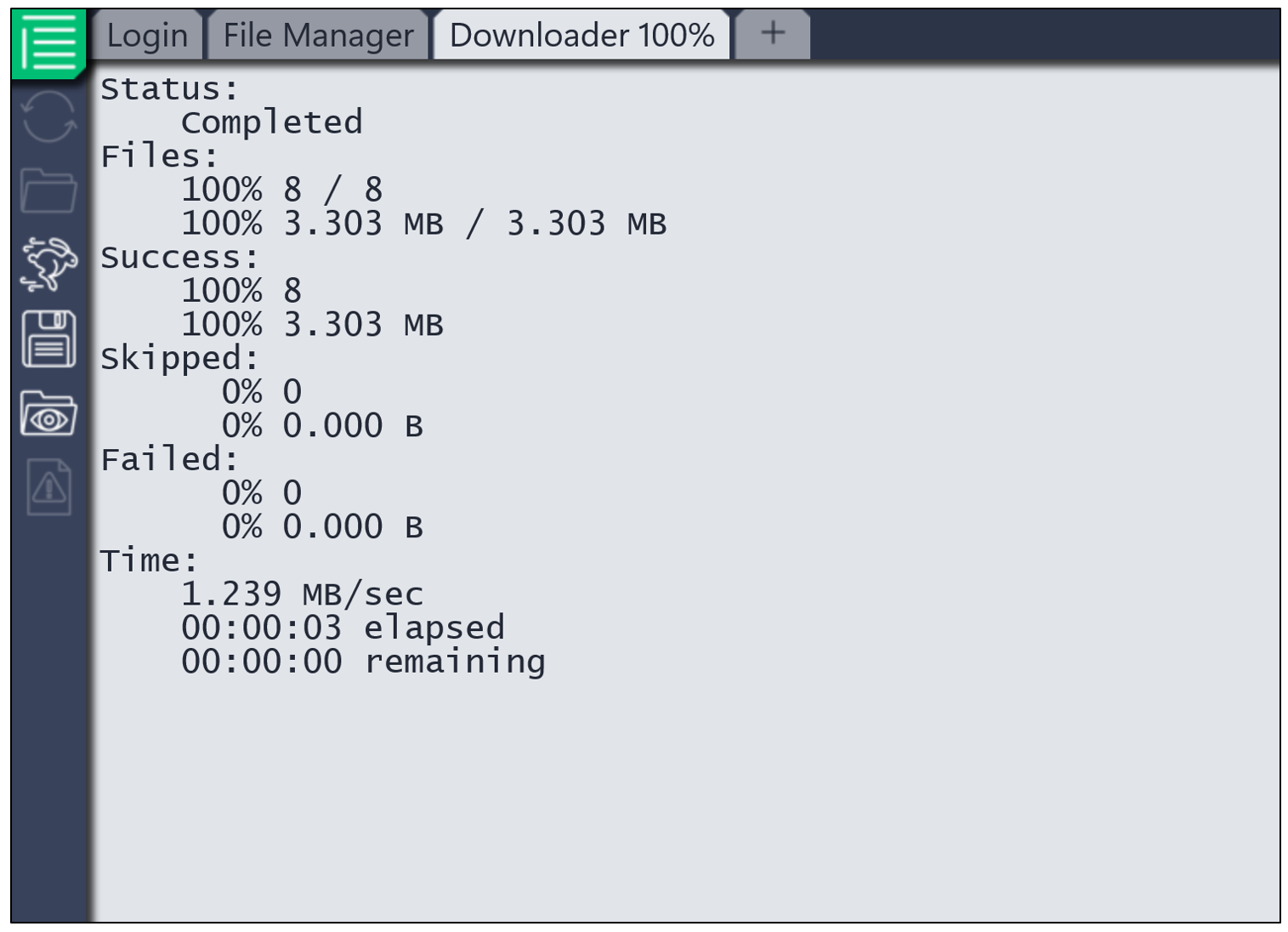
NOTE: If you encounter Failed or Skipped items, click on the

icon to proceed with resynchronization. If it still doesn't work, select the

icon to view the error report. Please then send us this report; our development team will be able to analyze it to determine the cause.
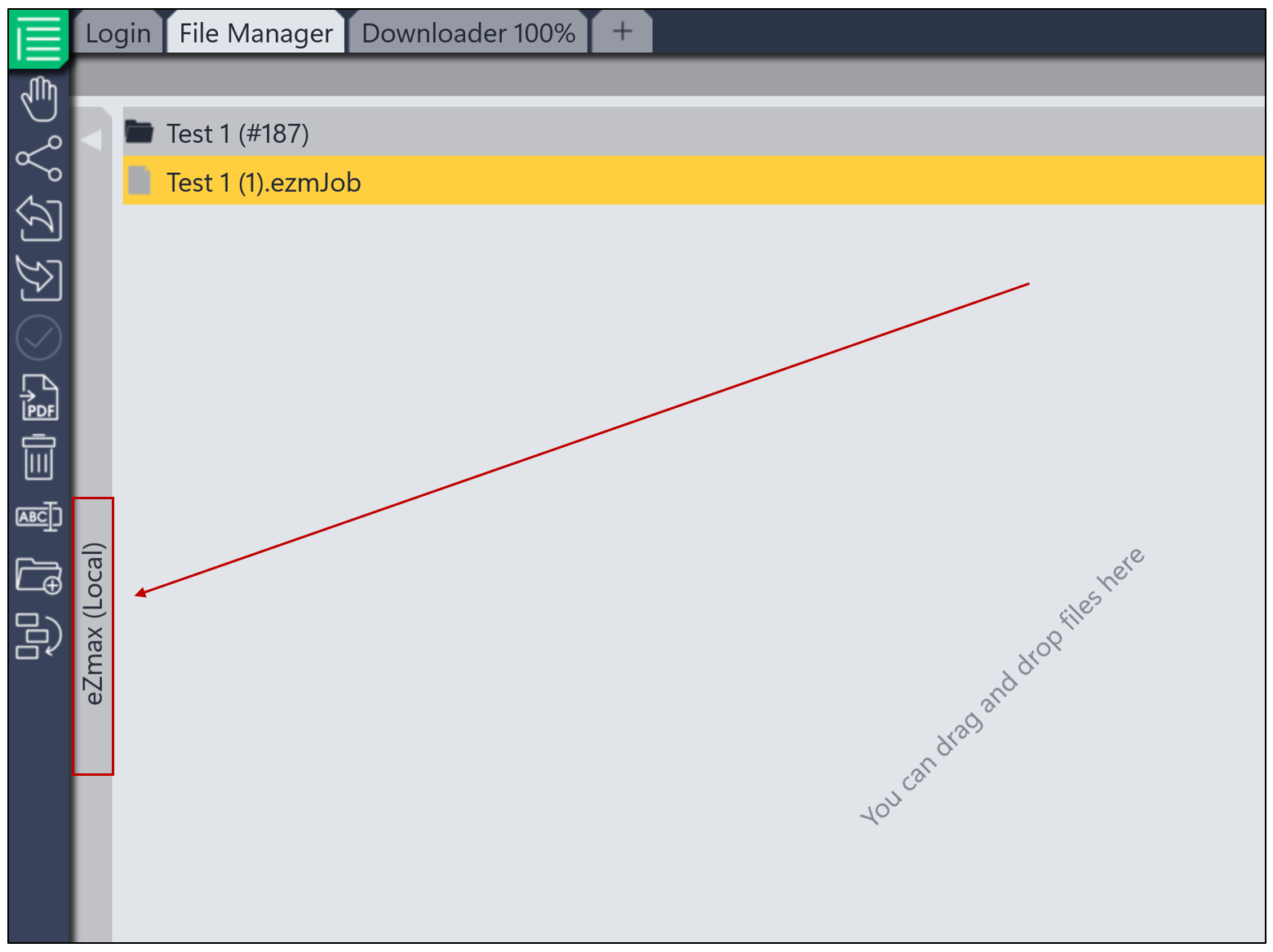
- By returning to the File Manager , you will now find the downloaded file there.
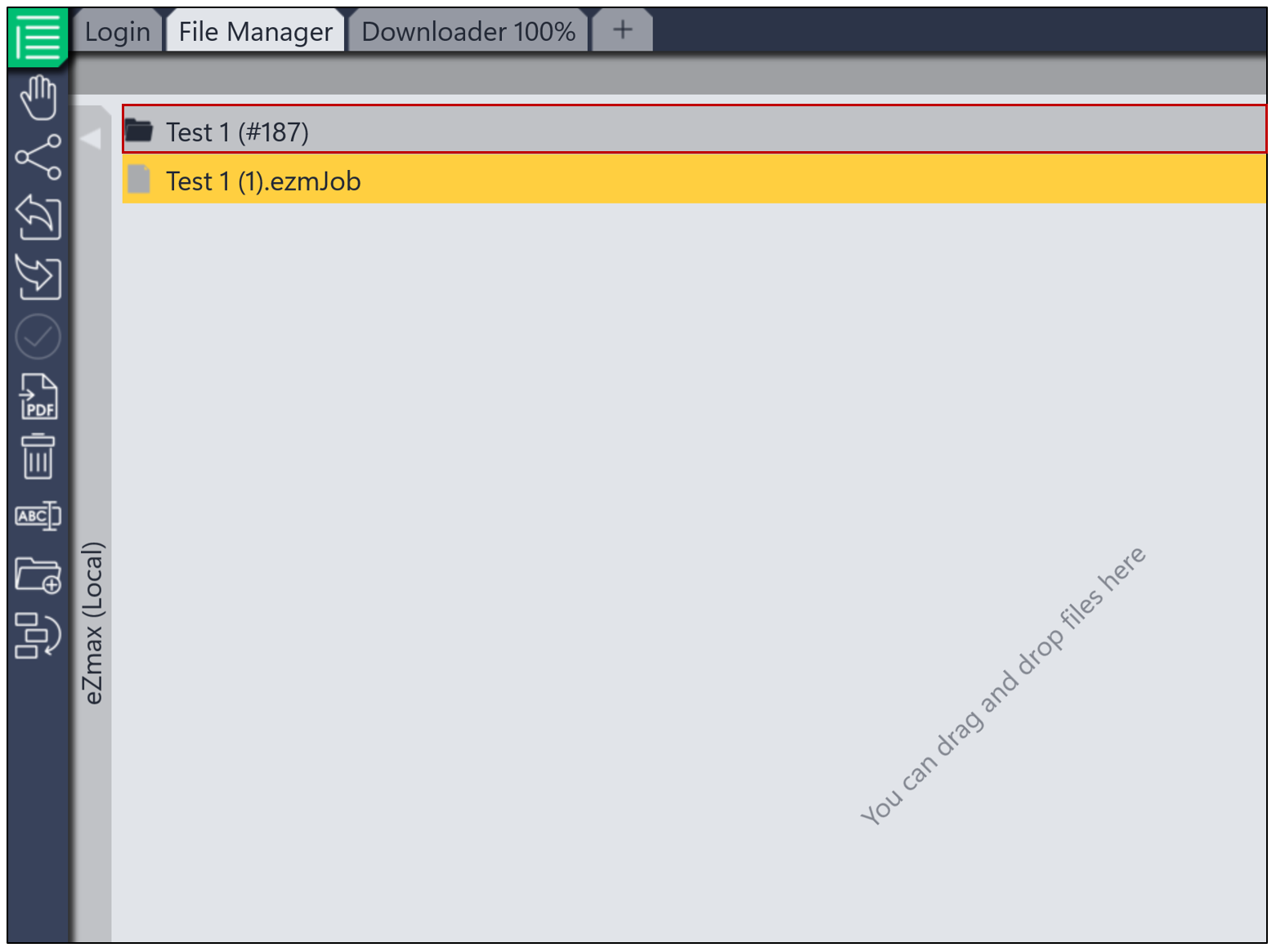
- You will then need to right-click (or long-click if you're on a Mac)on eZmax (Local). This action will redirect you to the downloaded file, which will appear as a standard folder (yellow in colour), rather than with the application icon. Inside this folder, you will find all the associated files.
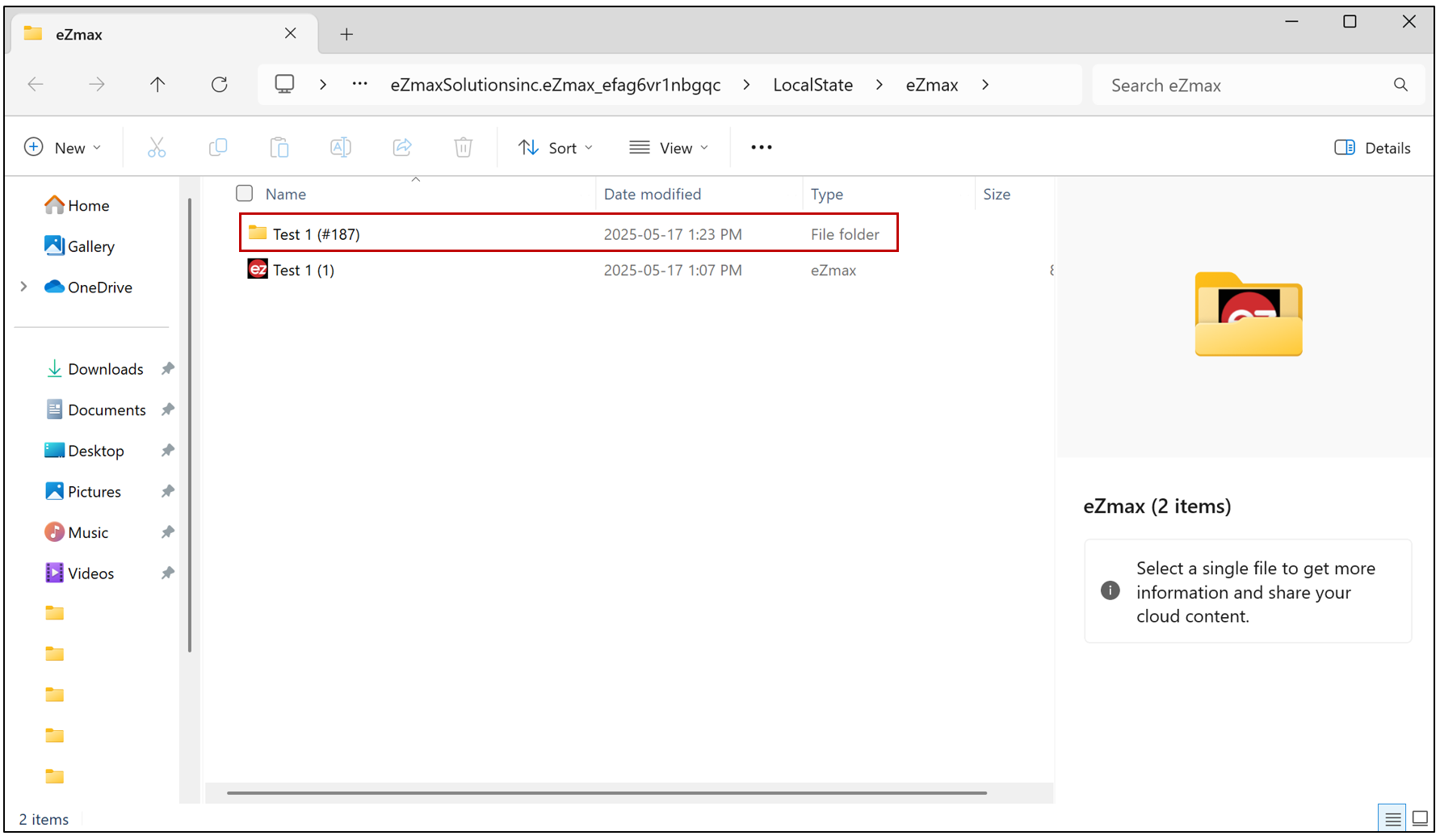
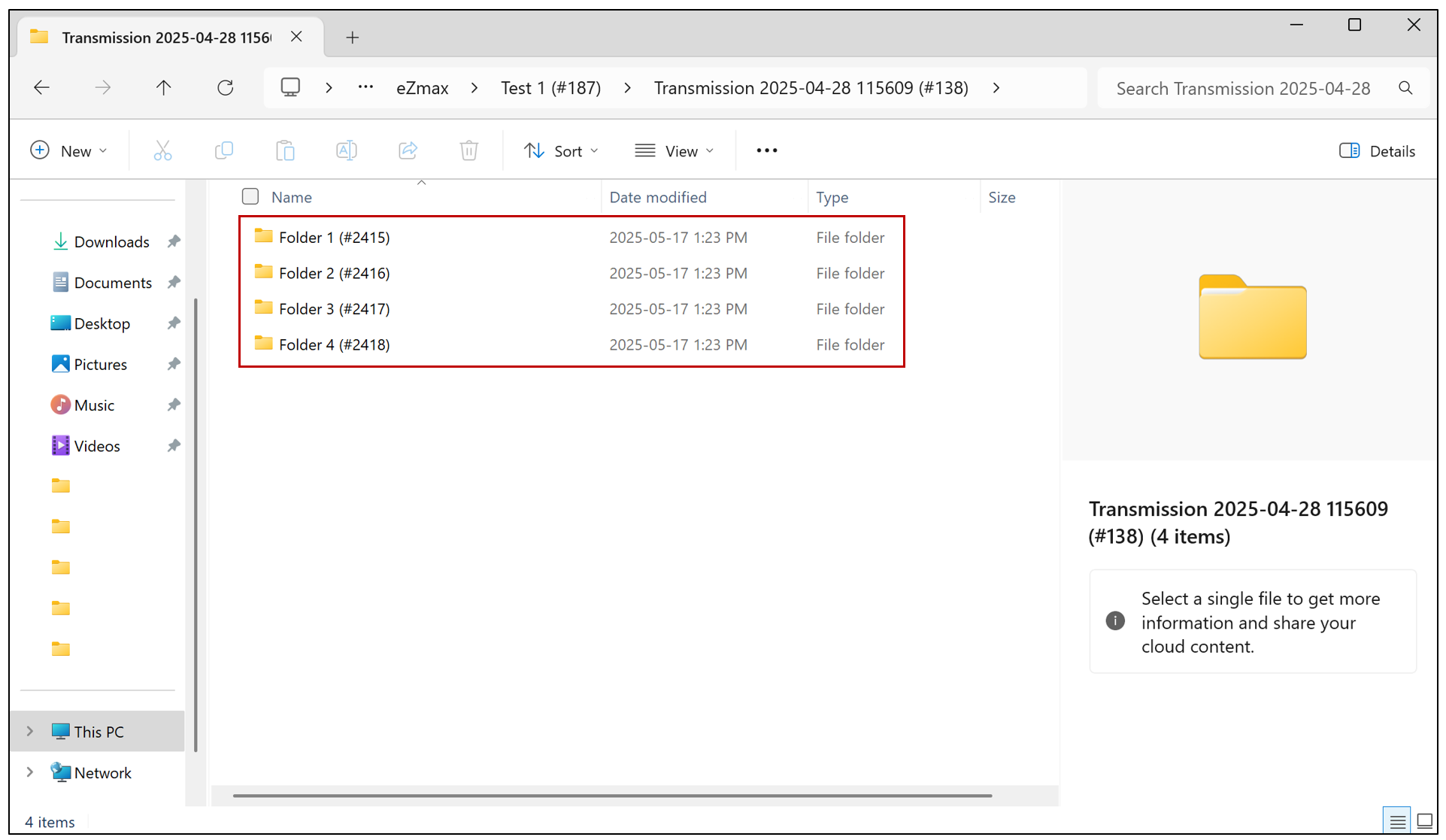
- The next step is to copy this folder, then return to your desktop and paste the file there for easier access.
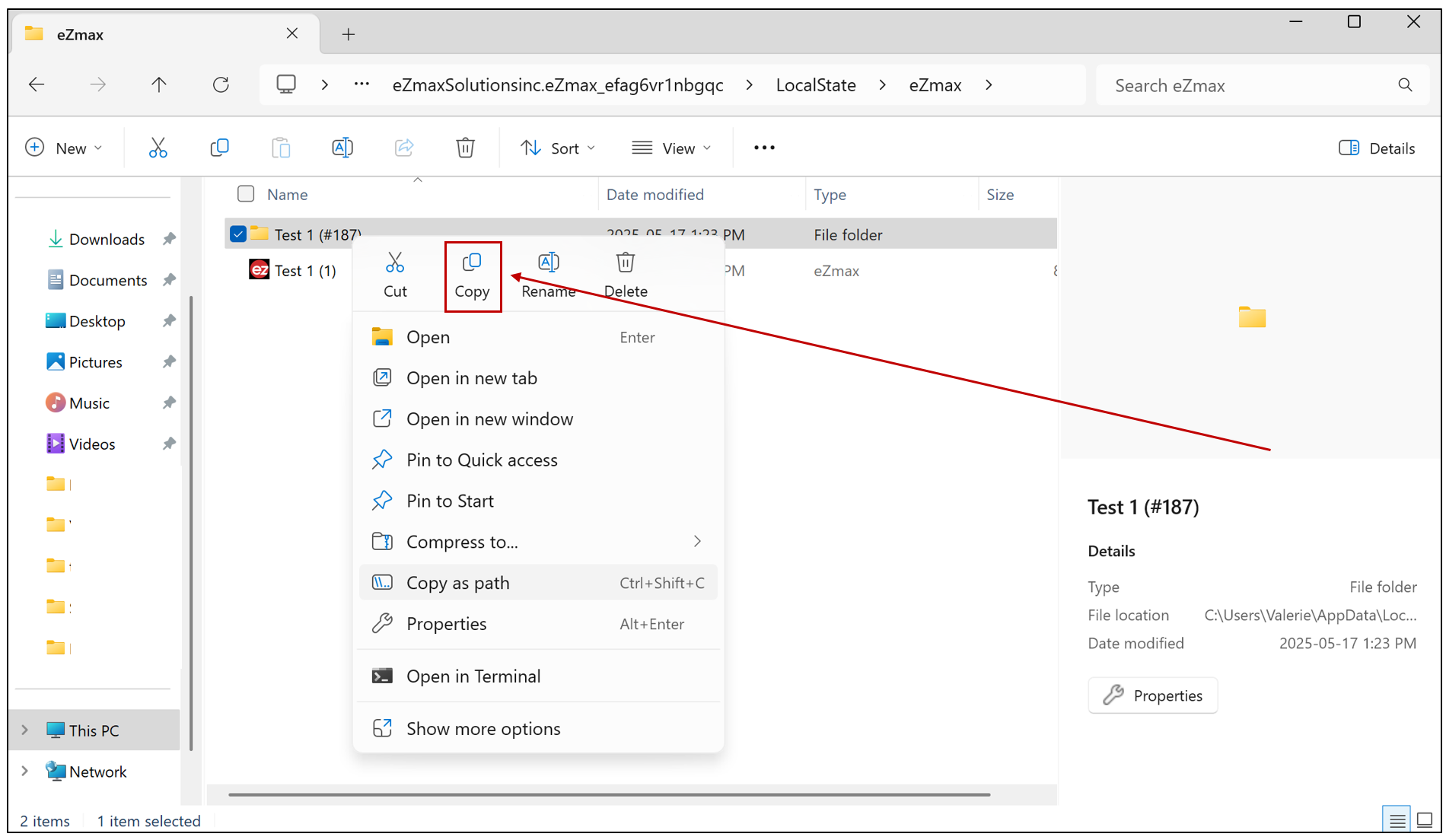
NOTE: We recommend copying the folder to an external storage device, such as a USB drive, to free up space on your computer, especially if you are storing a large number of files.