
English
Copying an eZsign Folder
You can copy an eZsign folder to quickly create a new folder based on an existing folder.
Copying a Folder
From the eZsign Folder List , select the folder you want to copy.
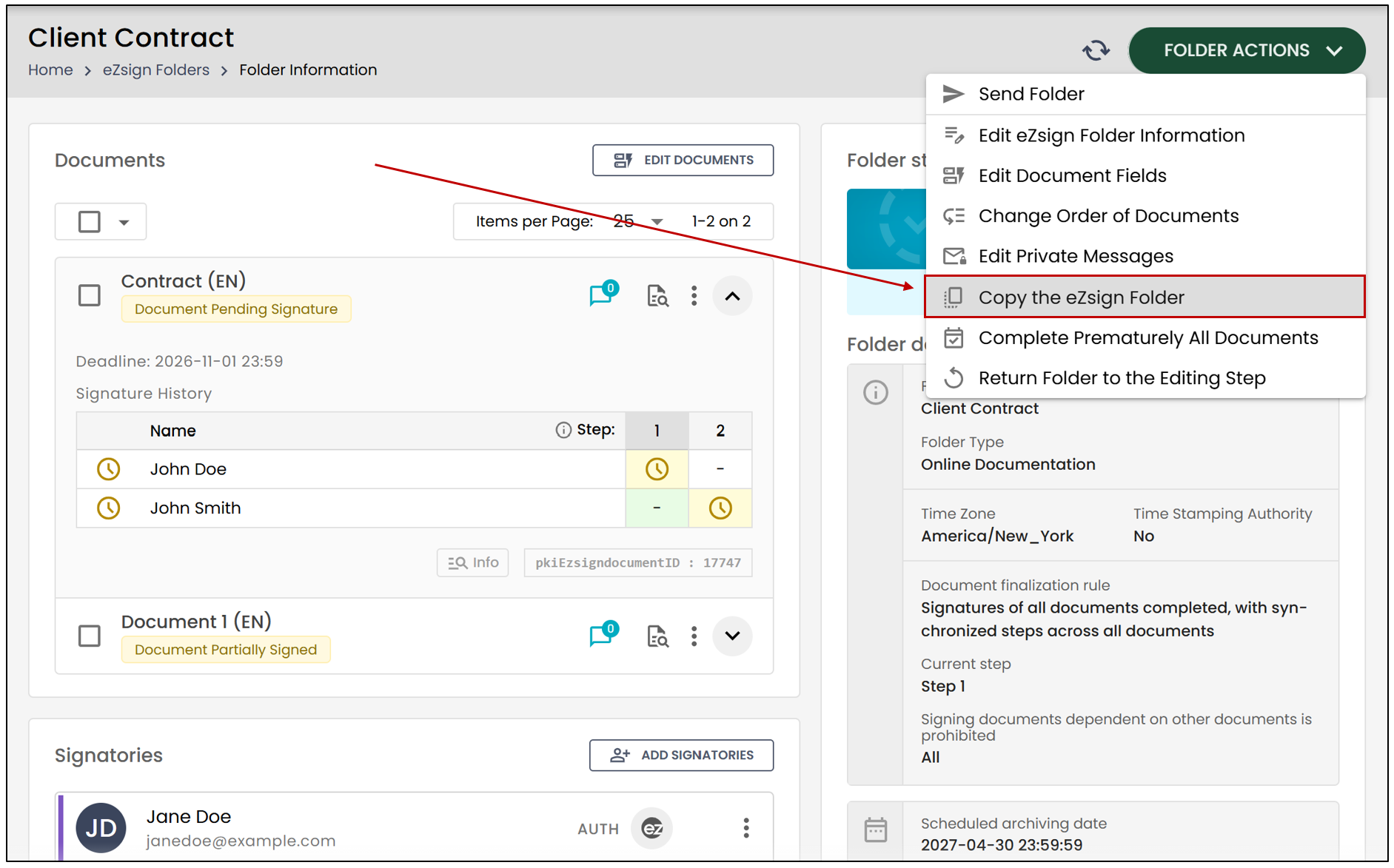
Click Folder Actions , then select Copy the eZsign Folder.
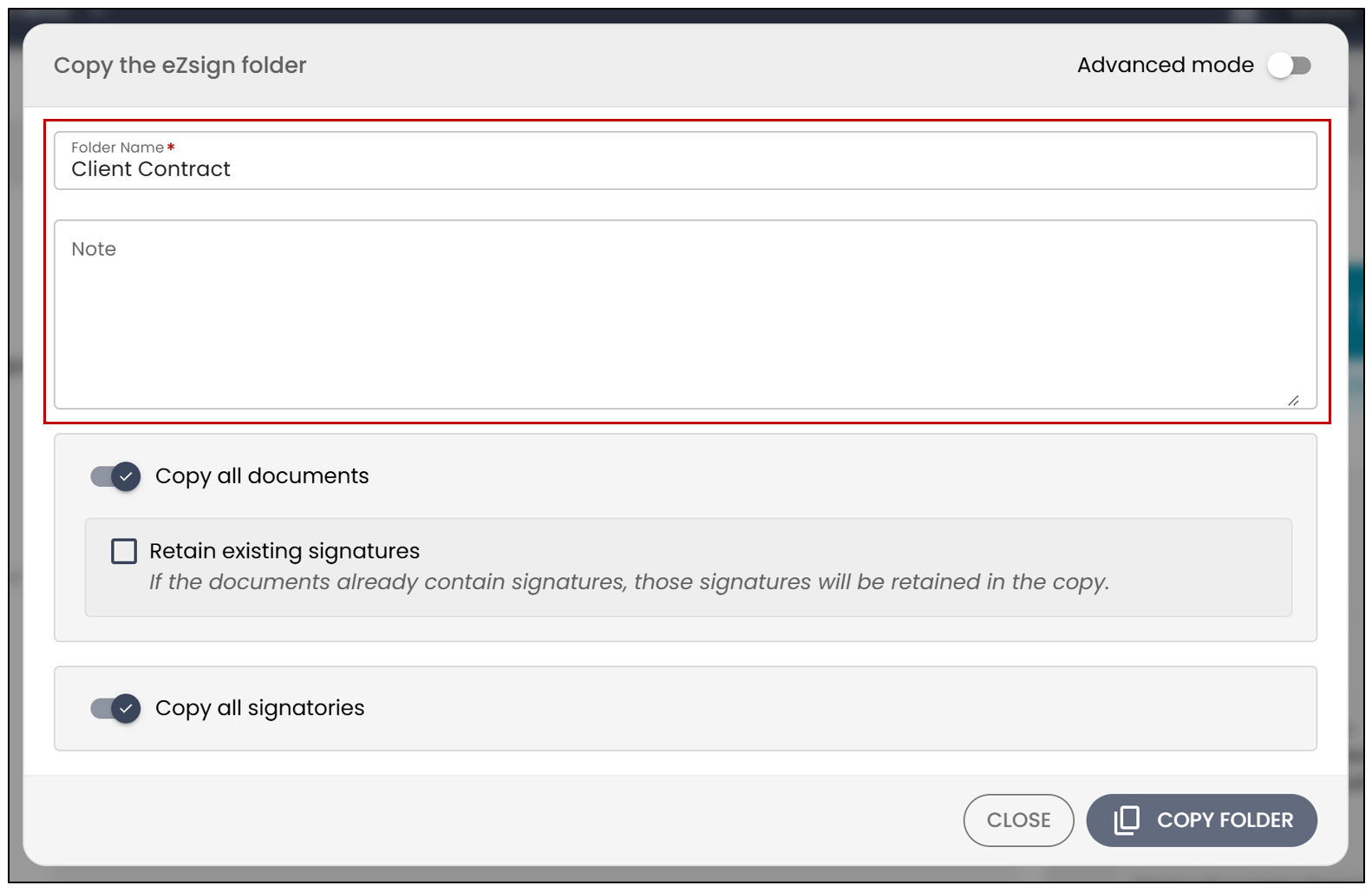
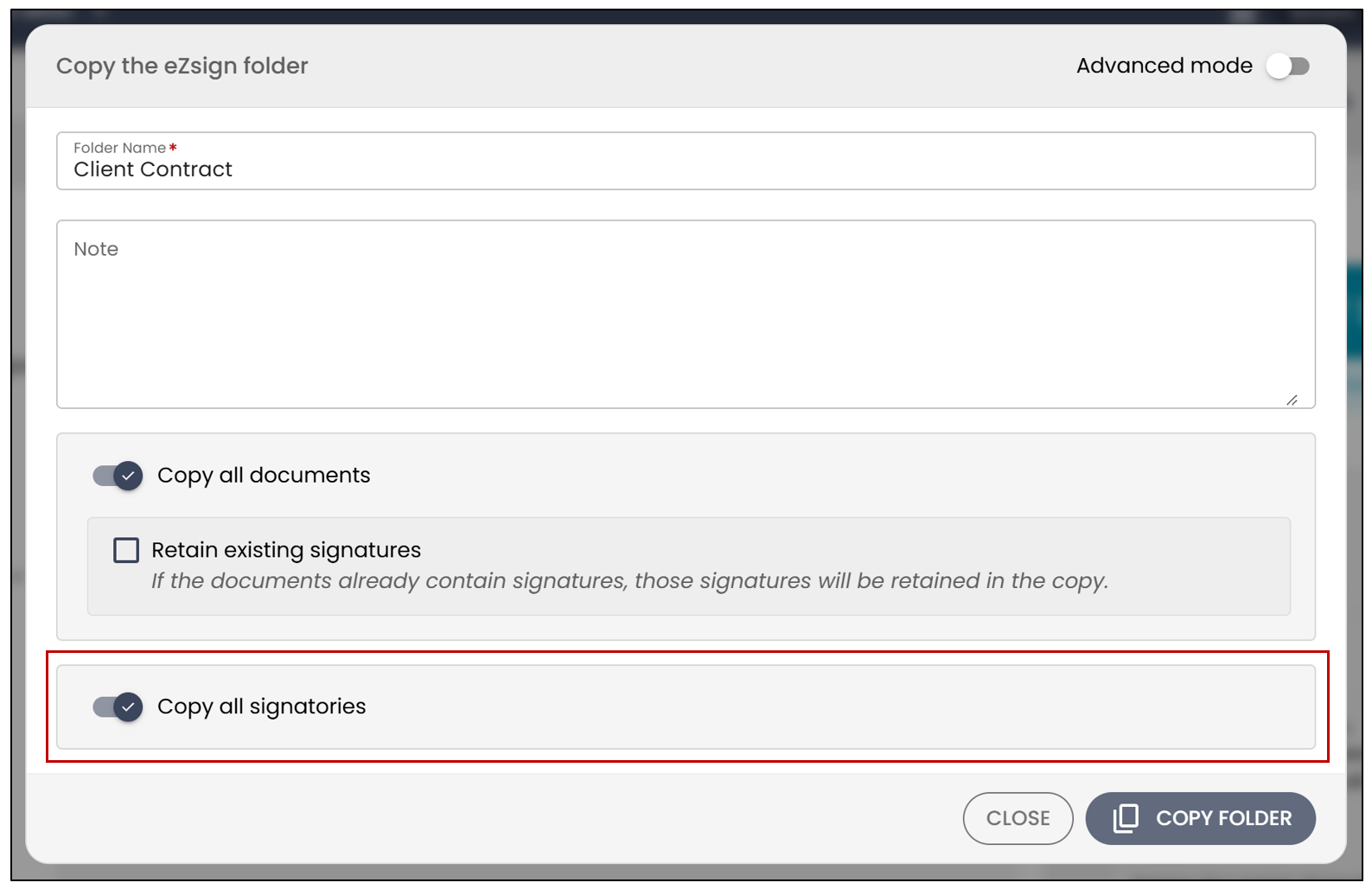
The folder copying window will be displayed. You can then configure the items you want to copy.
Copy Options
You can:
- Change the Folder Name and add a note to the new folder.
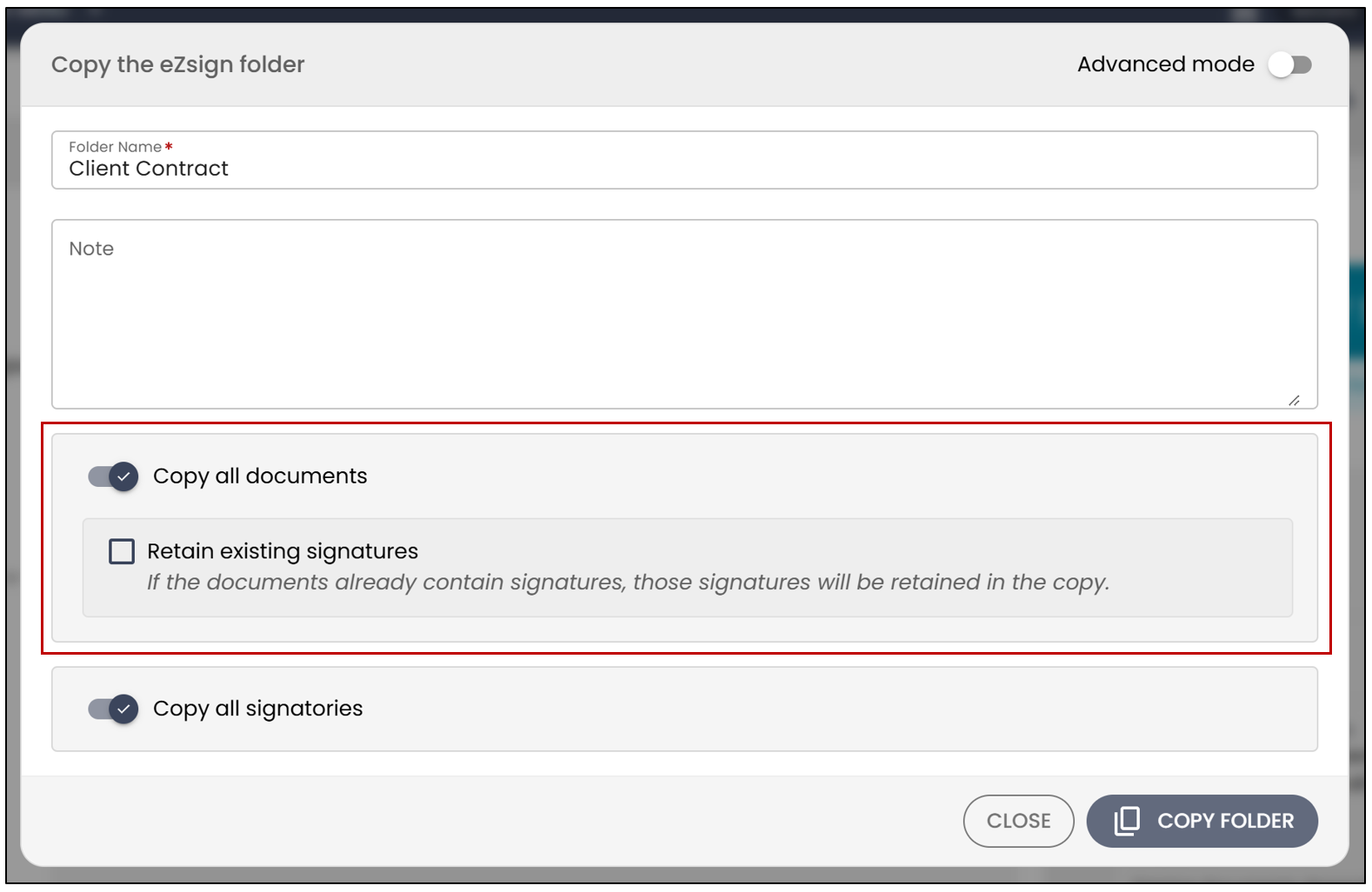
- Copy all documents
- Retain existing signatures if the folder is partially signed.
Warning
If you copy the documents without selecting the Retain existing signatures option for a partially signed folder, the signature and form fields will not be preserved. The following message will be displayed when you attempt to send the new folder: “Your document does not contain any signature or form fields and therefore cannot be sent.”
NOTE: Documents from a completed folder cannot be copied. If you attempt to copy a completed folder, the following message will be displayed: “Completed documents are not available for copying.”
- Copy all signatories
Advanced Mode
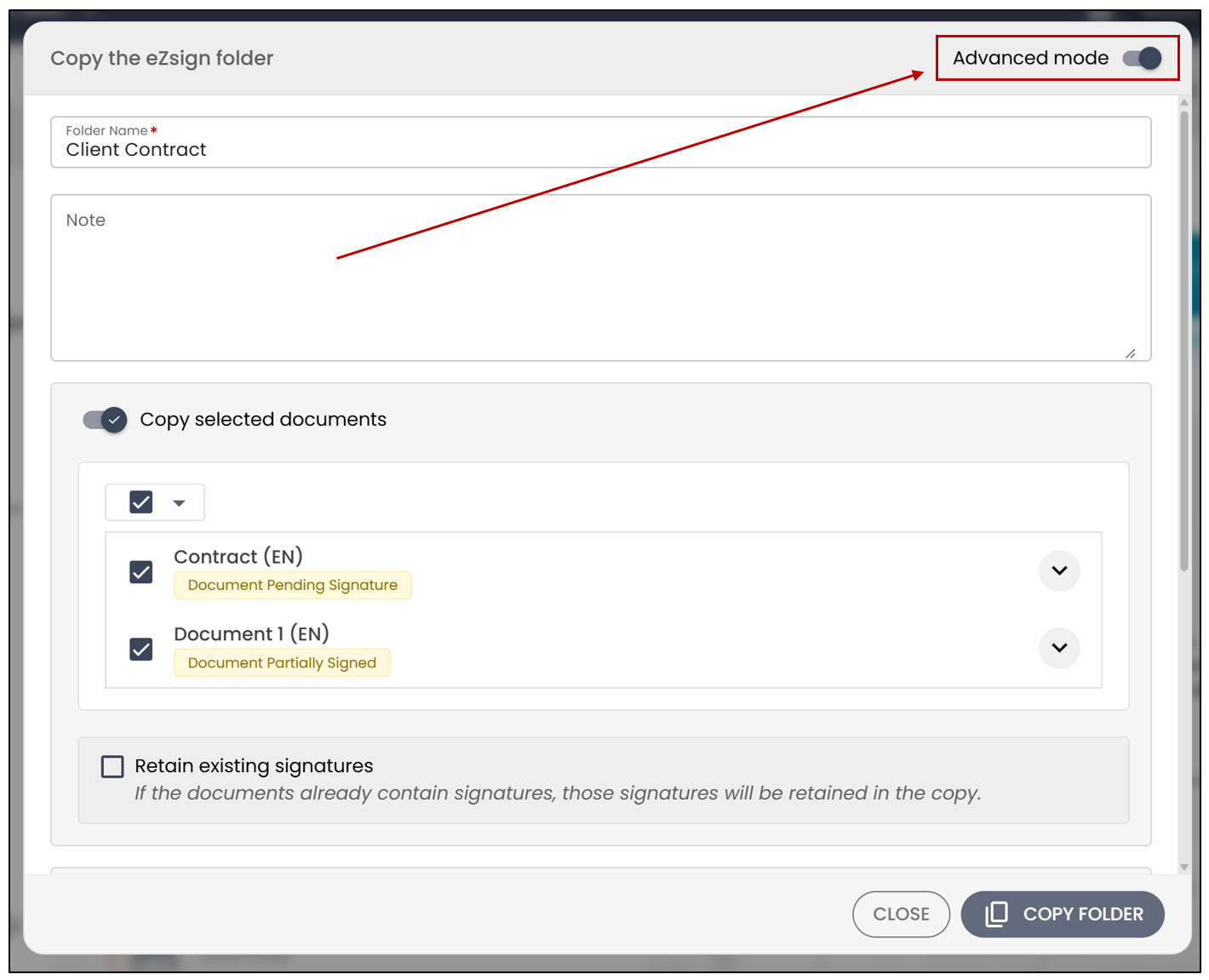
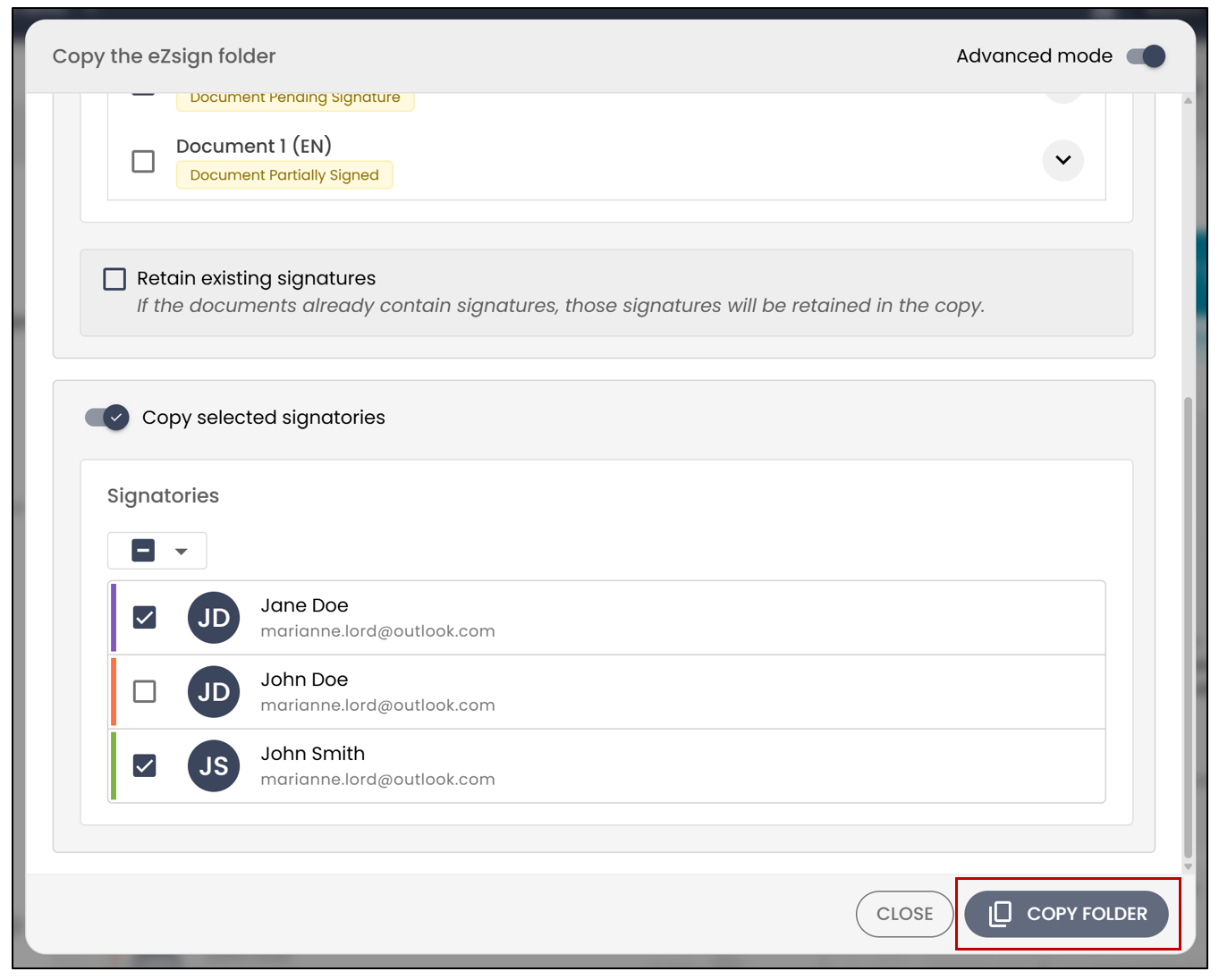
By selecting Advanced Mode , you can further customize the items to copy:
- Select only specific documents to copy.
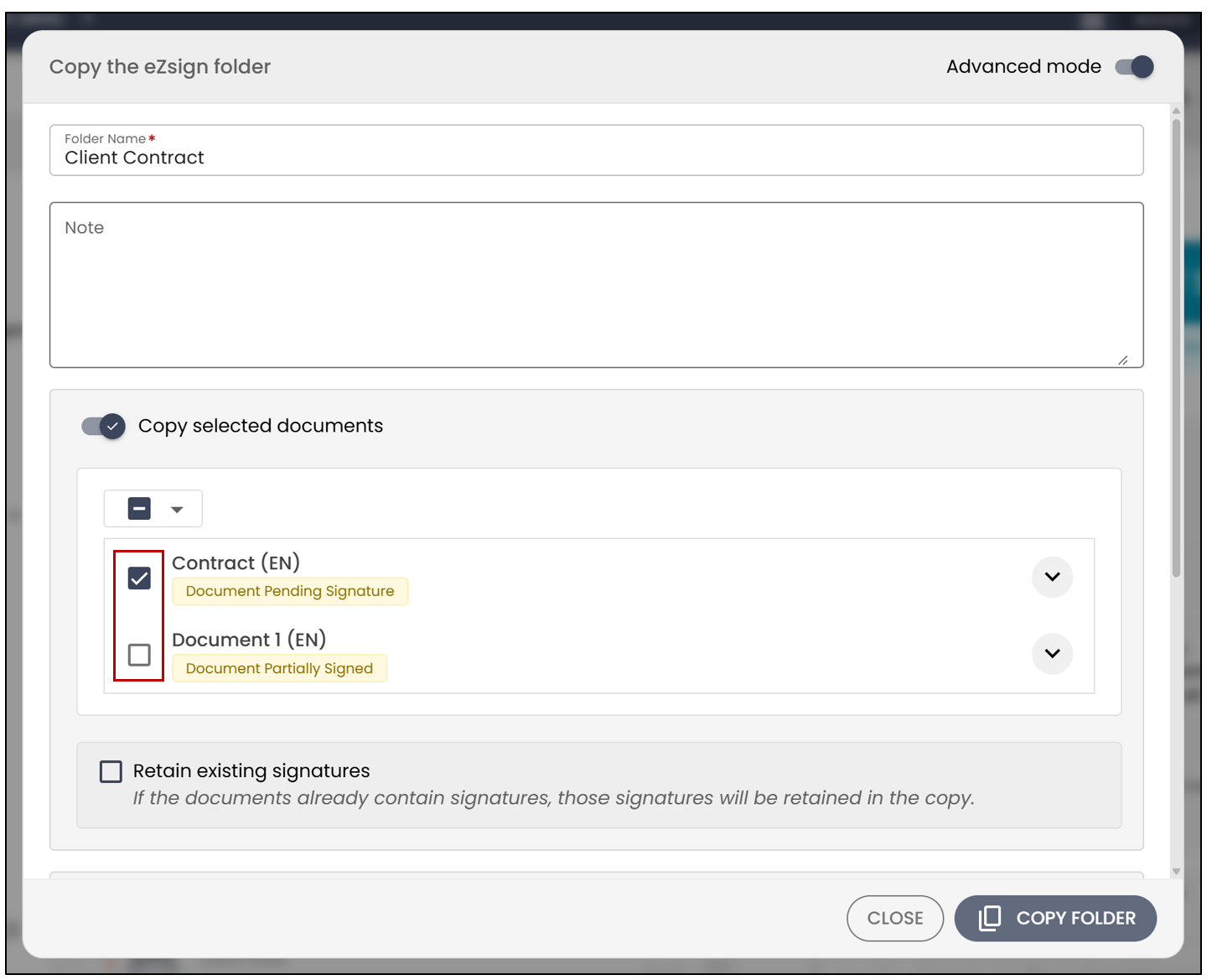
- Select only specific signatories to copy.
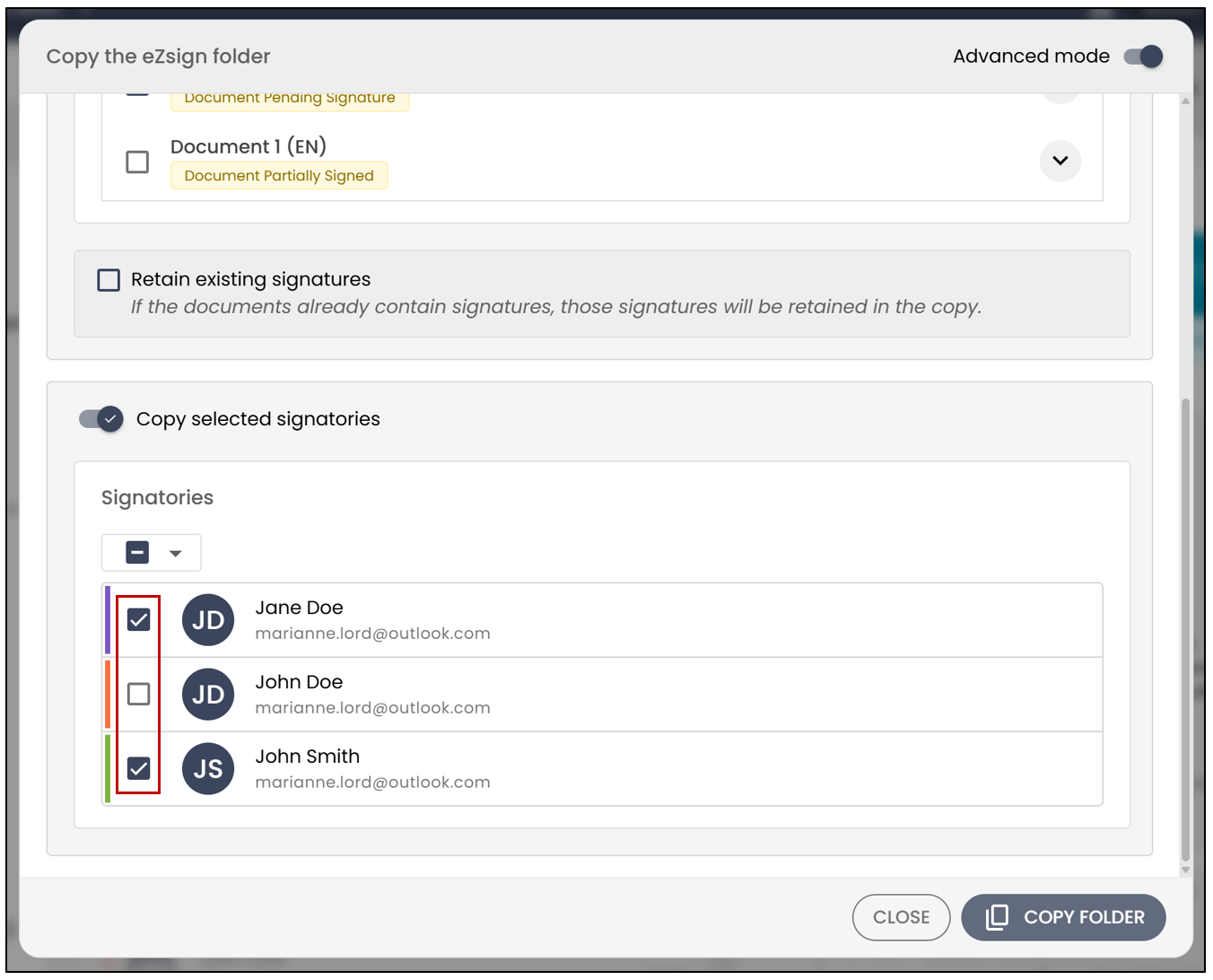
This option allows you to create a new folder based on a specific selection of documents and signatories from the original folder.
Creating the New Folder
Once you have configured the copy options, click Copy Folder.
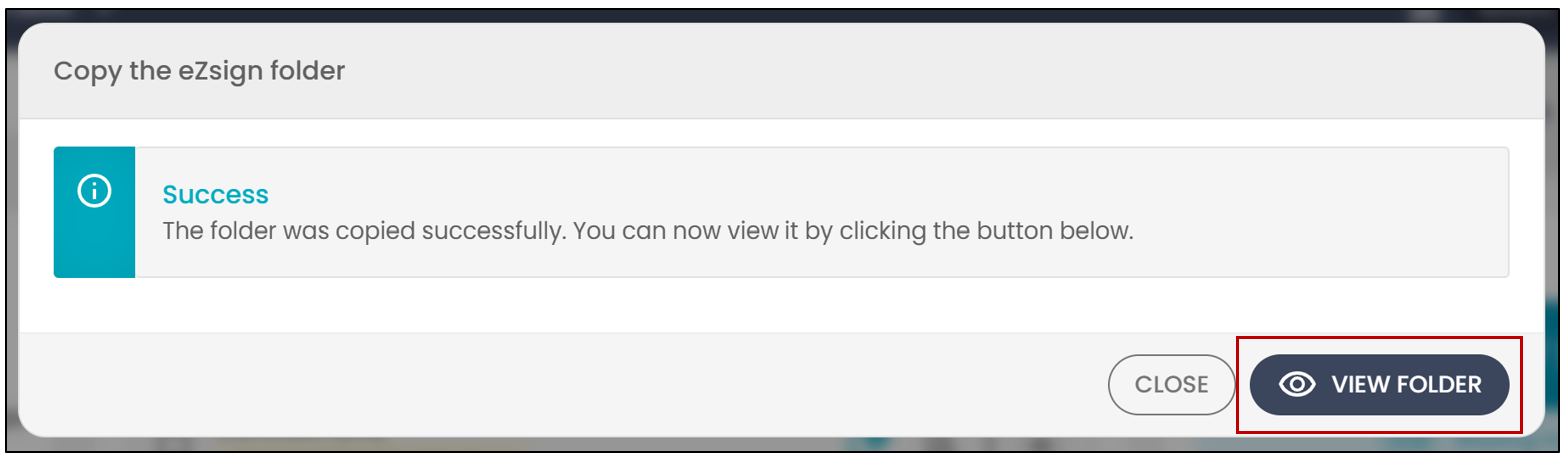
A message confirming that the folder was created will be displayed. To view the new folder, click View Folder.
Sending the Folder
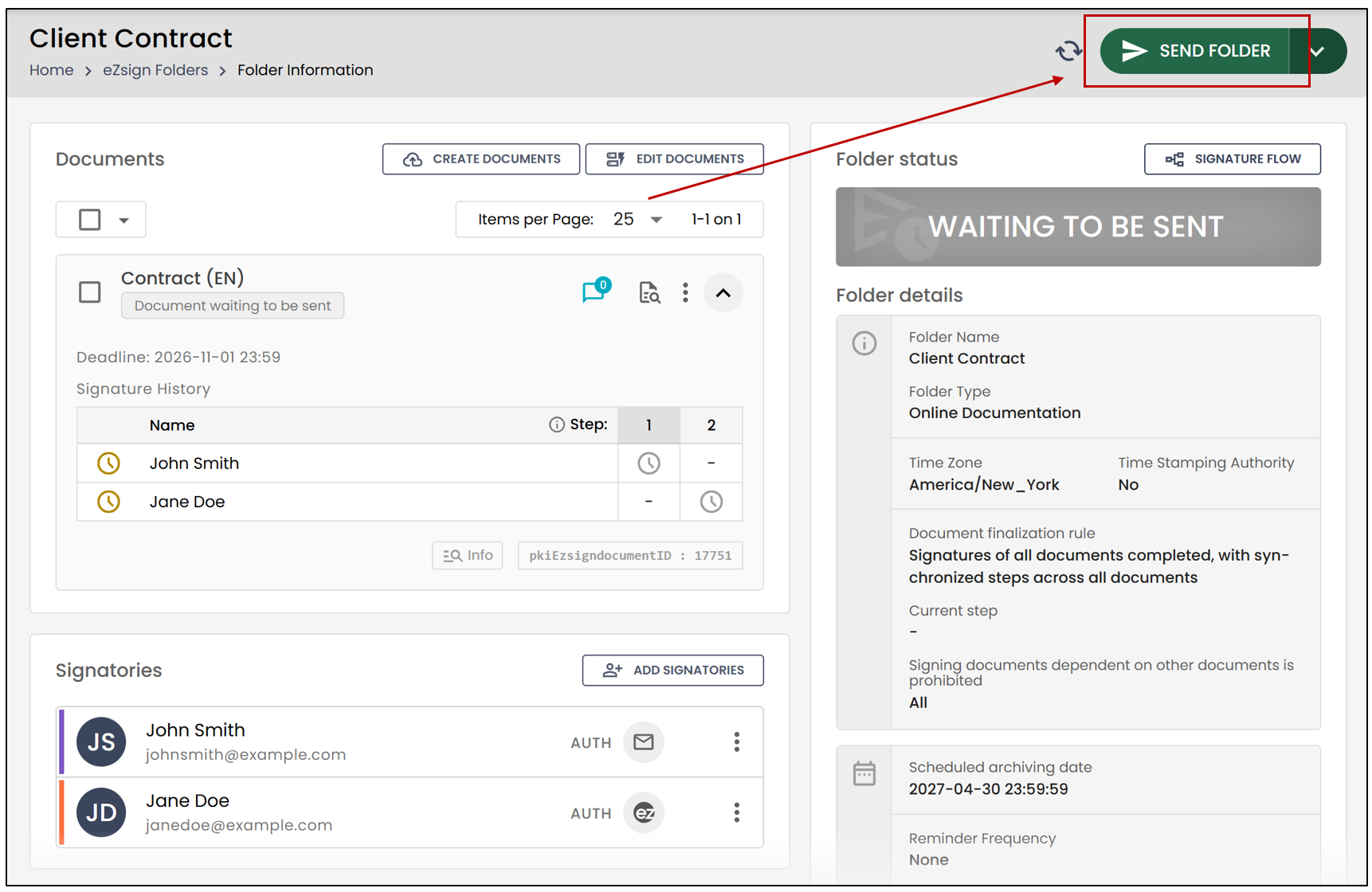
Once the new folder has been created, you must click Send Folder to notify the signatories that a document is ready to be signed.