

English
Reassign the Signature to Someone Else
If reassignment is permitted in the type of file where it was created, signers can reassign all of their signatures to another signer or transfer only a part of them.
Reassign to an External Signatory
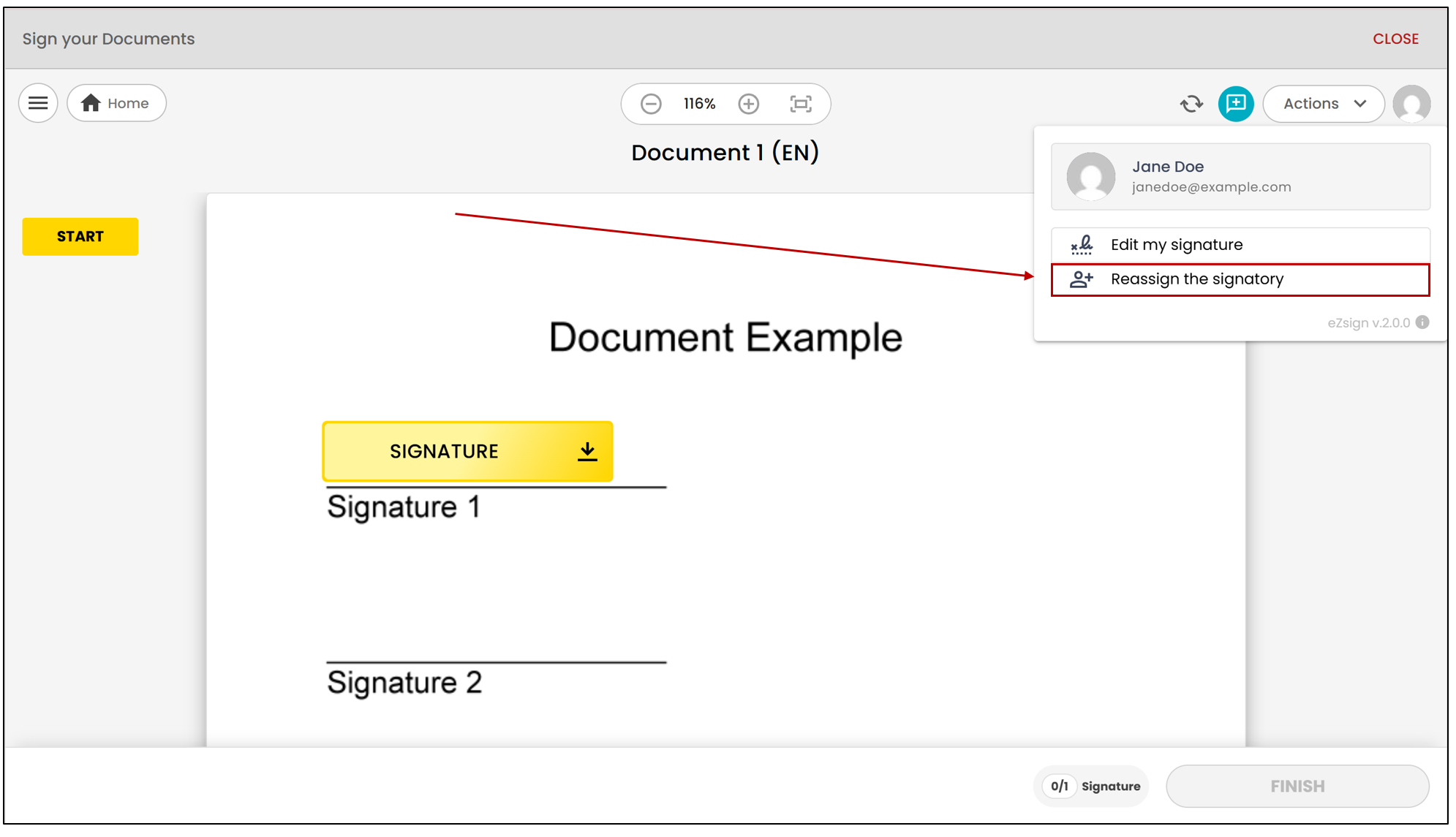
- When the signer accesses the document to be signed, they will have the option to reassign the signature by clicking on Reassign the Signatory in the Actions menu.
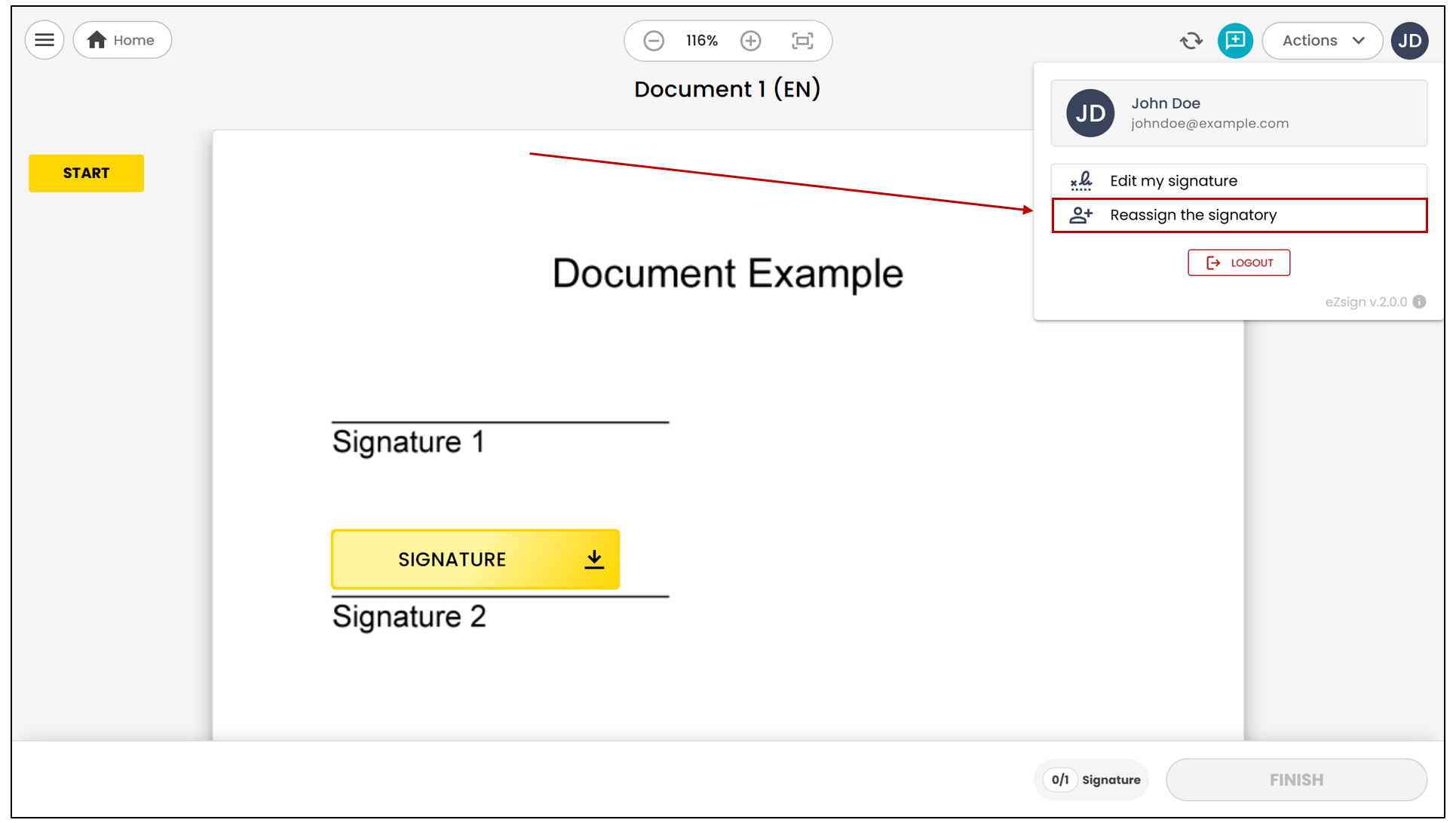
NOTE: If the folder type does not allow reassignment, this option will not be visible among the document actions during signing.
The following message will be displayed, and the signer will need to confirm the reassignment by clicking Reassign.
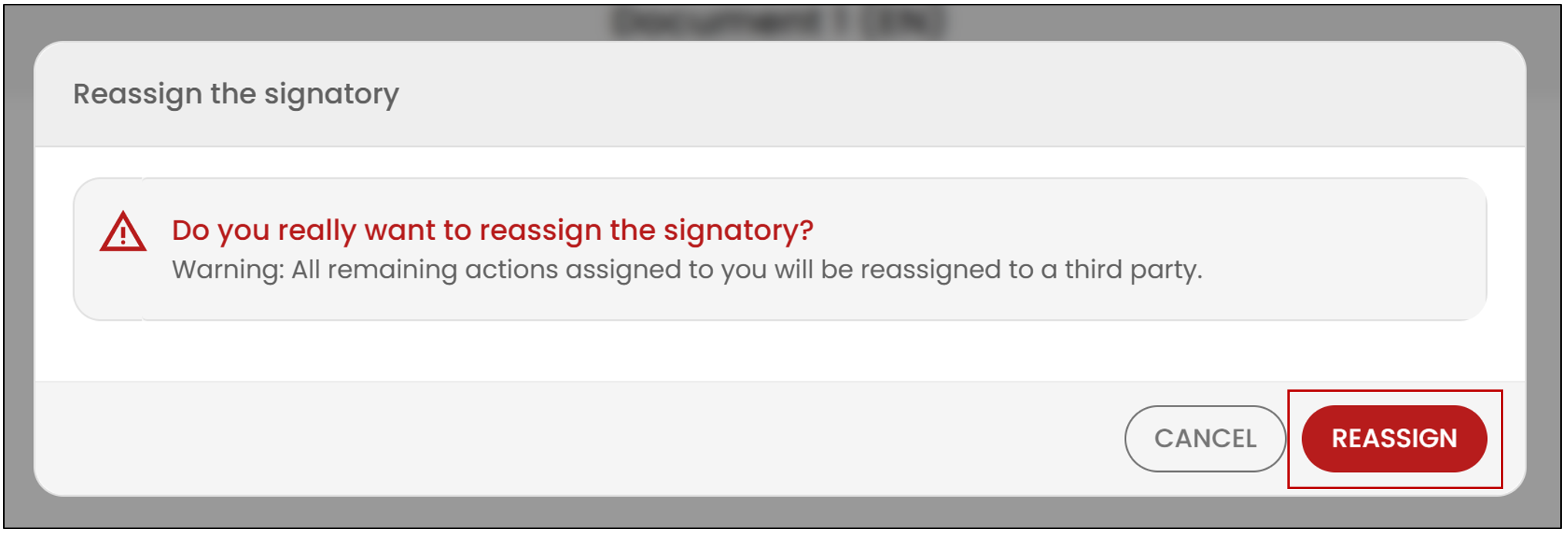
All remaining signatures in this signature folder, whether on one or multiple documents, will be reassigned.
NOTE: If the signer has signed fields before reassigning the signature, those signatures will be retained and considered completed under their name. Only the incomplete fields will be reassigned.
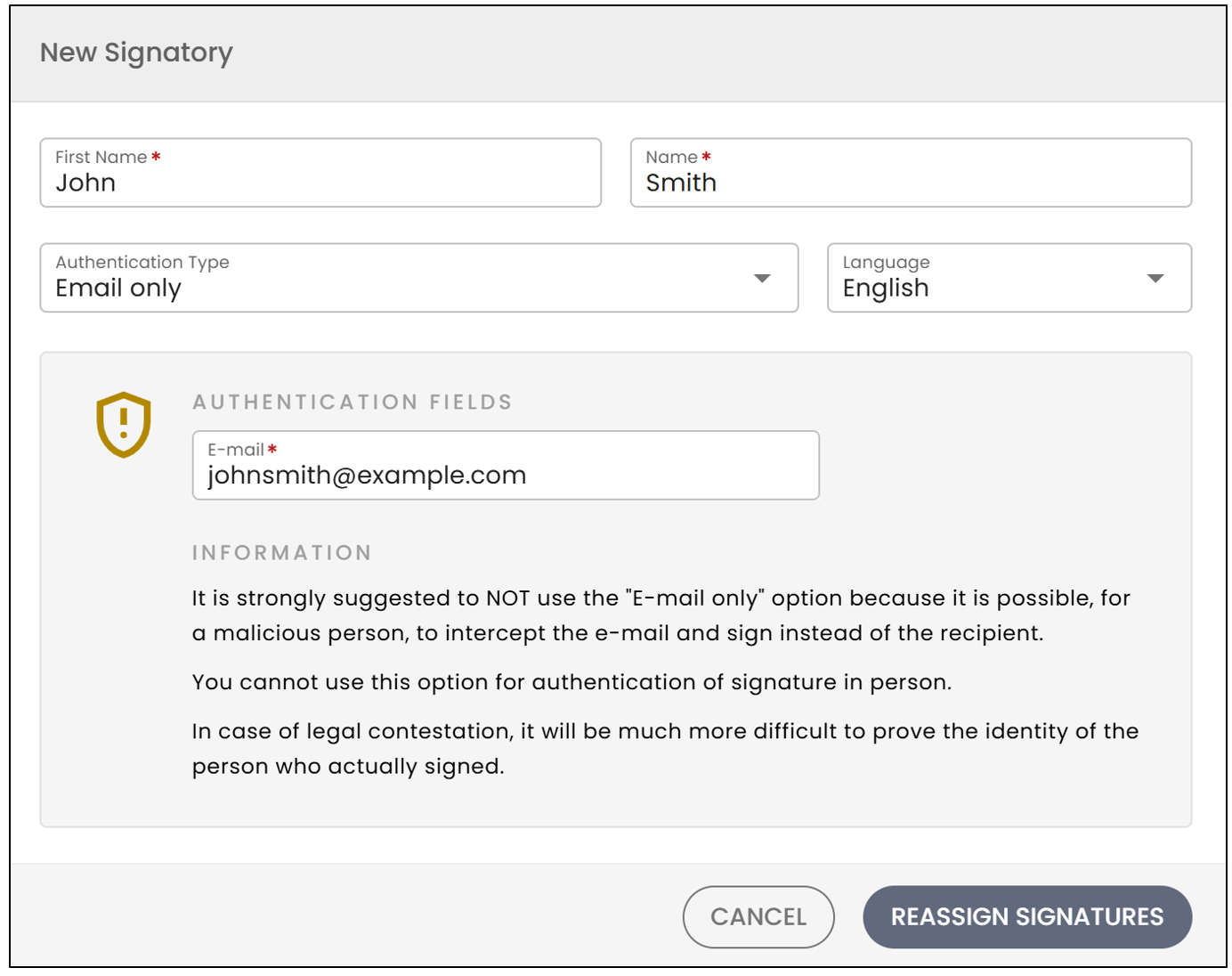
The signer will then need to fill in the information below using a chosen Authentication Type and click on Reassign Signatures.
NOTE: The fields have character limits. The first name is limited to a maximum of 20 characters , and the last name to a maximum of 25 characters.
NOTE: Secret questions may be "restricted" for certain types of accounts.
In your eZsign folder, you will see the name of the new signer to whom the signatures have been reassigned. If the original signer reassigned all their signatures without completing a single signature field, their name will no longer appear among the signers in the folder.
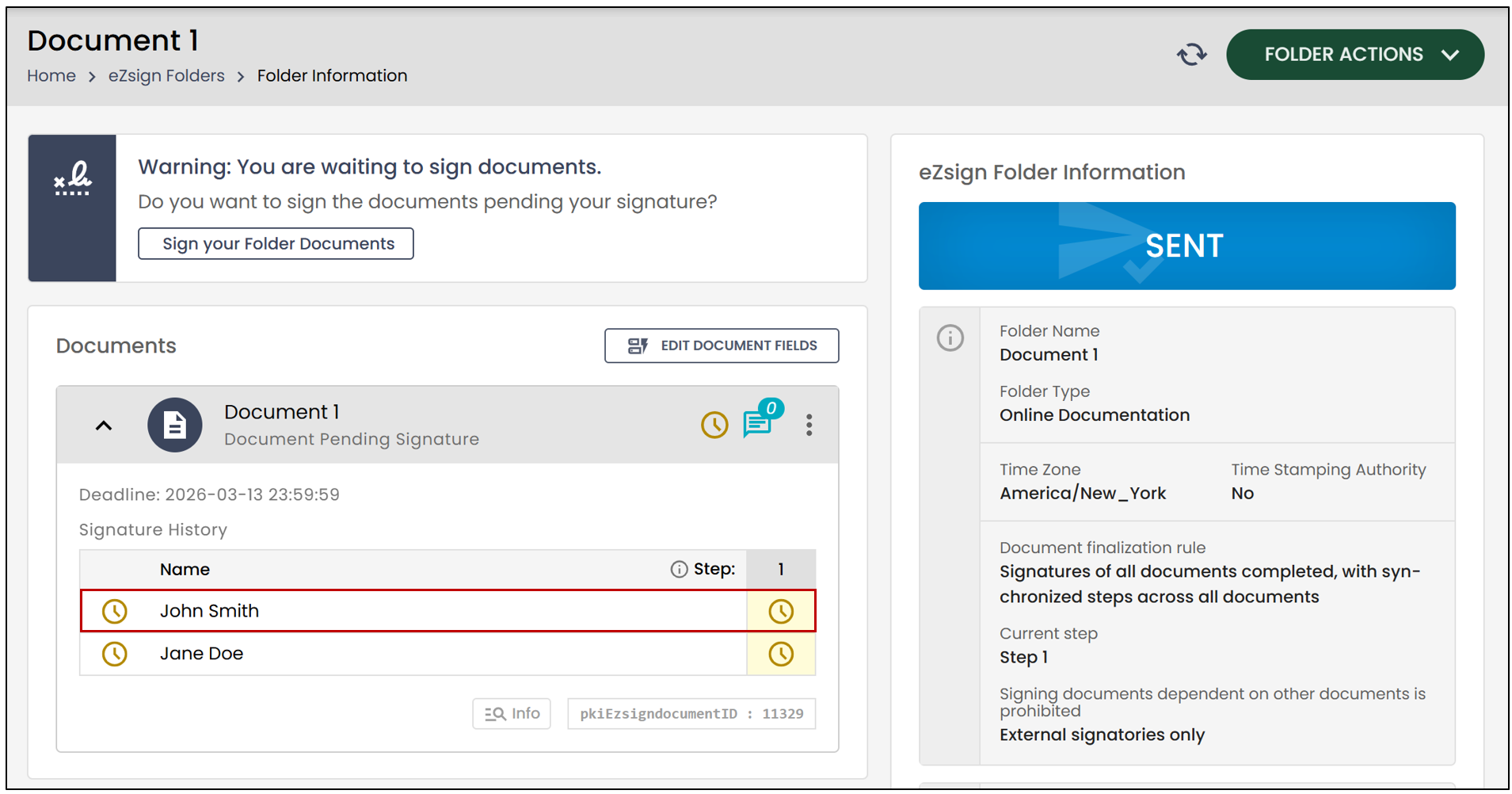
- By consulting the document’s Temporary Proof , you can verify that the signer has performed a reassignment, and the identification of the new signer will be recorded in the proof.
The new signer will receive an email notifying them that they have documents to sign. They will simply need to apply their signature.
Reassign to a User
This action allows reassigning the signature to a user with an eZsign account. Only a user with an eZsign account can reassign to another user. External signers cannot reassign to a user.
At the time of signing, the signer with an eZsign account will have the option to reassign to an external signer or another user by clicking on Reassign the Signatory in the Actions menu. They can choose to transfer all signatures or only a portion of them.
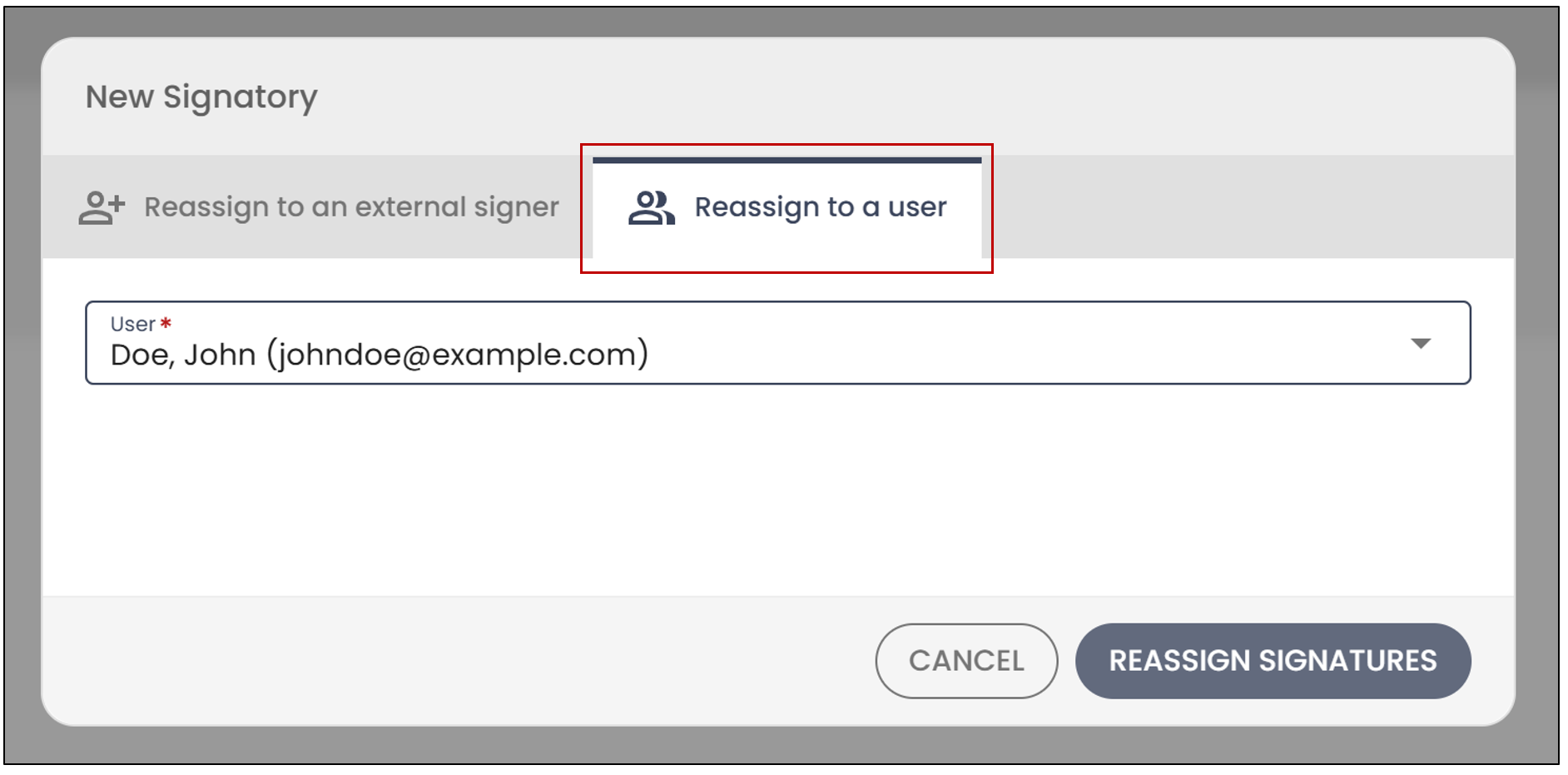
This signer will have the option to select a user from the drop-down list to reassign the remaining signatures.
The new signer will receive an email notification informing them that they have a document to review and sign. They can then log into the eZsign platform to complete the required signatures.
NOTE: Anyone who has applied their signature to the document will receive a copy of the signed document. If a signer reassigns all their signatures without signing, they will not receive a copy by email.
Reassign a Signatory on a Partially Signed Document
It is now possible to reassign a signature to either an internal signer (user) or an external signer while retaining the previous signatures.
- From the left menu, click on eZsign Folders , then select the desired folder.
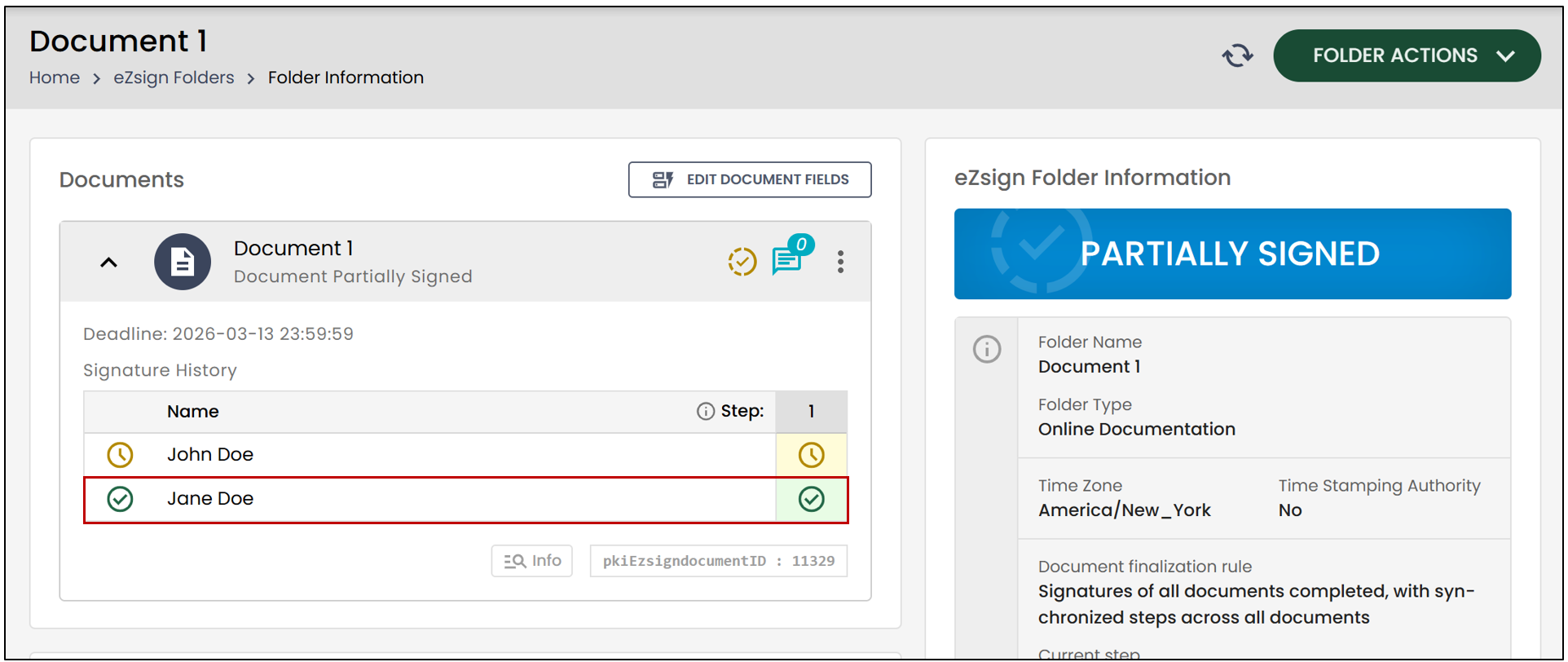
In the example below, you will notice, thanks to the green checkmark, that Jane Doe had signatures at step 1 and has signed them.
- If you want to keep this signature but change the signer in step 2, click on the three vertical dots to the right of the signer’s name. Then, click on Reassign the Signatory.
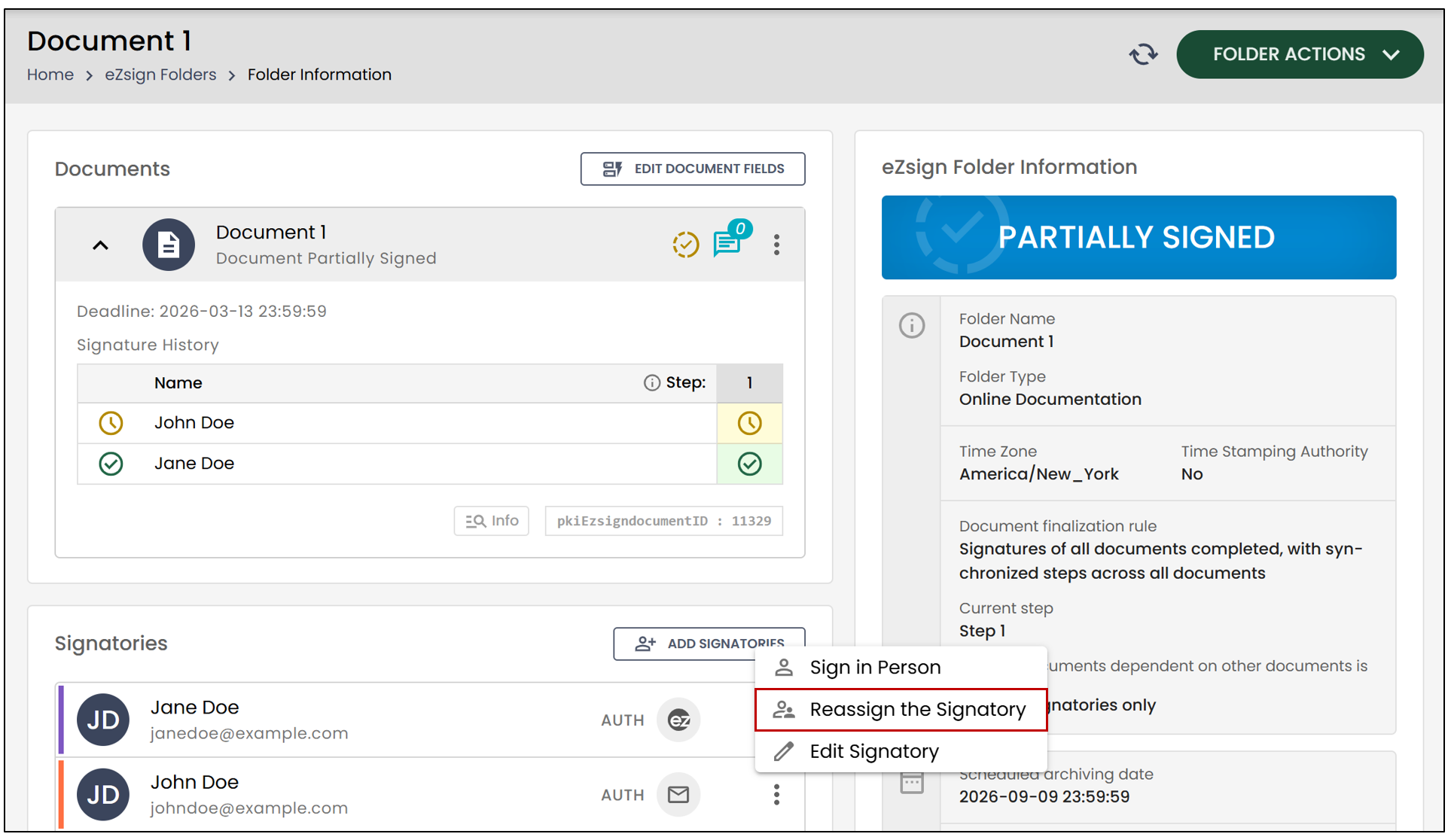
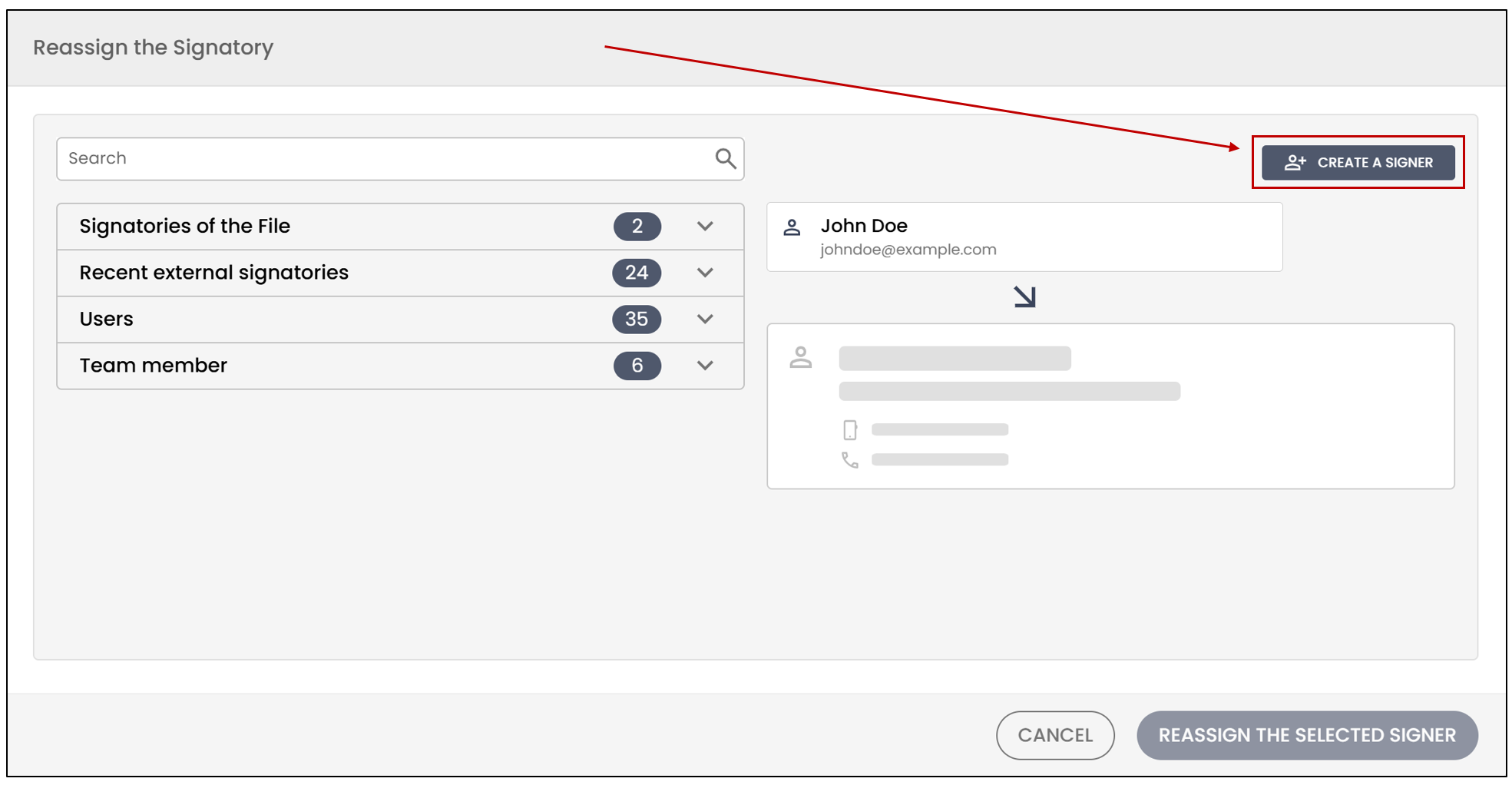
You will have the option to reassign the signature to an internal or external user. You will also have the option to create a new one.
Click on Create a Signer.
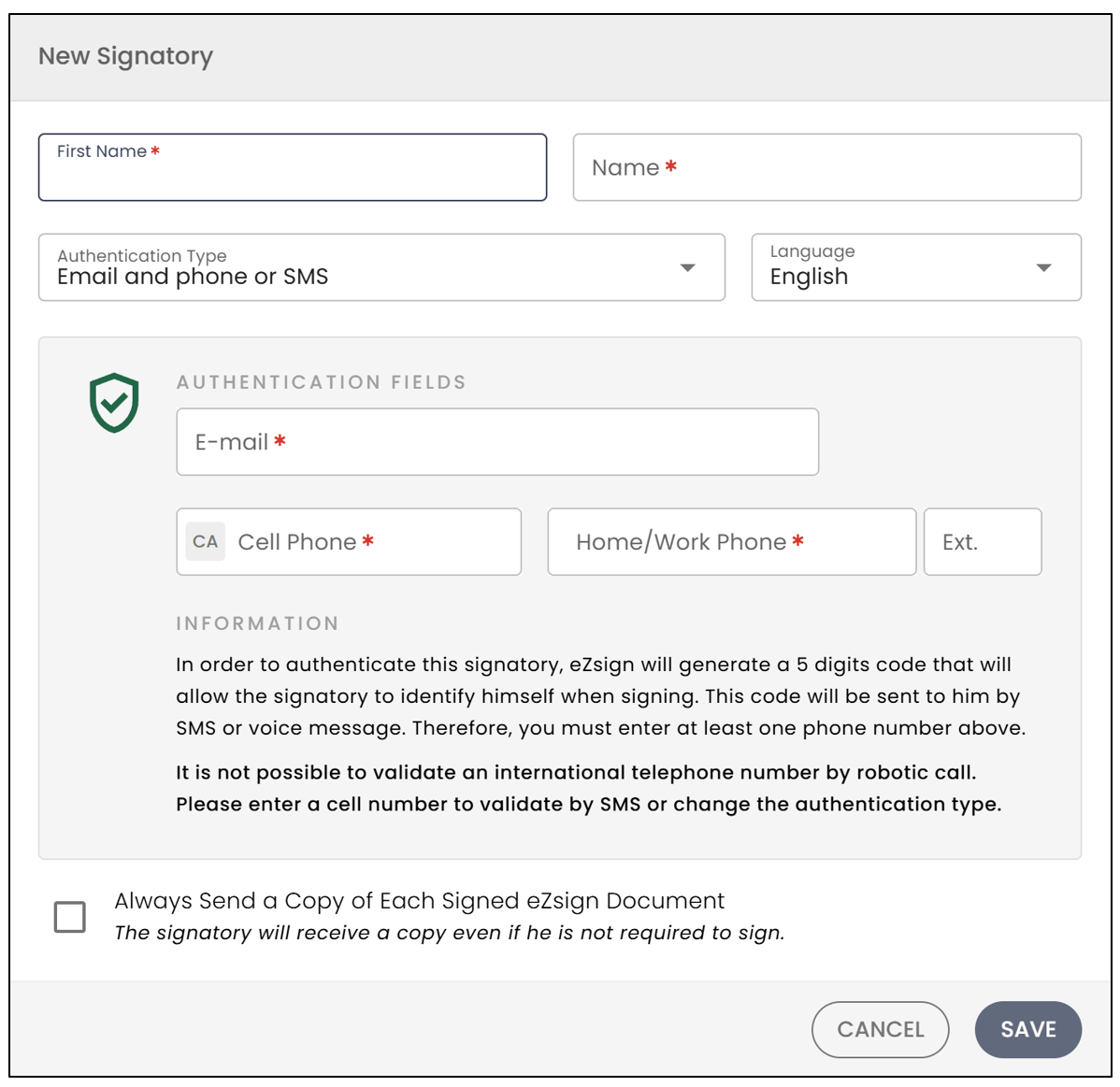
- You can then enter the signer’s information and click Save.
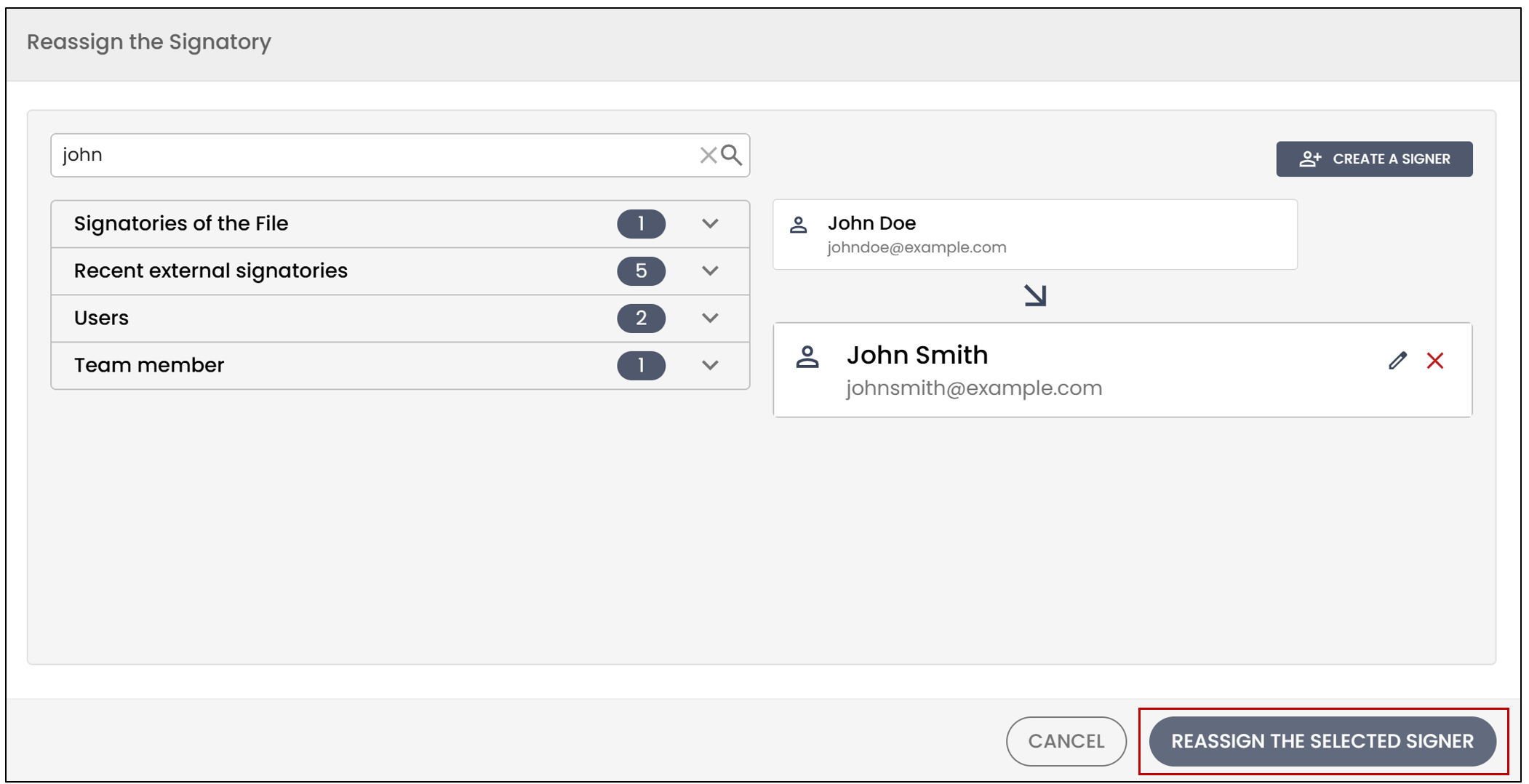
- If the desired signer is already in the list, select them and click Reassign the selected signer.
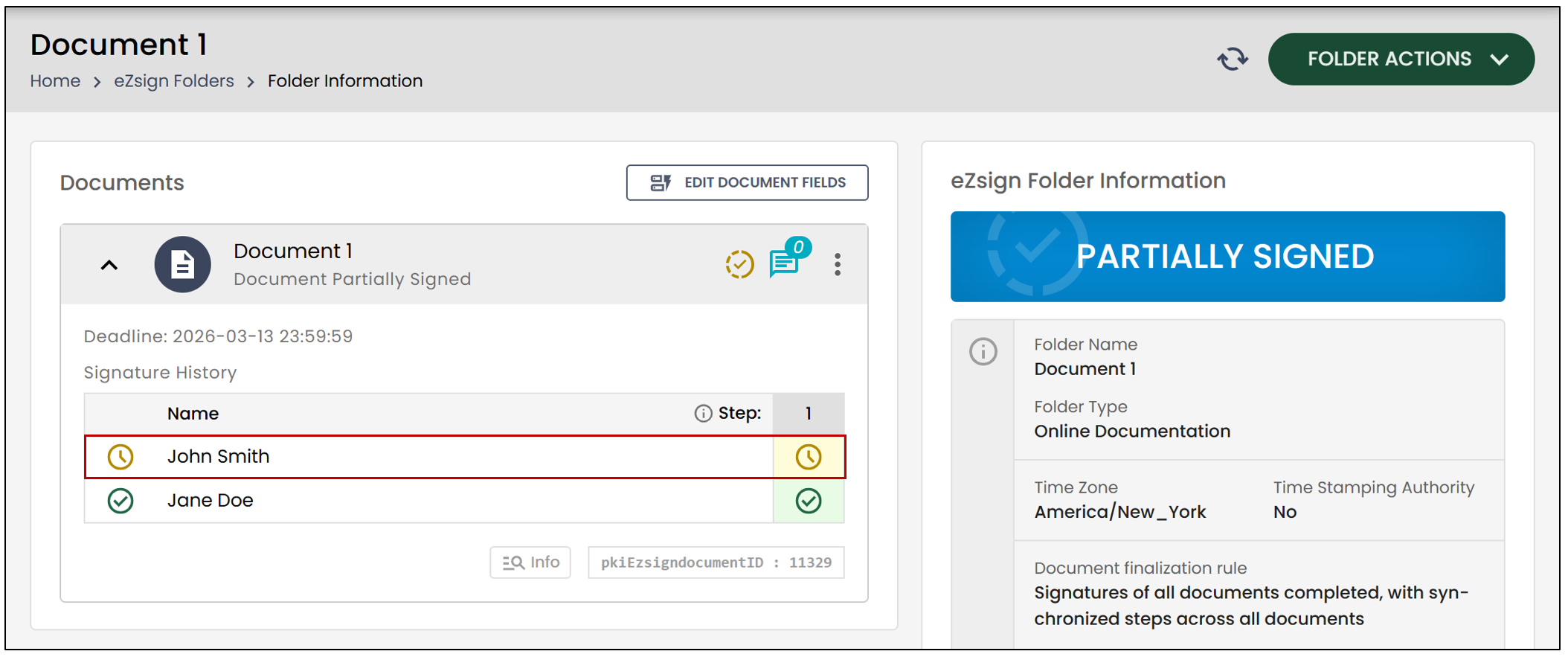
The name of the new signer will appear in the Documents section. You will also be able to verify that all previous signatures have been retained.
The new signer will receive an email notifying them that they have documents to sign. Once all the signatures have been applied, you will be able to see that the document has been marked as Completed.
How to Configure the Folder Type to Allow Reassignment
To allow reassignment to another signer, you must select Administration , then Folder Types in your eZsign menu.
If you do not have administrative permissions, ask your account administrator.
Select the desired folder type to access its details, which will allow you to determine if reassignments are permitted.
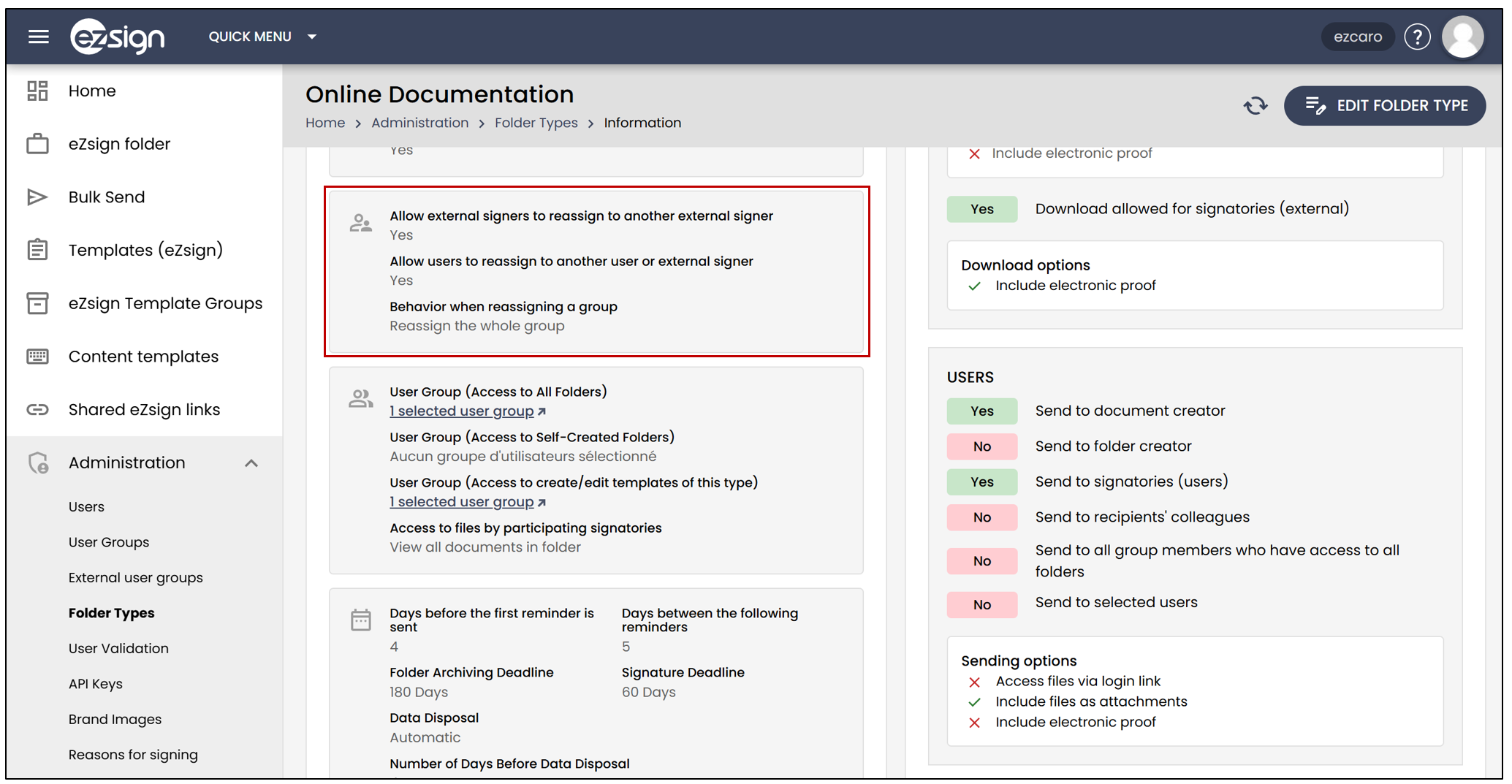
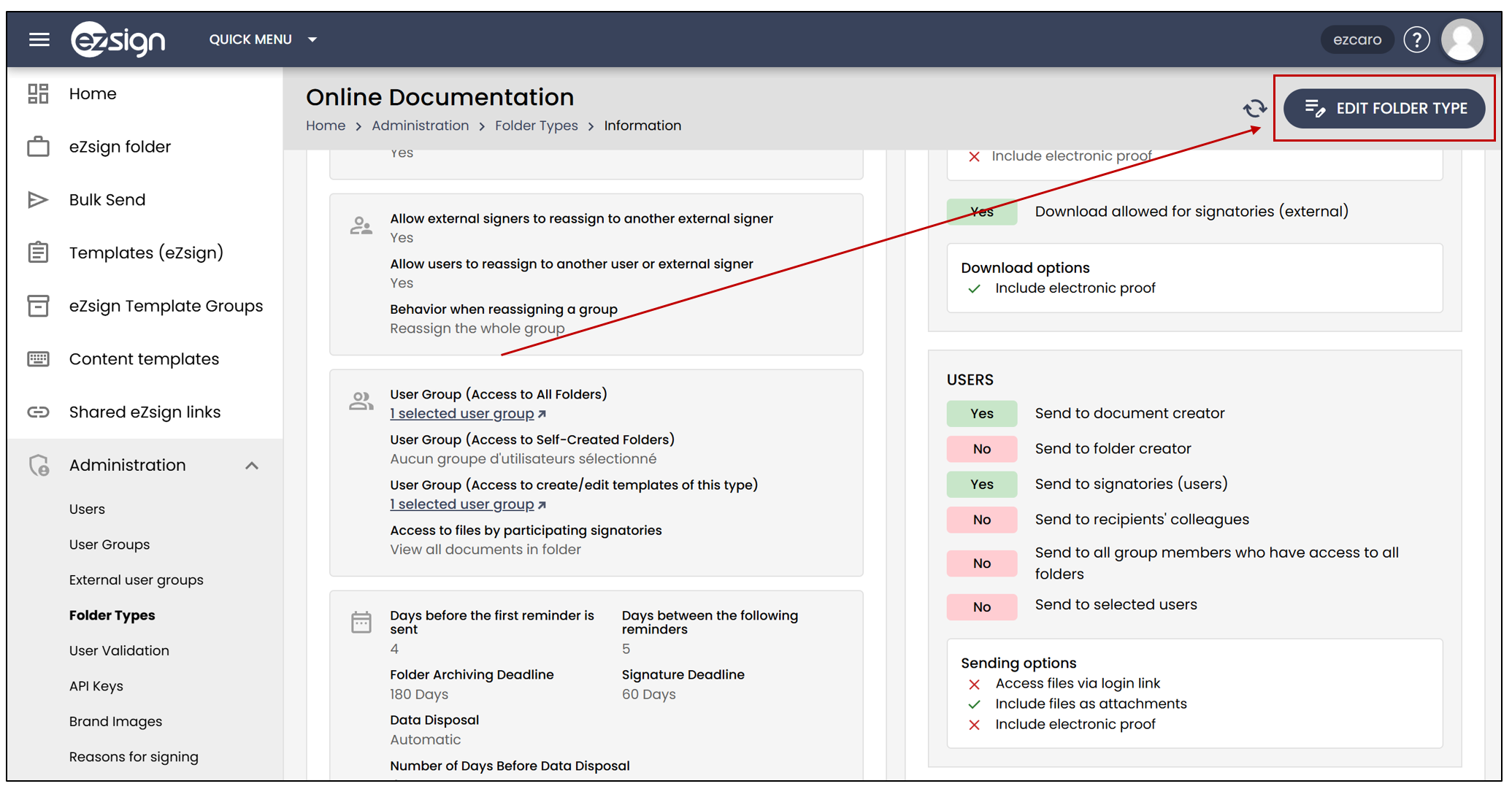
- Click on Edit Folder Type , then enable the desired reassignments.
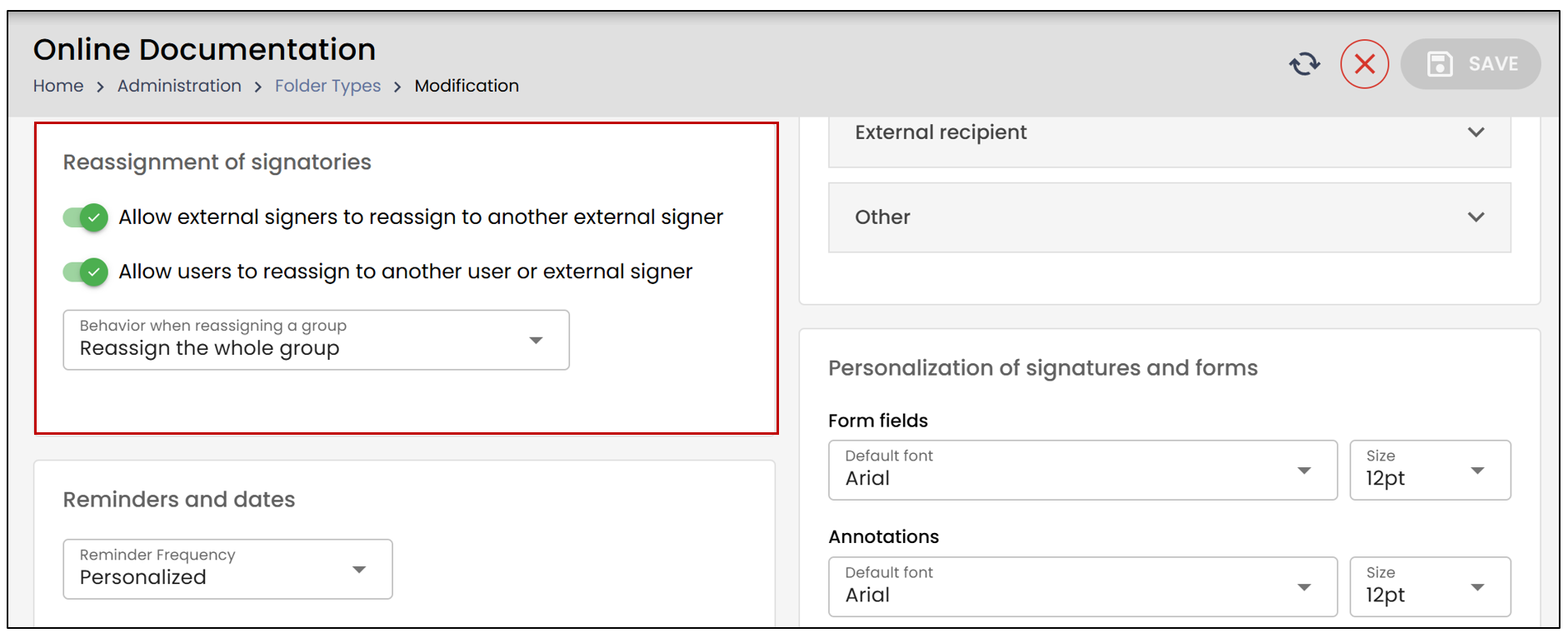
- By clicking Save , signers will have the option to reassign the signature to someone else.
Allow external signers to reassign to another external signer : This action allows the signature to be reassigned to a signer who does not have an eZsign account in your organization, i.e., an external signer.
Allow users to reassign to another user or external signer : This action allows the signature to be reassigned to another user who has an eZsign account in your organization.
NOTE: An external signer does not have the ability to reassign to an eZsign user; they can only reassign to another external signer.