

English
Signing a Document Containing an "Attachments" Field as an External Signatory
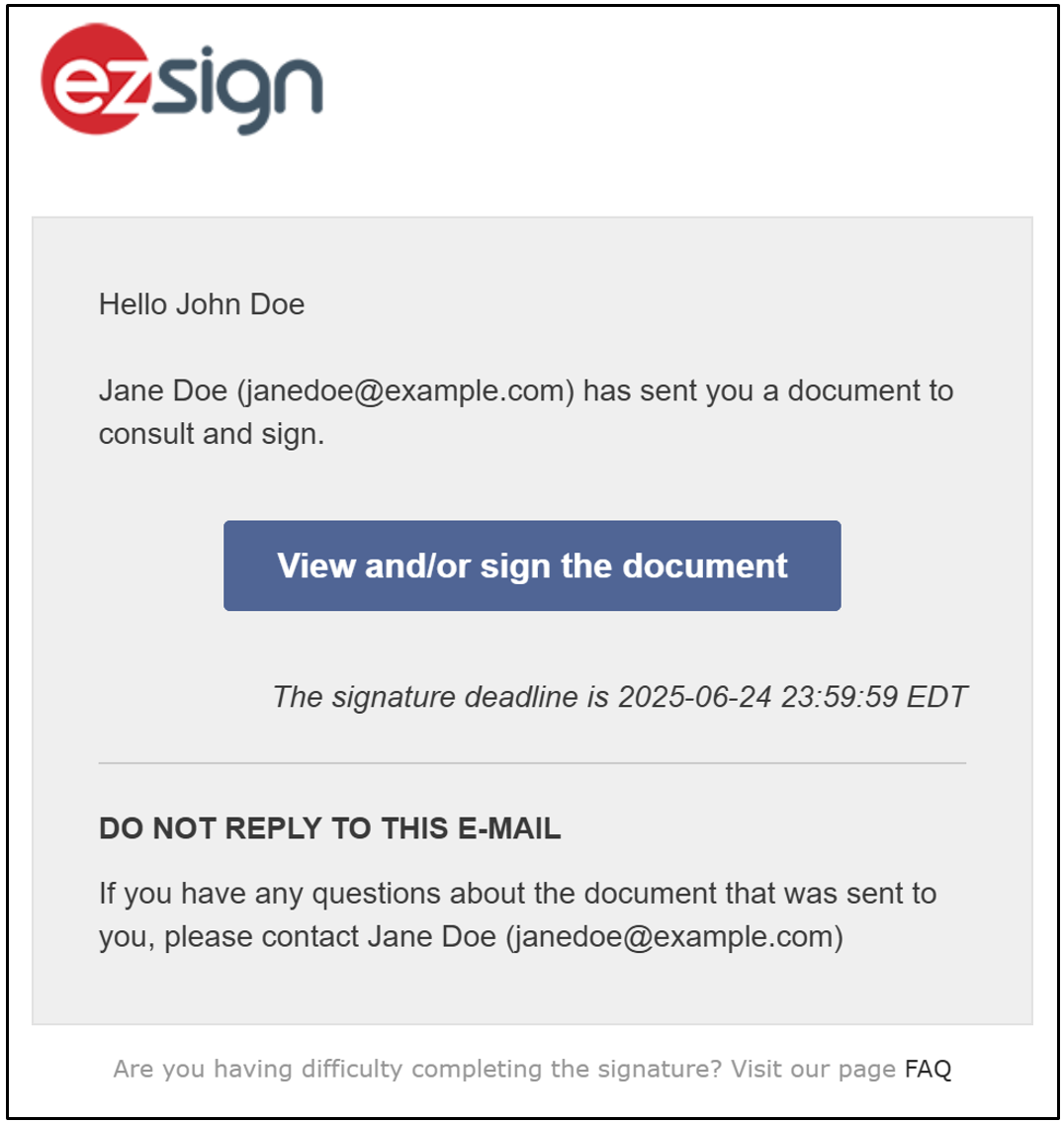
When you need to sign or add an attachment to a document as an external signer — meaning you are not the user who added the fields and sent the document — you will receive an email with the following information:
- To start the signing process, click on View and/or sign the document.
- Click on Begin the Process and you will be redirected to the authentication page.
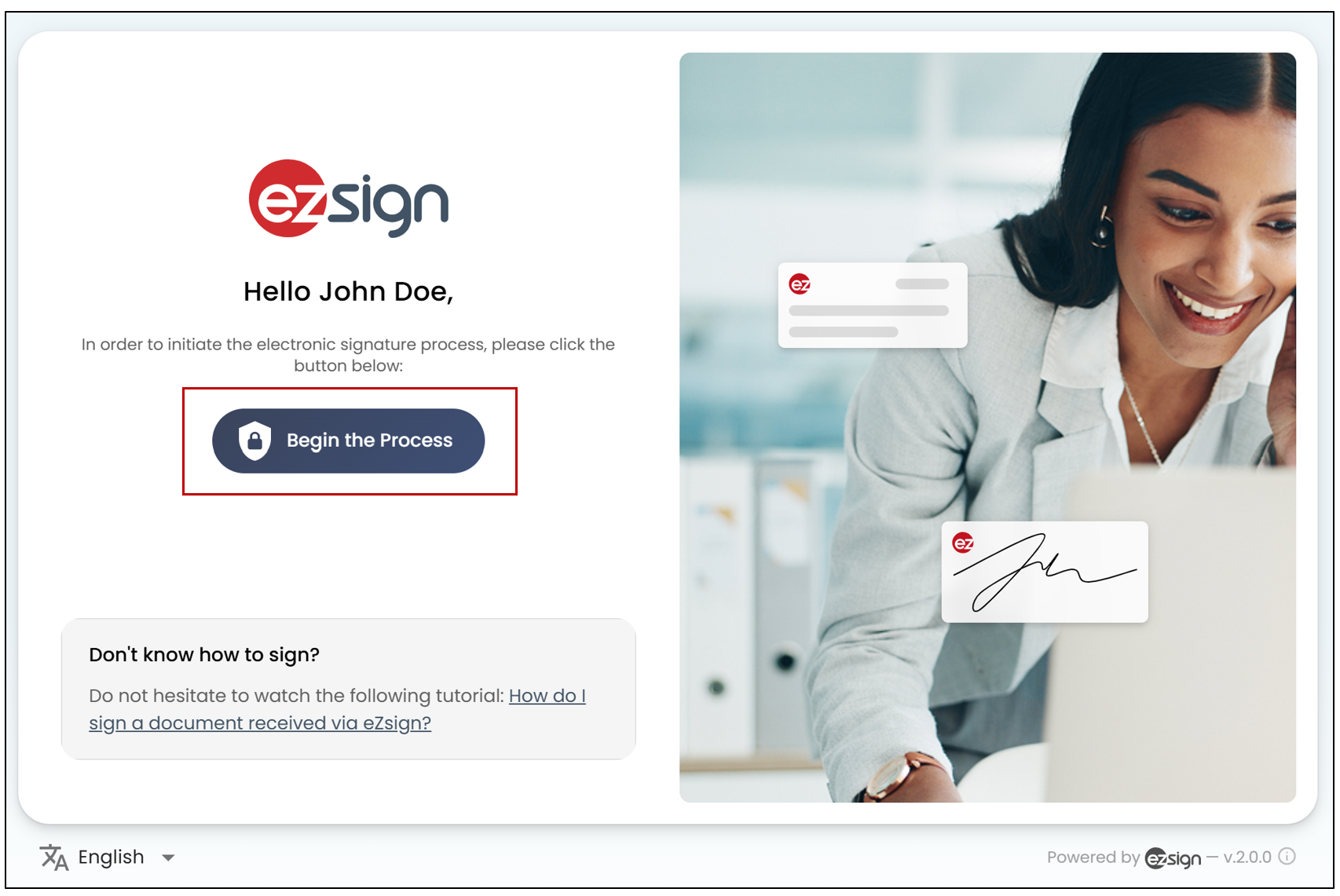
NOTE: Authentication depends on what the document sender has configured. For more information, see the article Types of Signatory Authentication.
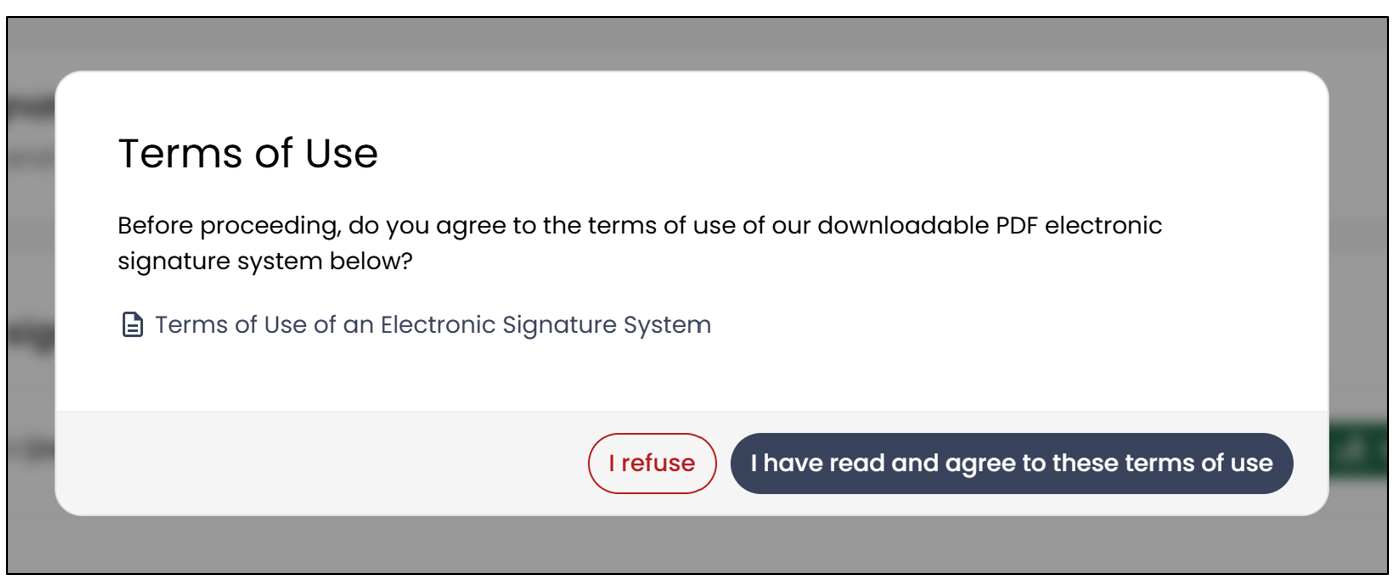
- Review the terms for using the electronic signature system and click on I have read and agree to these terms of use.
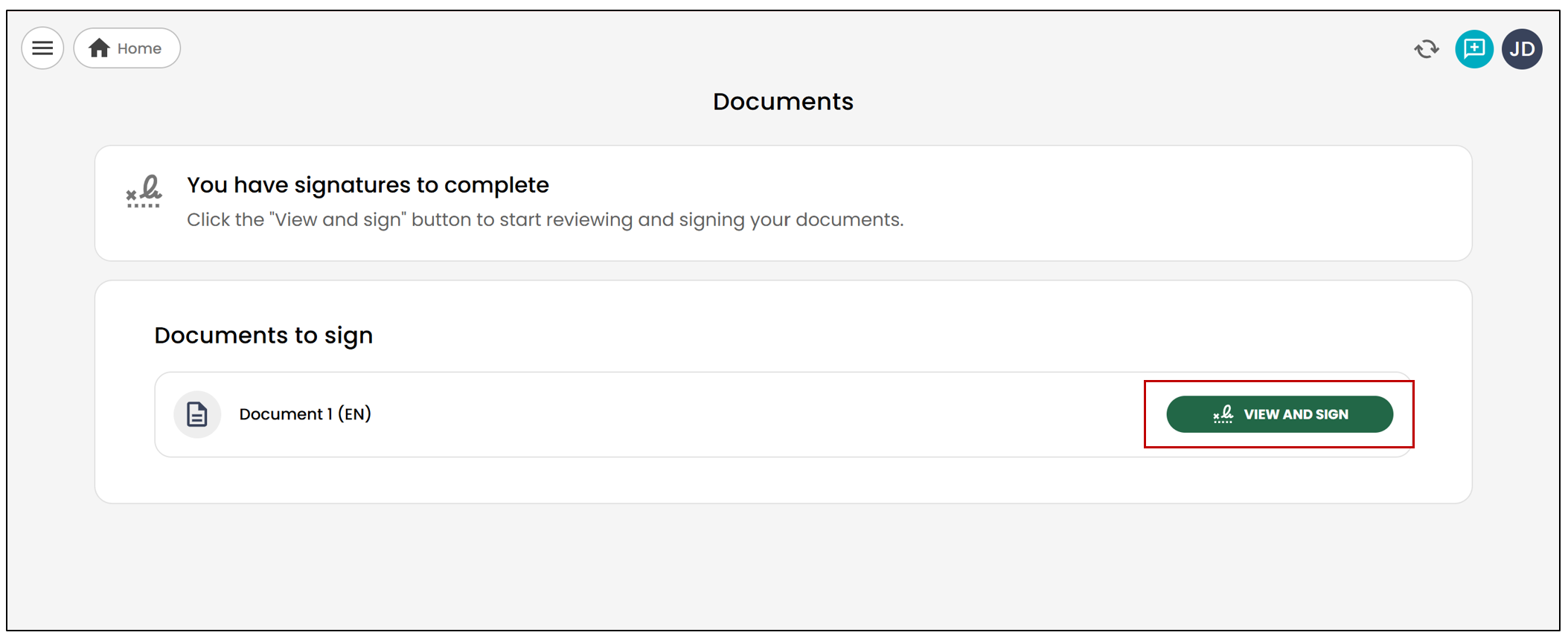
- Select the desired folder, then click on View and Sign.
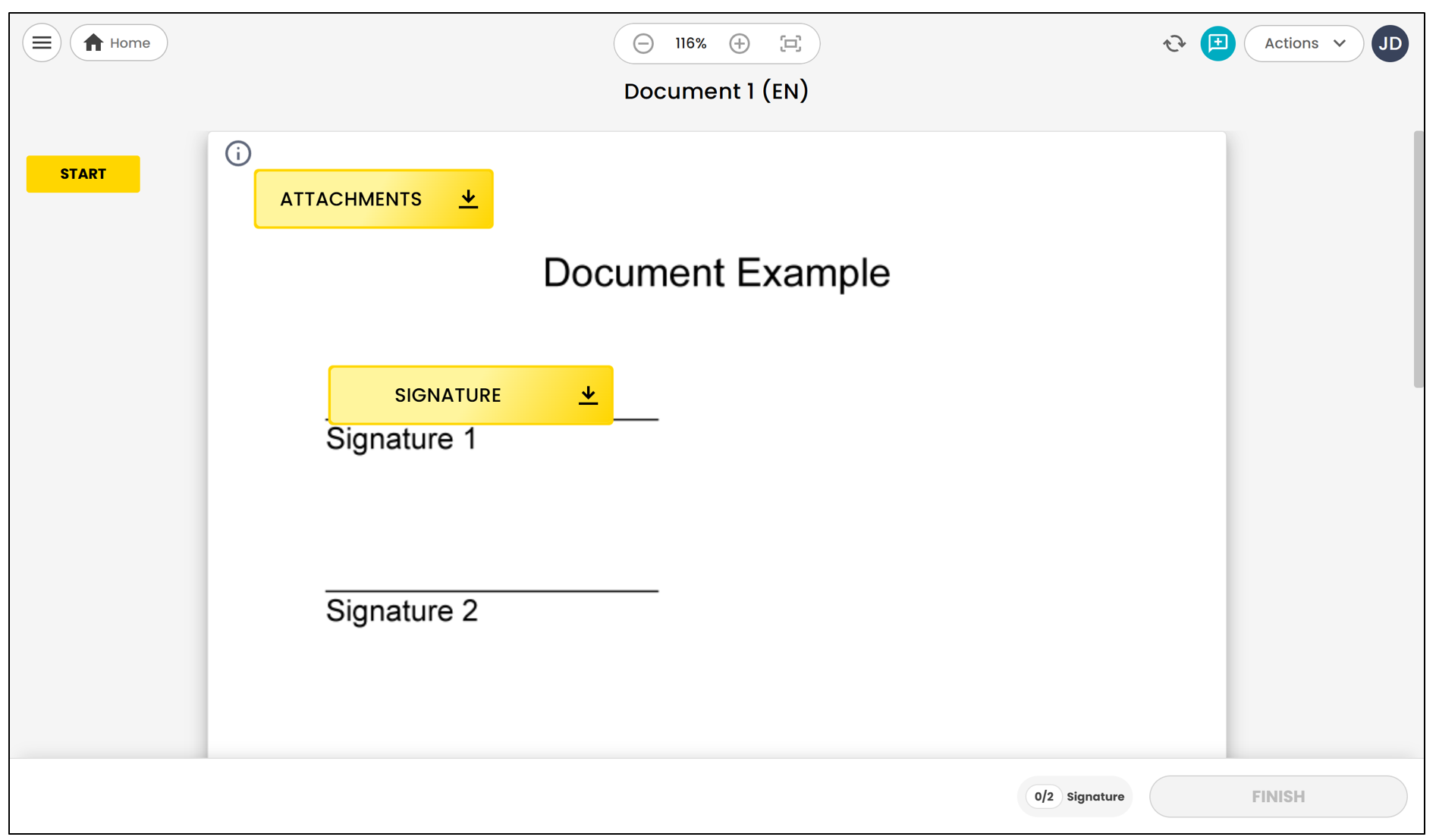
NOTE: If the document contains form fields, they must be completed before the electronic signature fields. For more information, see the article Filling In a Form as an External Signatory.
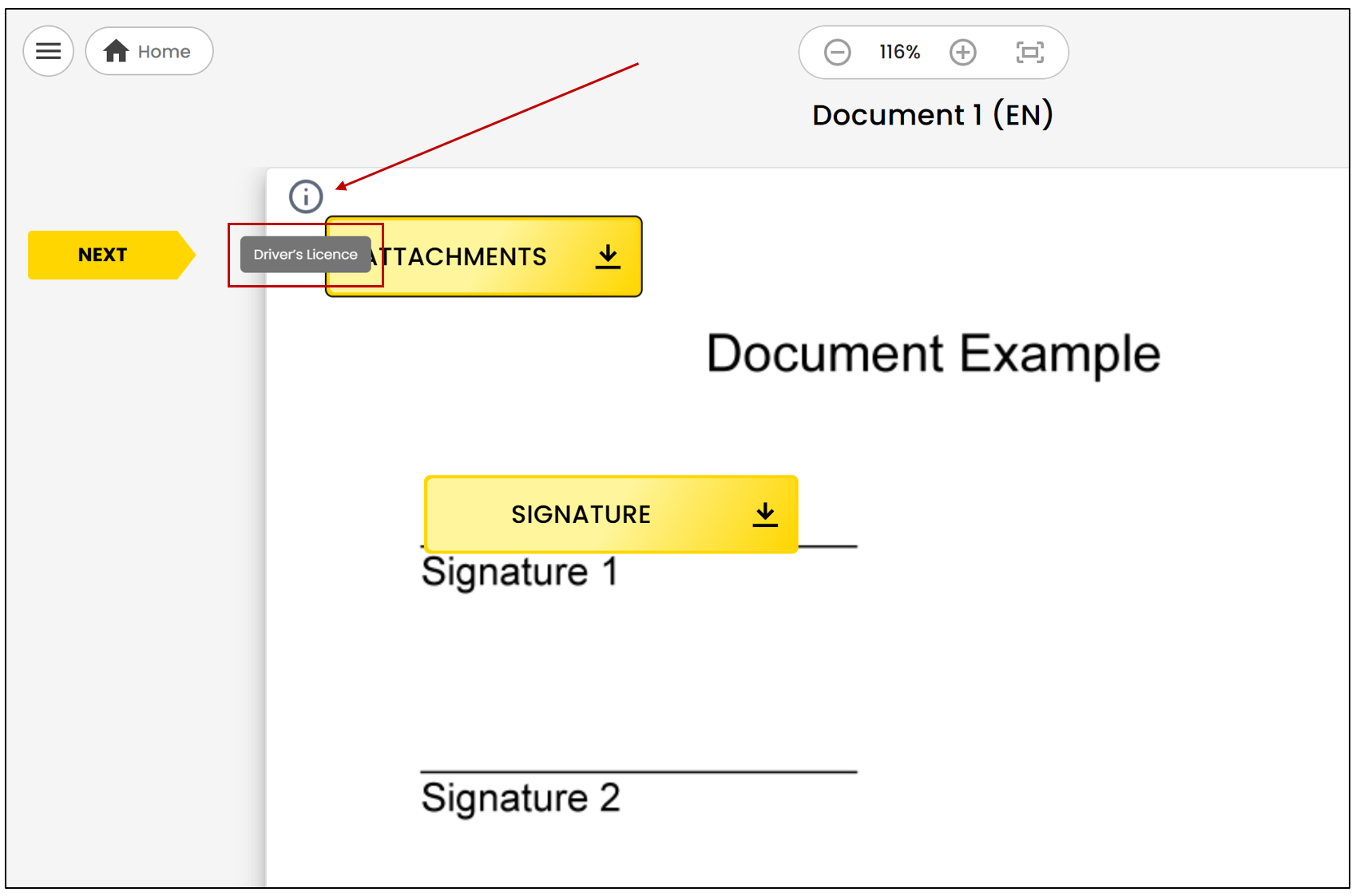
- If the information icon appears to the left of the attachment field, you will be able to view the tooltip content defined when the field was created.
- To add the requested file(s), click on Attachments , then drag and drop your files into the upload area.
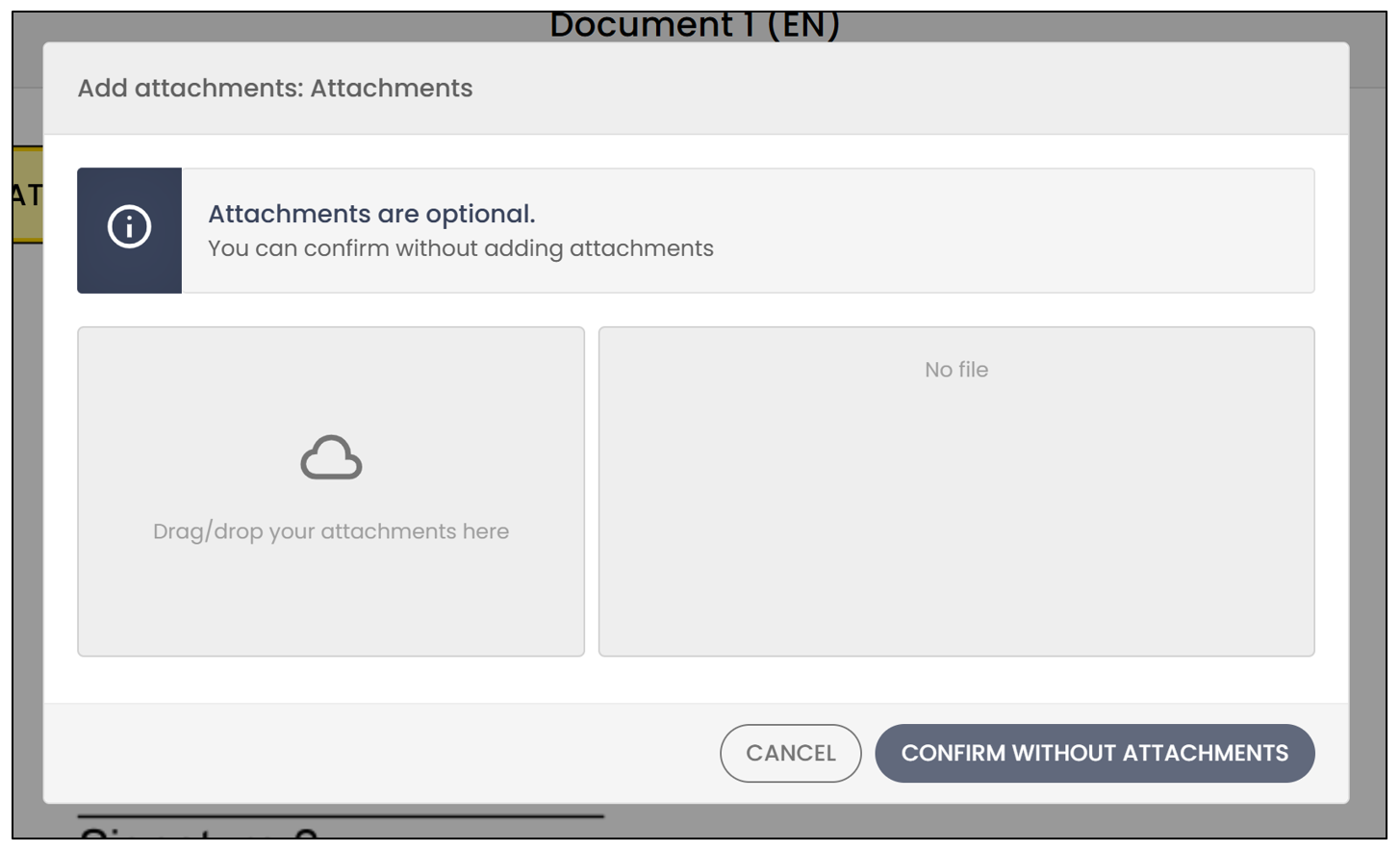
NOTE: You can select multiple files to add them at once.
NOTE: You can confirm without adding an attachment.
- You can delete an uploaded file by clicking the red X icon to its right.
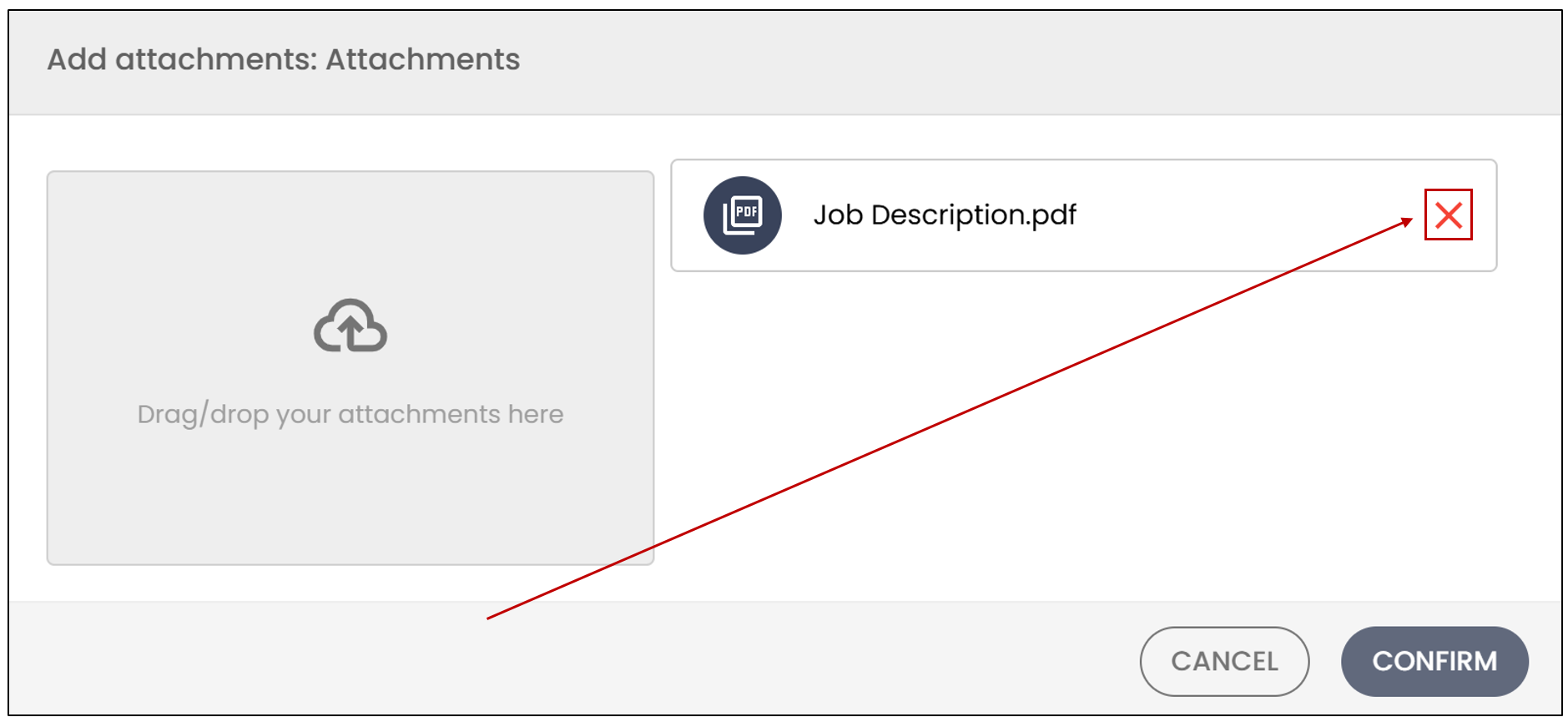
- Click on Confirm and the file(s) will be imported into the document.
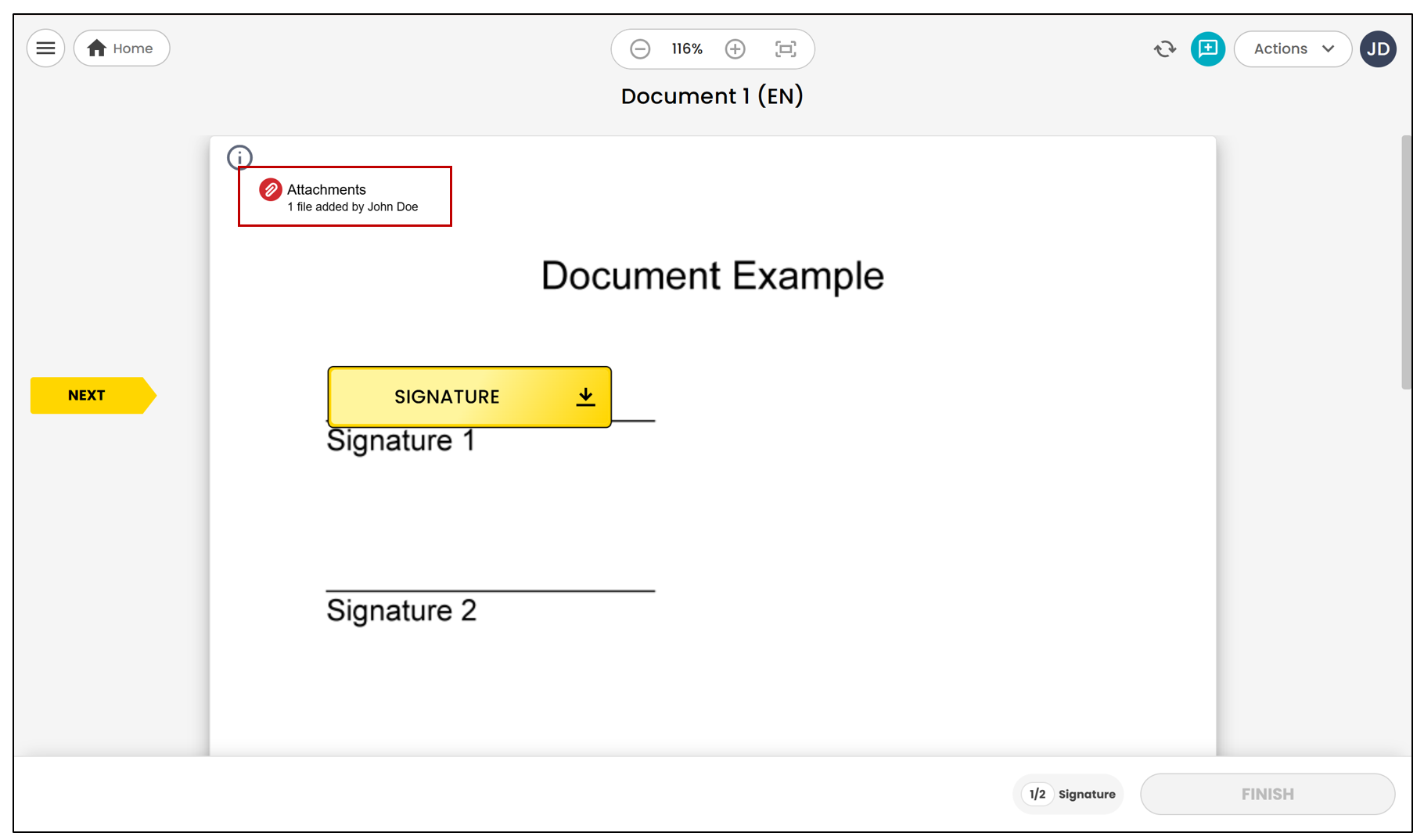
- If the document contains other electronic signature fields and you are the signer, sign the document at the indicated locations by clicking on Signature.
- Once all your fields have been completed, click on Finish.
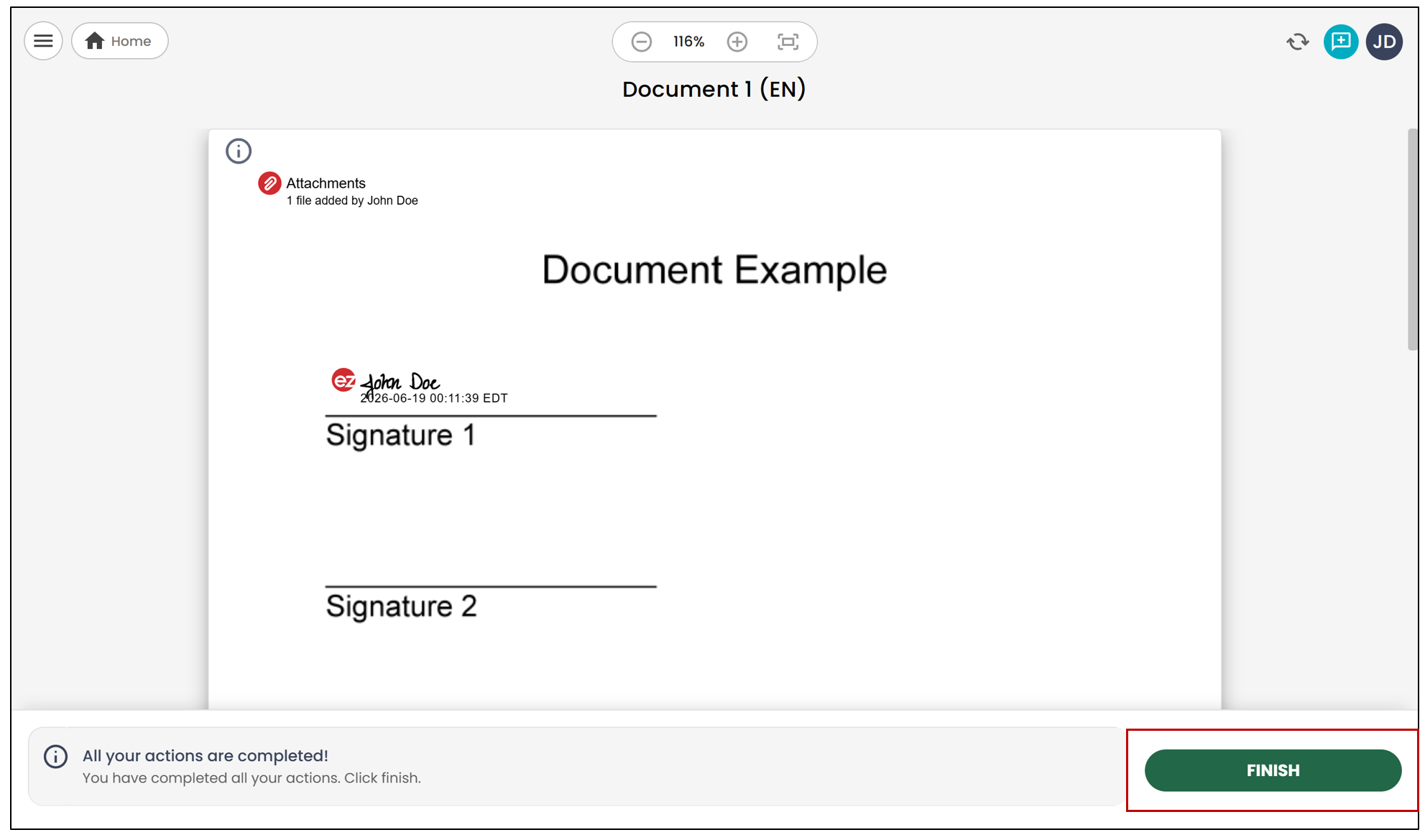
- You can click on Close to return to the signed document or on Logout to end your session.
If all signatures have been obtained in the document, this message will be displayed to indicate that the electronic signature process is complete.
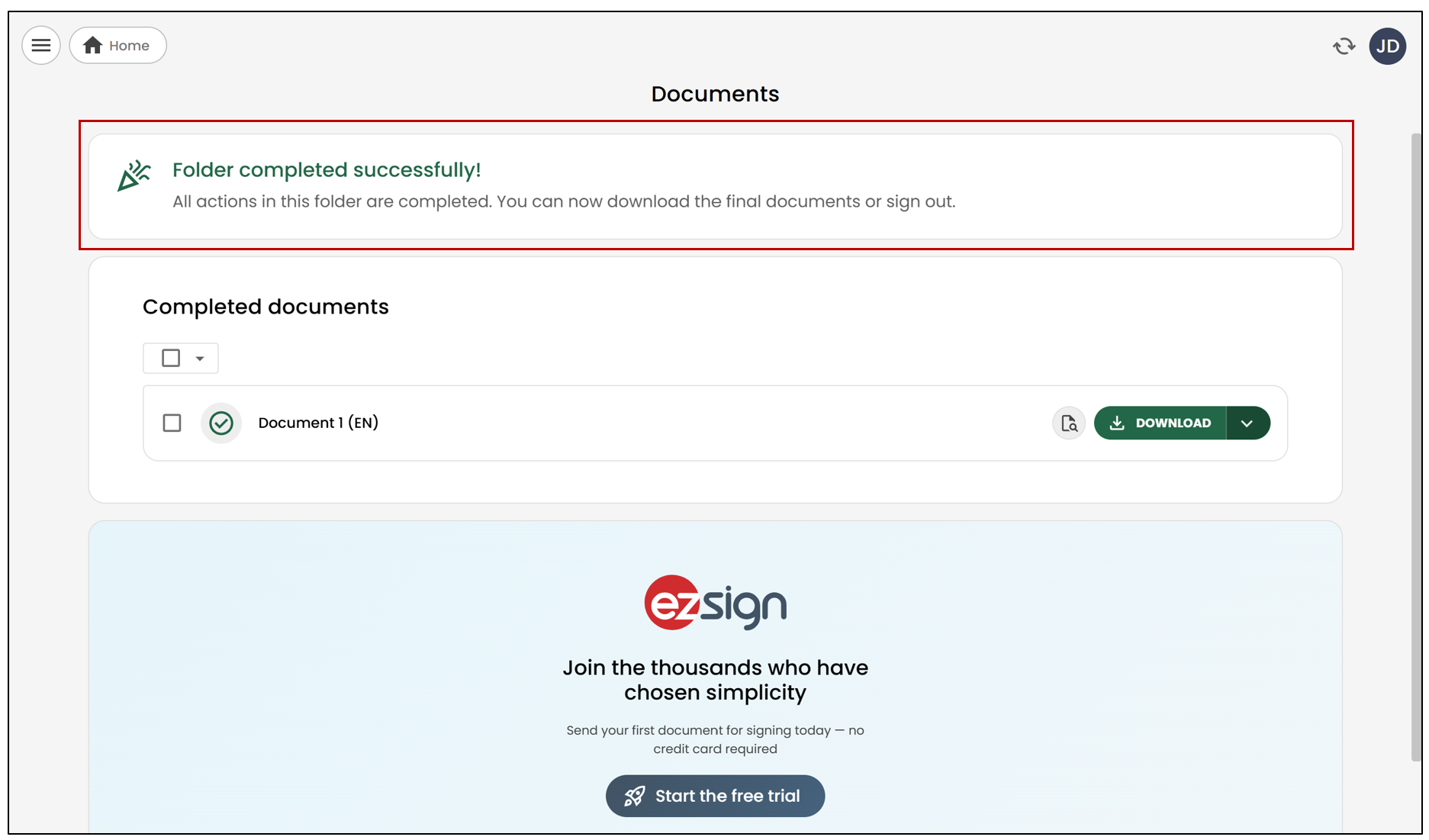
- You can click on Download to view the documents or on Logout to end your session.
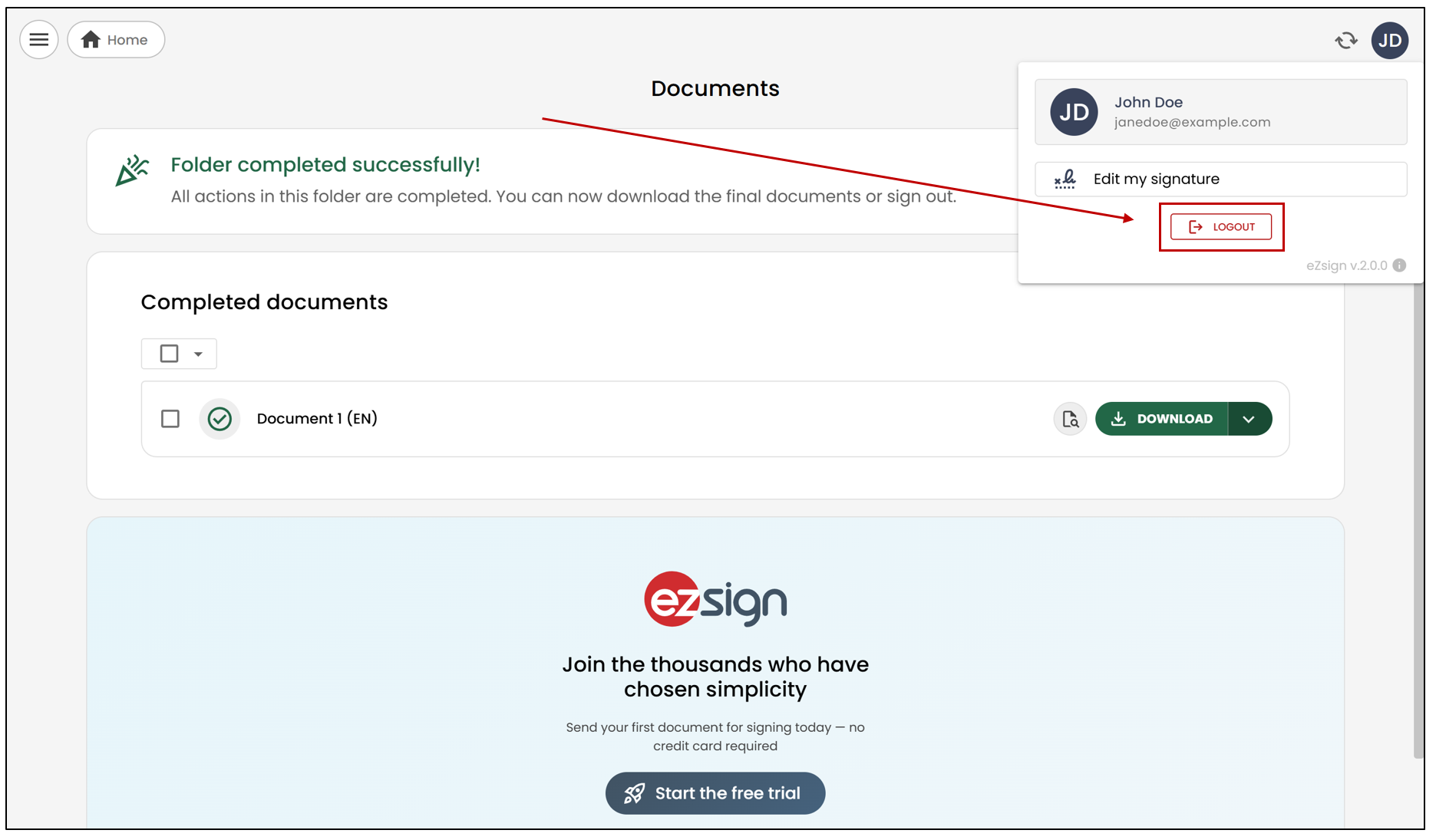
You will receive an email once all parties have completed the signatures in the document.
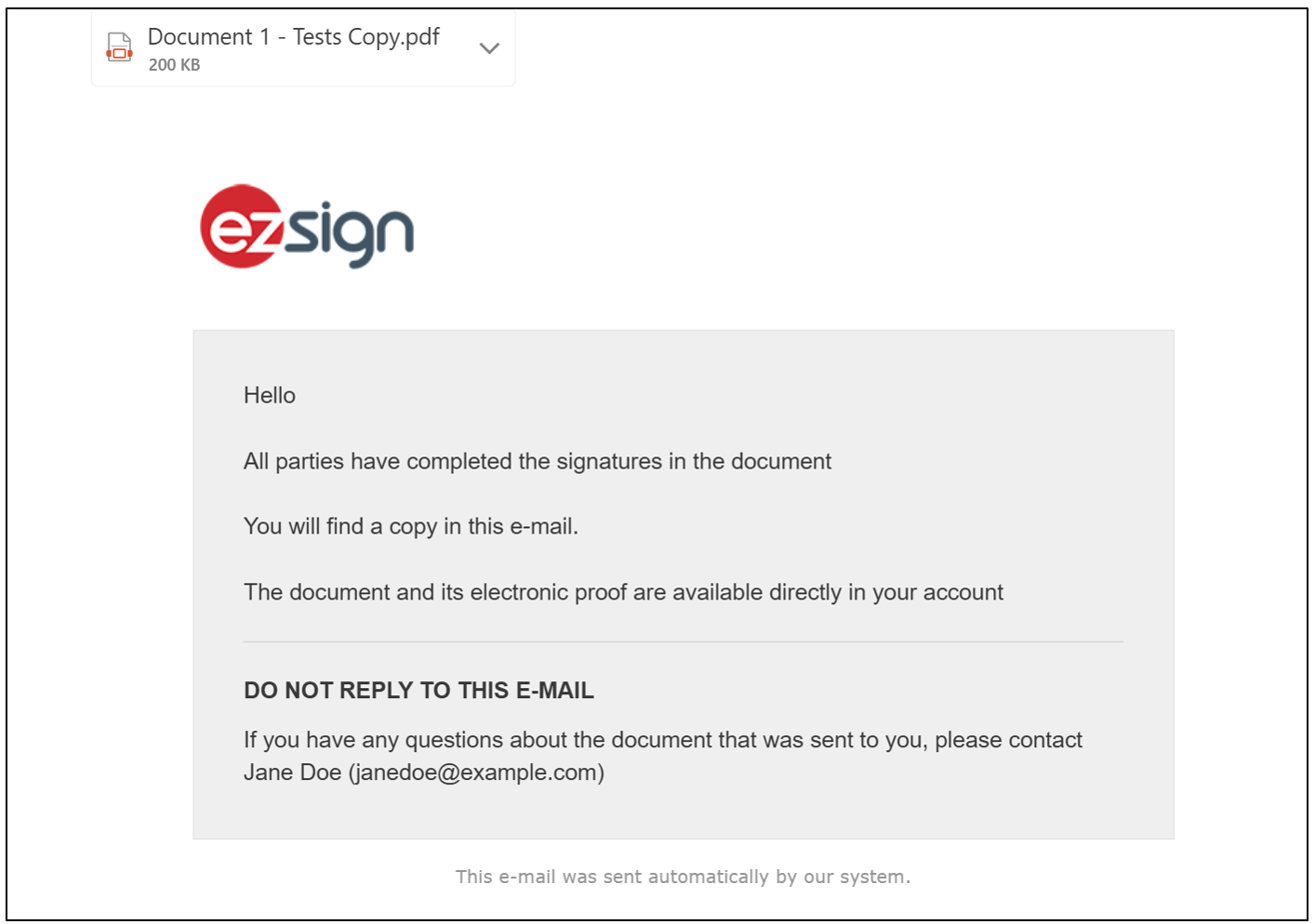
In this email, you will find a copy of the completed document as well as the electronic signature proof that you can keep for your records.
NOTE: To view the signatures and verify their validity, you will need to open the documents in Adobe Reader. If you do not have this software (free), you can download it from the link provided in the email. For more information, see the article Validity of an Electronic Signature.