
English
FAQ - For Signatories
FAQ - For Signatories
How to Sign a Document Received via eZsign – Step by Step
No application to download. No account to create. Simply open your email and sign in just a few clicks.
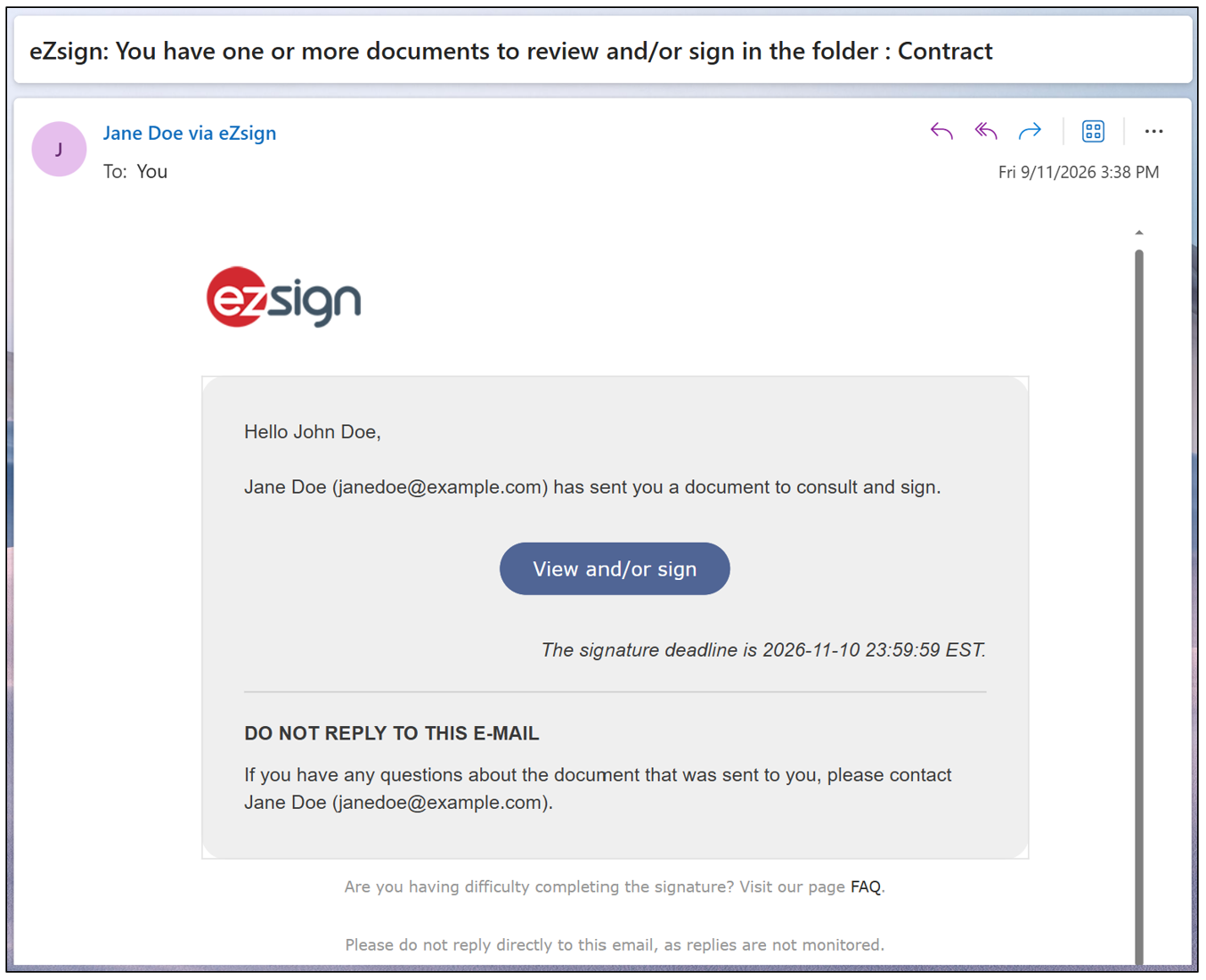
Open the Email
Click the View and/or Sign button to access the document. No download or account is required. The document opens securely in your browser.
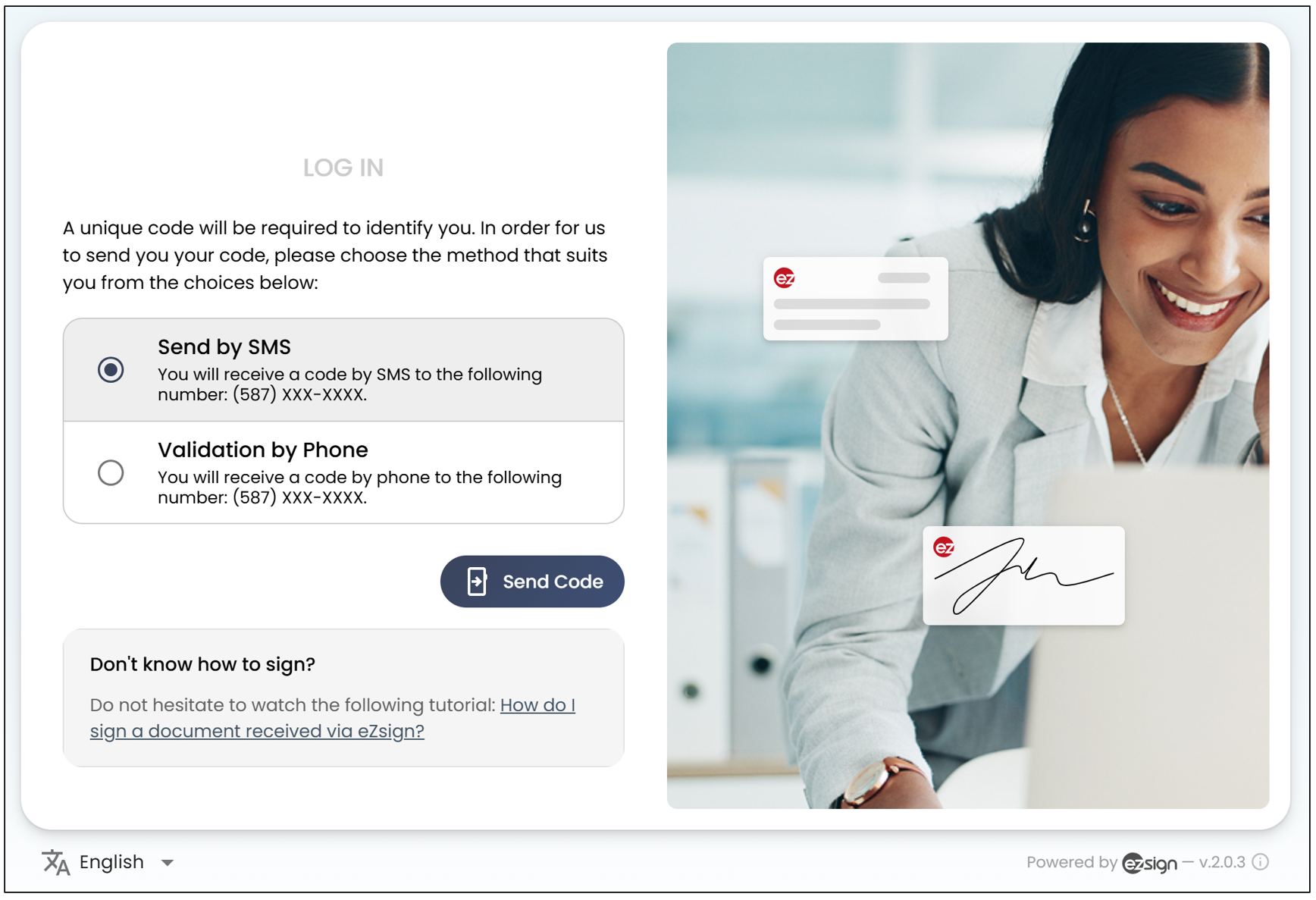
Verify Your Identity
Depending on the settings defined by the sender, you may be asked to enter a verification code sent by SMS. This verification only takes a few seconds and helps protect everyone involved. If no verification is required, simply proceed to the next step.
Review the Document
Scroll through the document. All fields that require your signature or initials will be clearly highlighted.
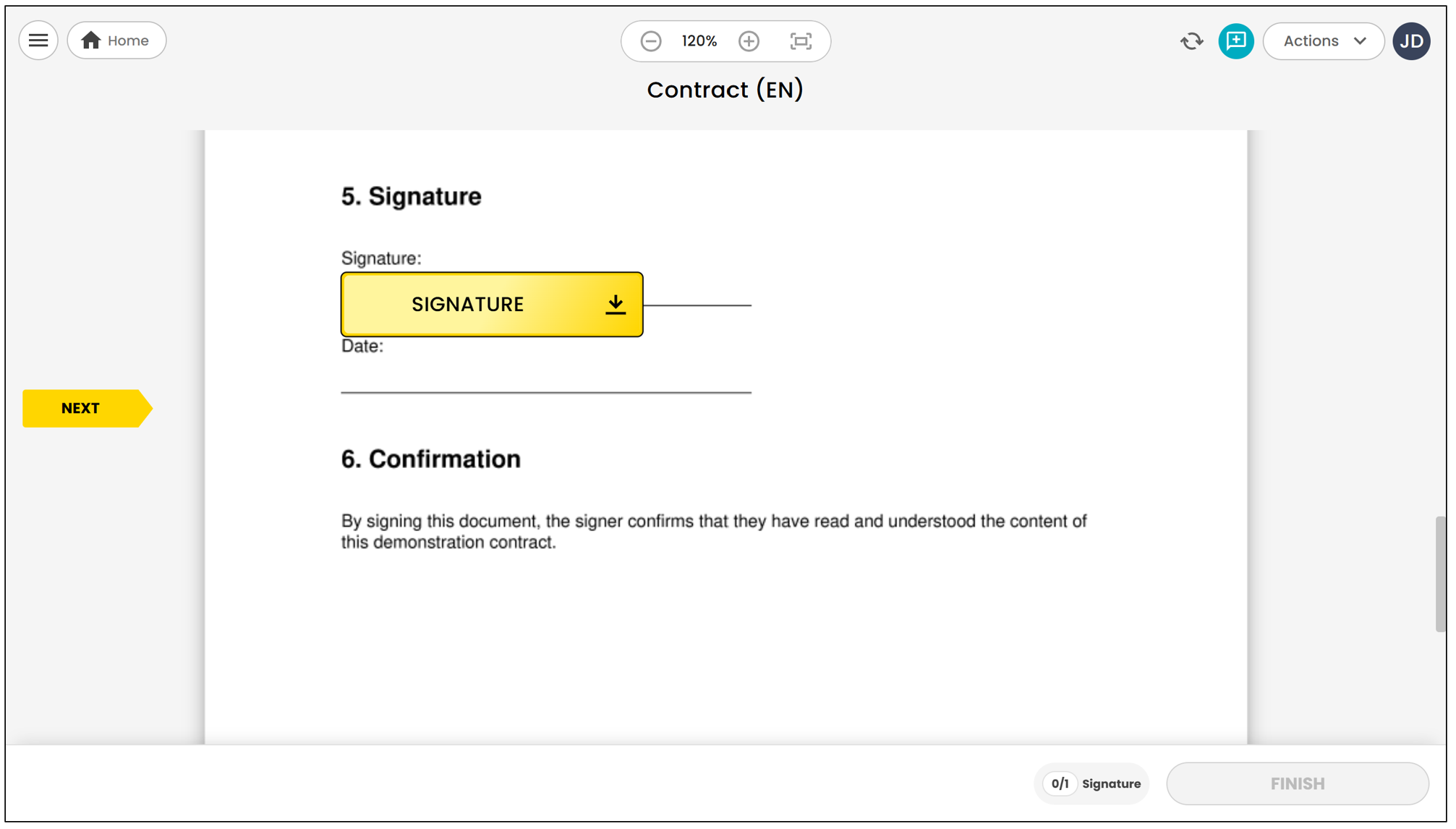
Click Each Field to Sign
Click each highlighted field to add your signature or initials. Repeat the process until all required fields have been completed, then click Finish.
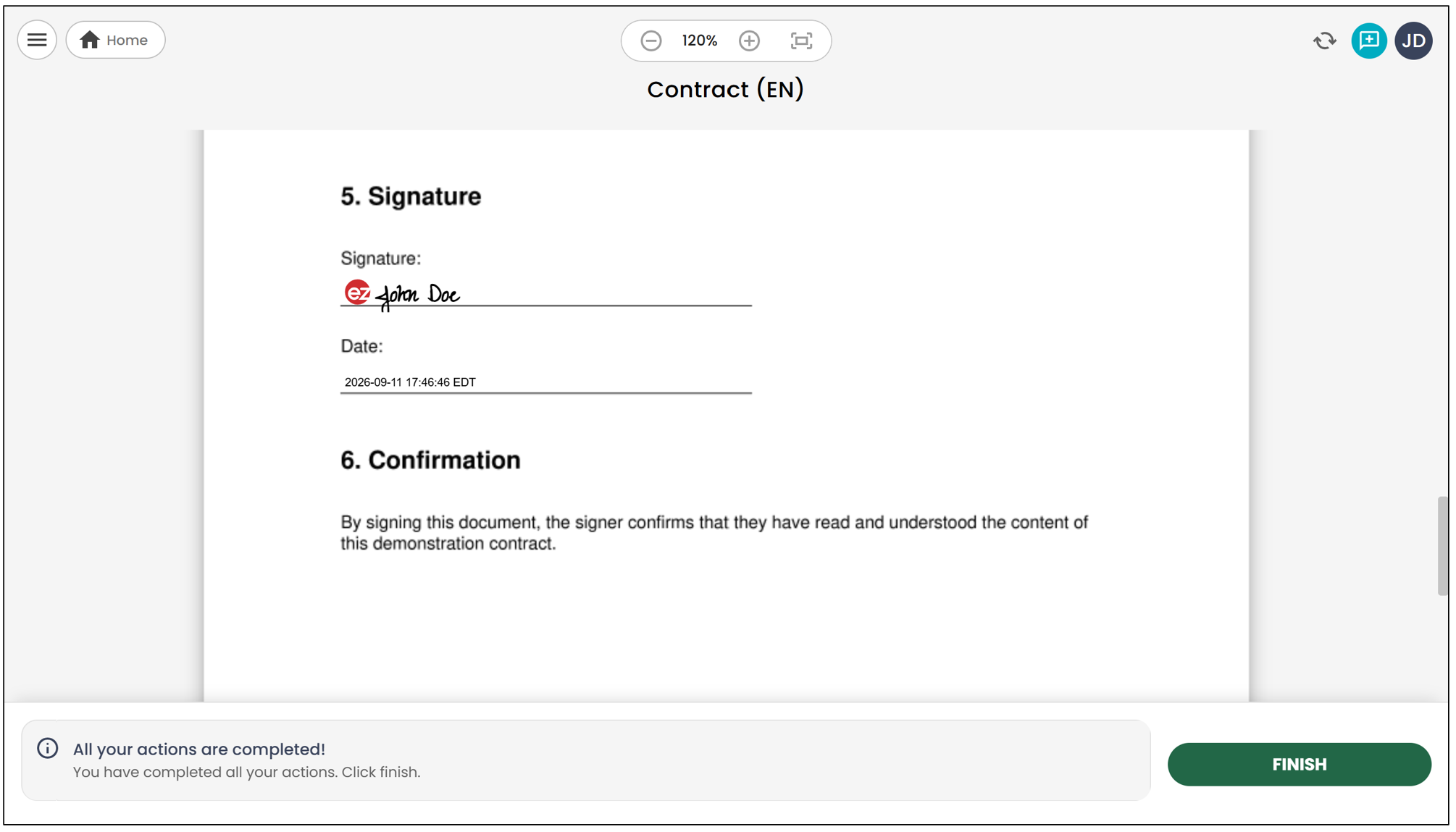
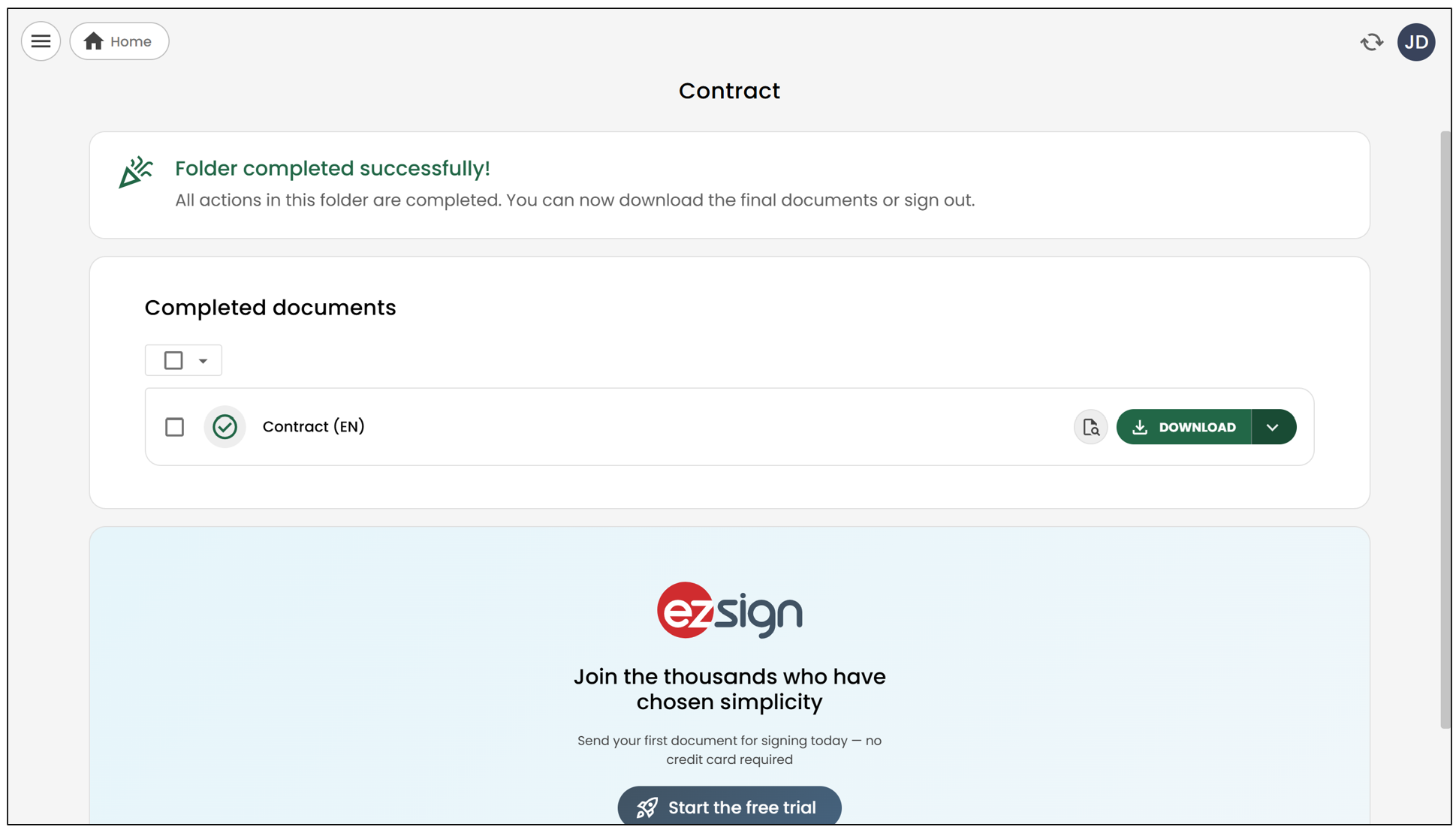
Download the PDF and Check Your Inbox
Once all fields have been completed, you can download your signed PDF, and a copy will be sent directly to your inbox. It is legally binding, admissible as evidence in court, and stored in Canada.
General Questions
Refusing to Sign a Document
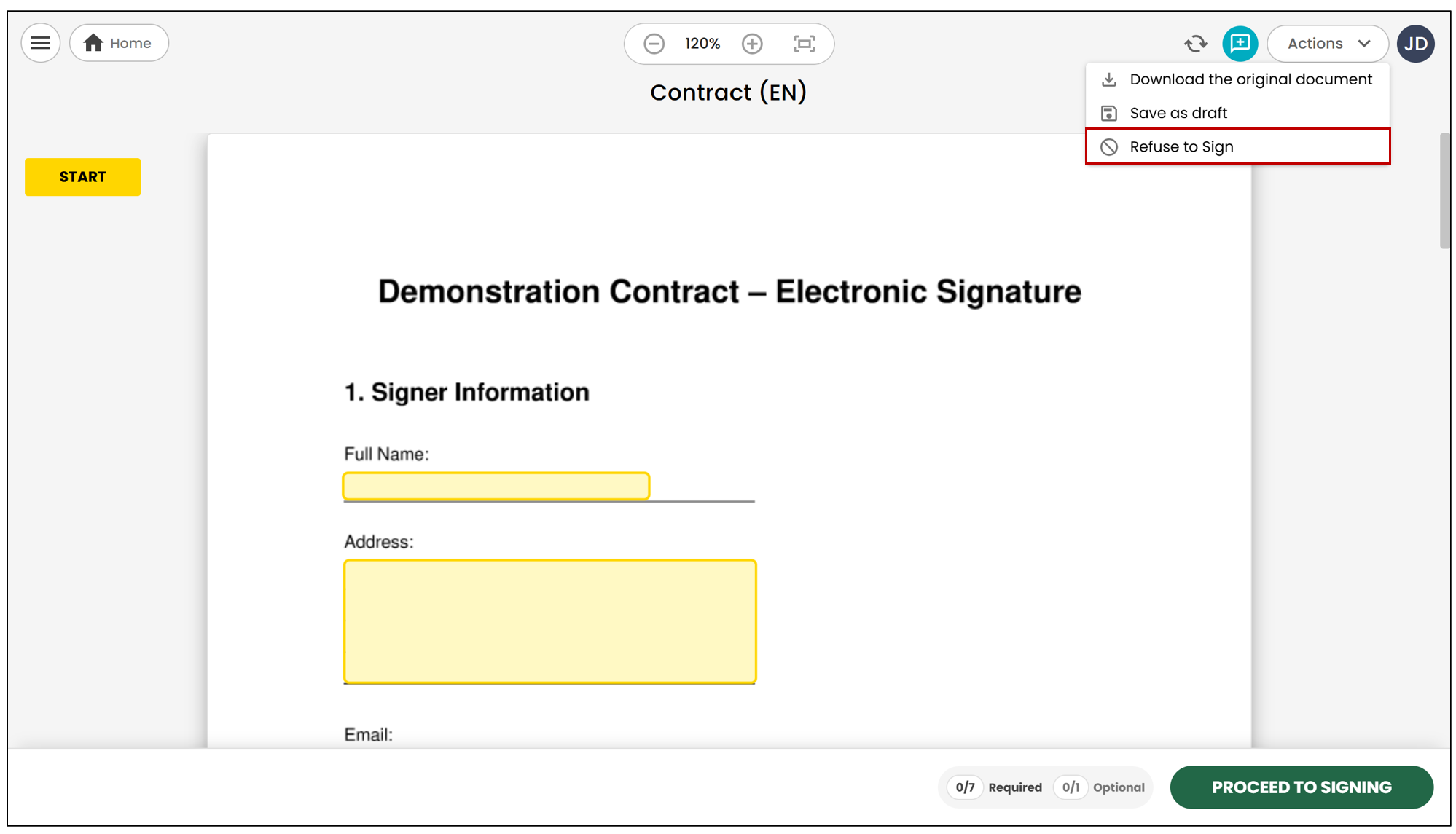
When signing, you can refuse to sign a document.
To do so, click the icon in the top right corner, then select the "Refuse to Sign " option.
A window will appear allowing you to provide the reason for your refusal.
Once the refusal has been submitted, the document sender will automatically receive a notification including the reason provided.
The document will then be considered incomplete and will remain unsigned.
Reassigning the Document to Another Signatory
You can reassign a document if this option has been enabled by the sender.
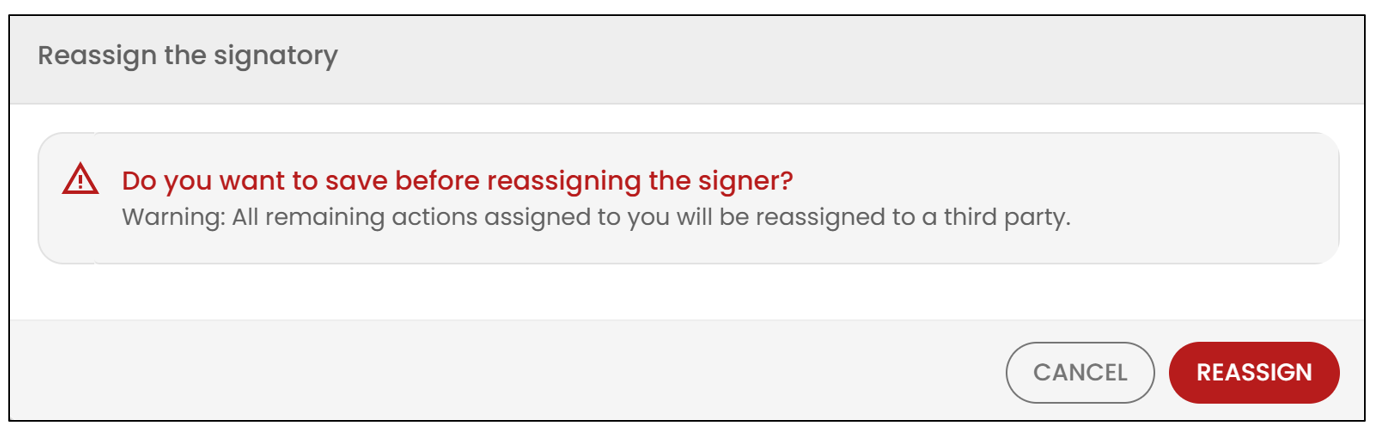
If you have received a document and have actions to complete, you can complete some of them or choose to reassign all of them to another person. To do so, click the icon in the top right corner, then select "Reassign Signatory ".
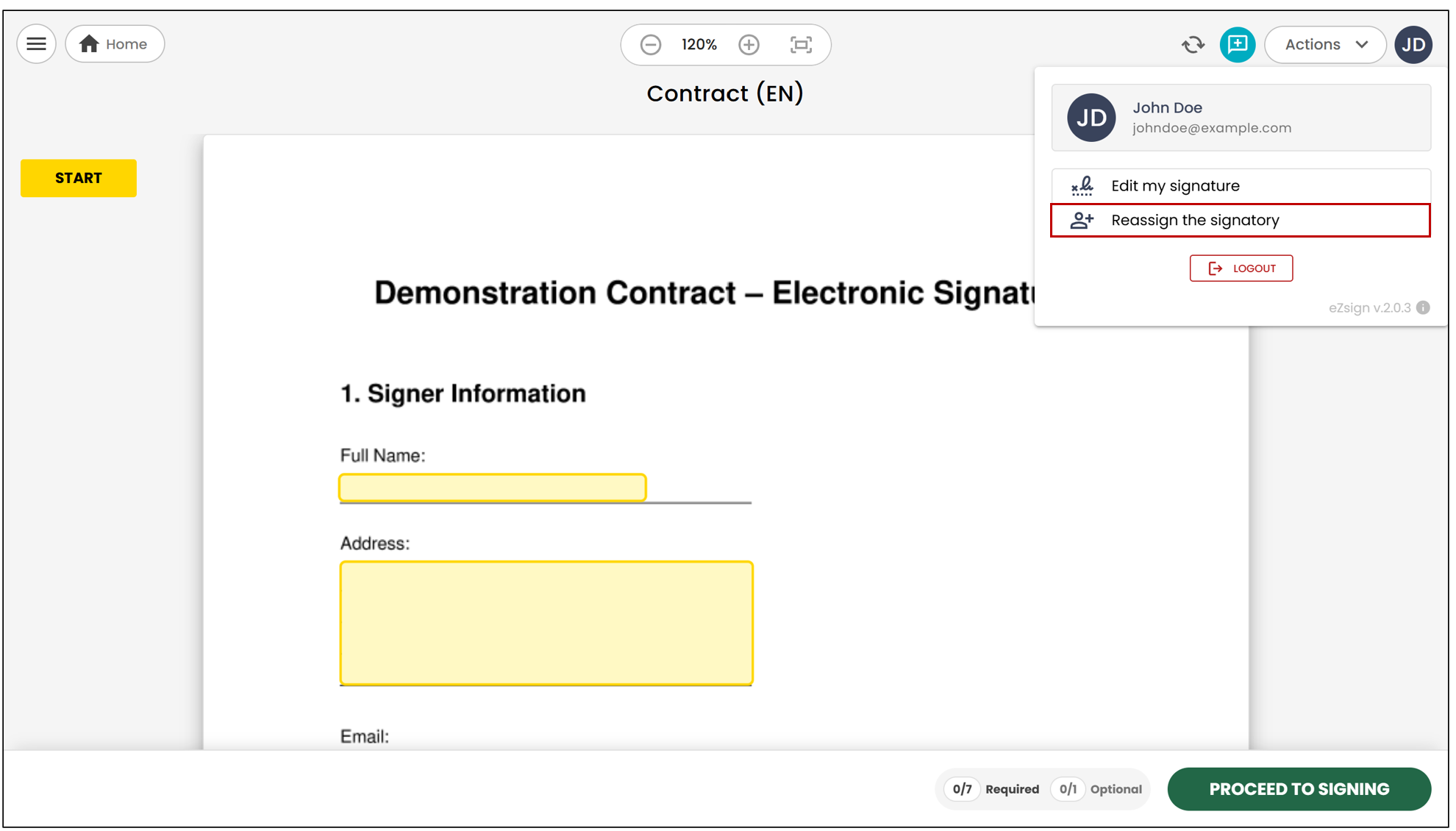
To keep the information that has already been completed or signed, click "Reassign ".
You will then need to enter the information of the person to whom you want to transfer the request (name, email address, and, if applicable, phone number).
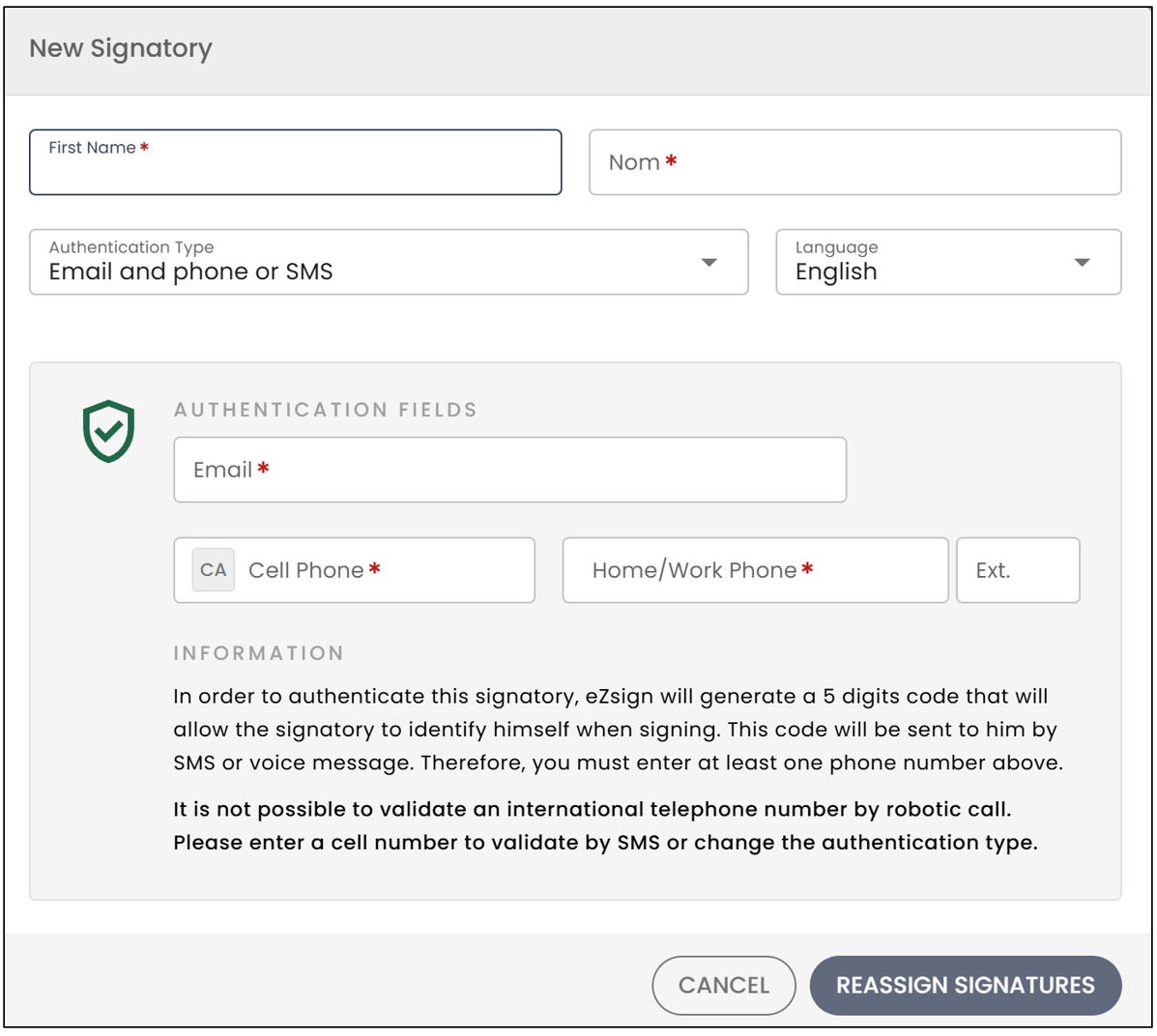
The document will automatically be sent to this new person so that they can complete the remaining actions.
Adding an Attachment to the Document
If the document sender asks you to add an attachment, you will see a yellow button named "Attachment " (default name) or a more specific name, depending on the configuration selected by the sender (e.g., ID, void cheque, etc.).
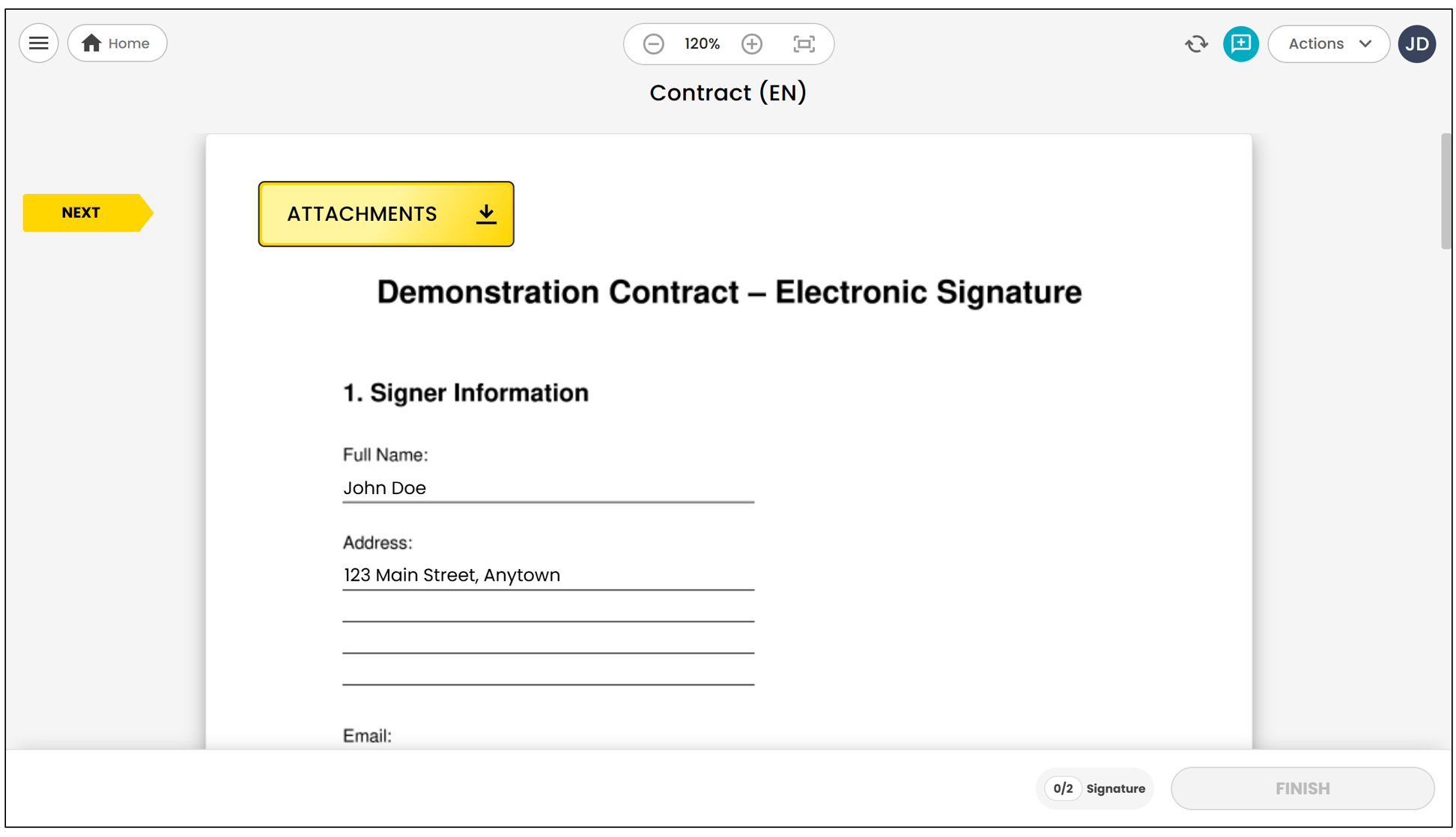
Click this button to add your file from your computer.
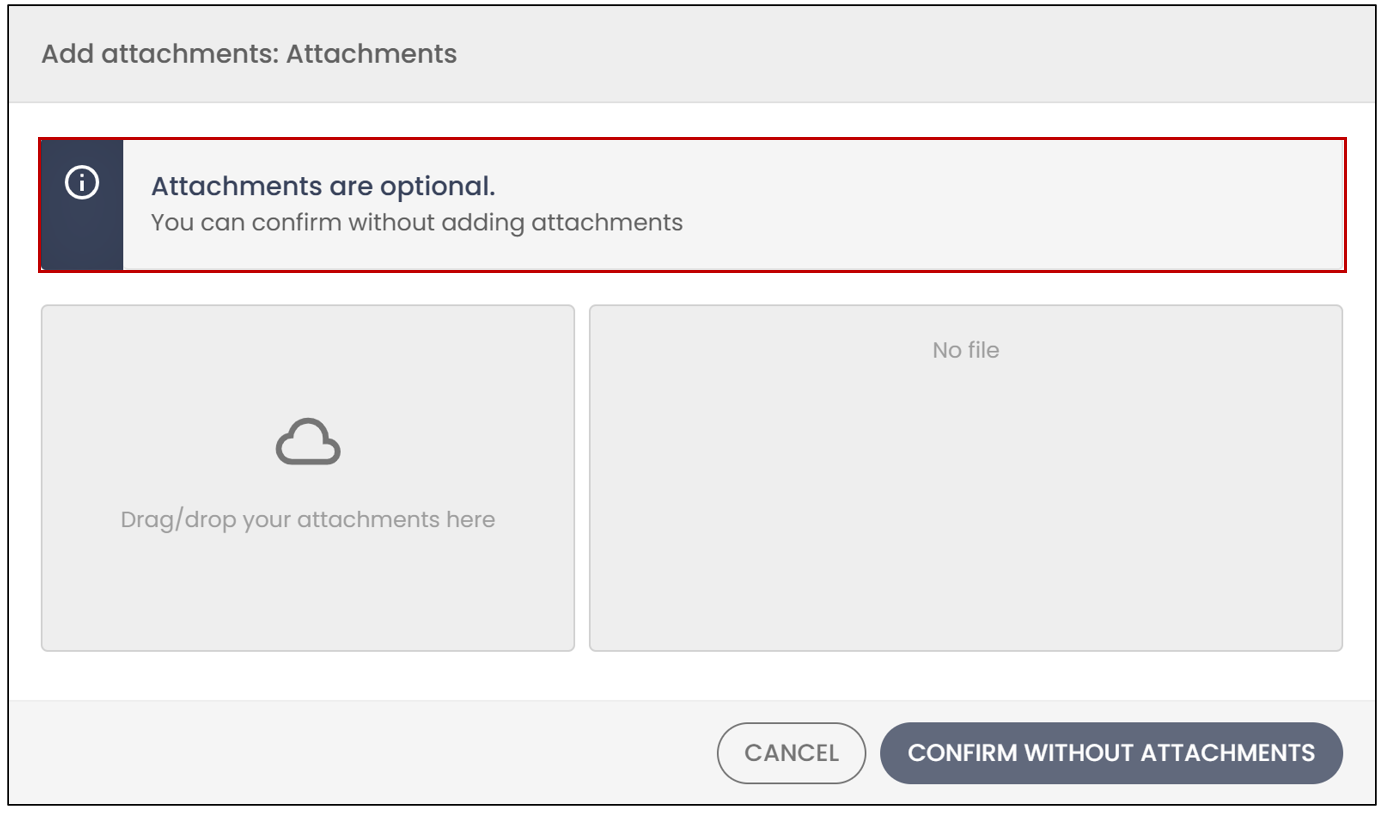
Once the file or files have been added, confirm the submission.
NOTE: Some attachments are required , while others are optional.
Carefully check the instructions displayed.
If the attachment is optional, you can simply confirm without adding a file.
Completing an Electronic Form
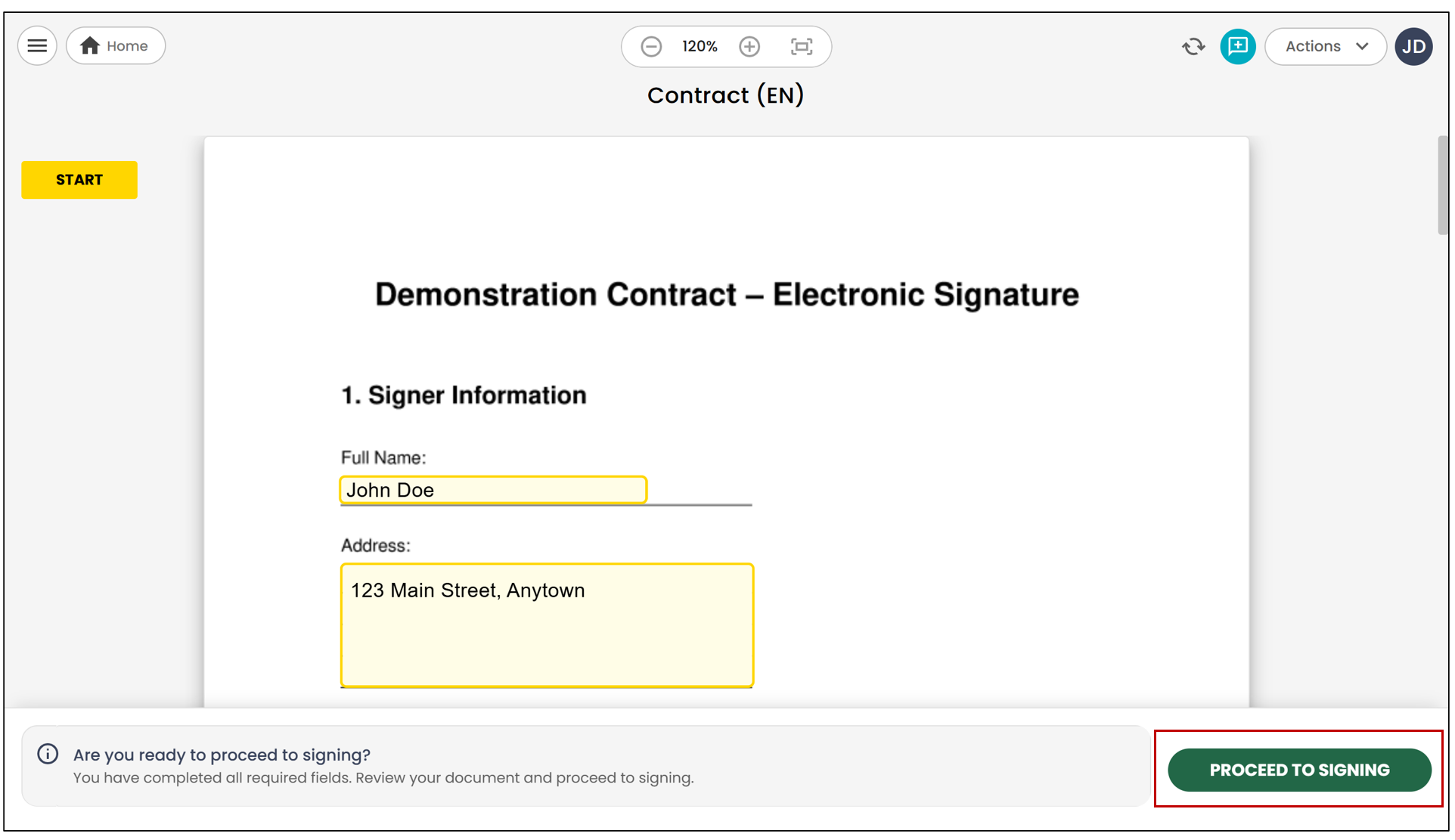
If the document you received requires you to complete form fields (answers, checkboxes, text, etc.), you must complete this information before you can sign.
After completing the required information, click "Proceed to Signing ". This step is always required:
- If a signature is required, the signature box will only appear after the form has been processed;
- If no signature is required, this action will simply complete the document.
NOTE: If you do not see where to sign, make sure that you have completed all fields and processed the form.
Using a Handwritten Signature
The document sender may require you to provide a handwritten signature.
In this case, when you first click the signature box, you will need to draw both your signature and your initials using your mouse or device (touchscreen, stylus, etc.), even if only one of the two is required in the document.
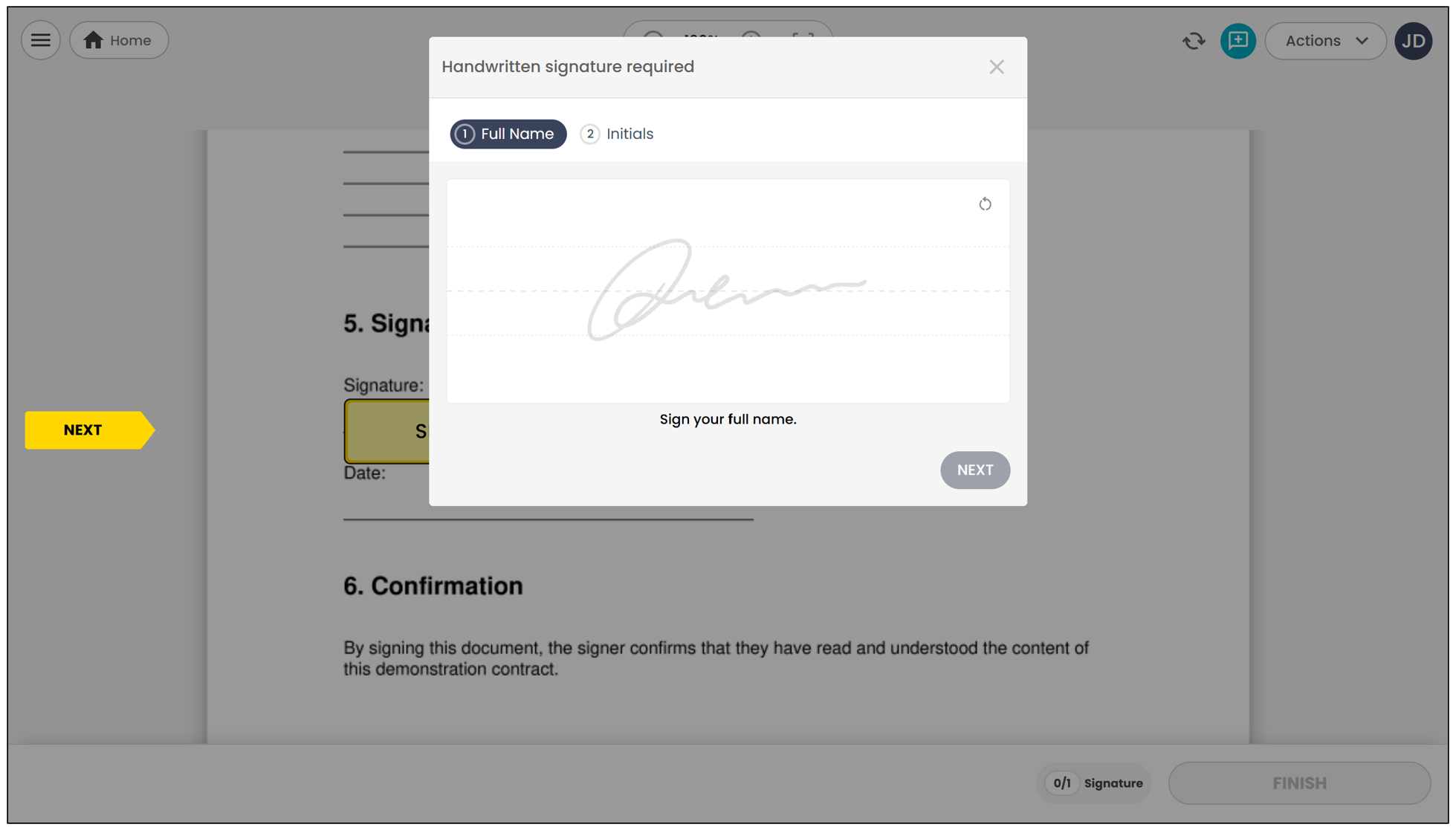
Then click "Next ", followed by "Apply ". After that, each time you click a signature box, your handwritten signature will be applied automatically.
Troubleshooting
Don’t See the Signature Fields? Here’s What to Check:
Did you click Proceed to Signing?
If fields (questions, checkboxes, radio buttons, etc.) are present, you must complete all of them , then click "Proceed to Signing " (at the bottom right).
The "Proceed to Signing " action is required to access the signature.
Contact the Document Sender
The signature configuration may be causing the issue.
Not Receiving the Document After Signing It? Here’s What to Check:
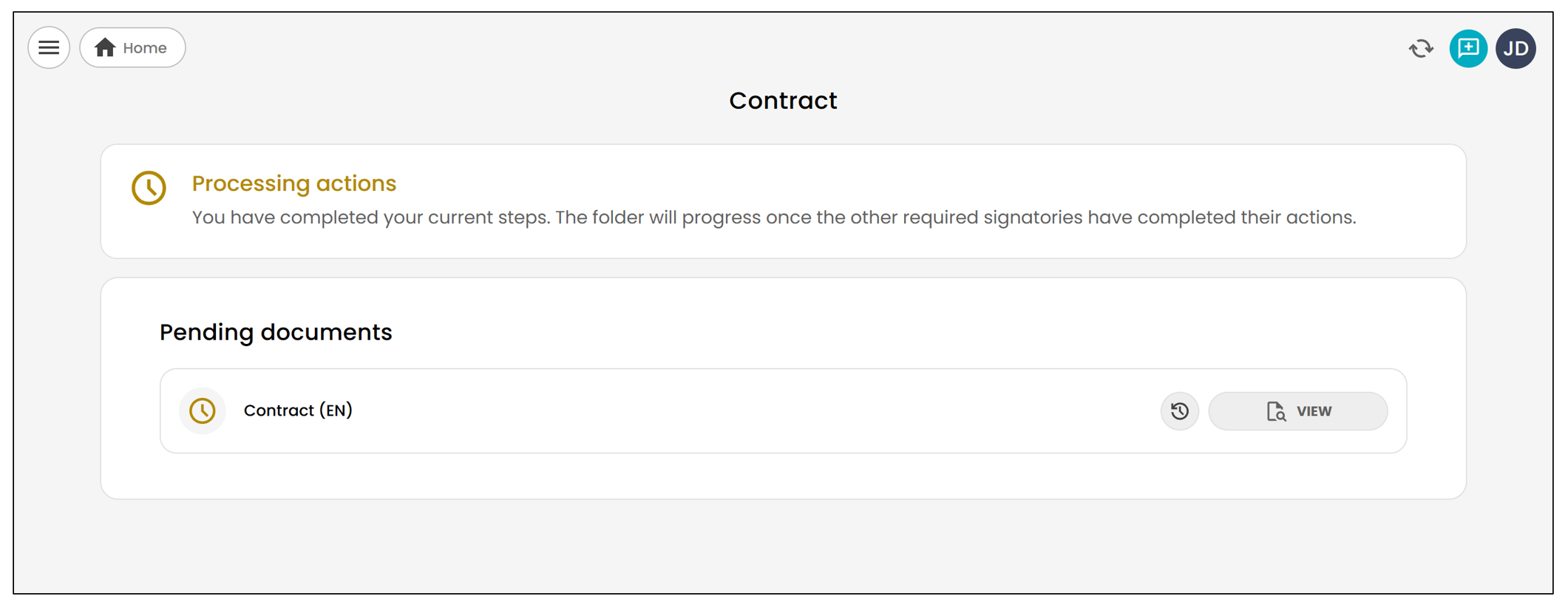
Check the Home Page
Your part may be completed, but other signatories or participants may still have actions to complete.
The home page clearly indicates the document status and any remaining signatures.
Contact the Document Sender
Depending on the settings selected by the sender, a copy of the completed document may not be sent to the signatories.
If you are unsure, we recommend contacting the sender directly.
Did You Lose Your Information?
If you had completed fields and everything seems to have disappeared when you return to the document, this is generally related to how you left the page.
Here are the most common causes:
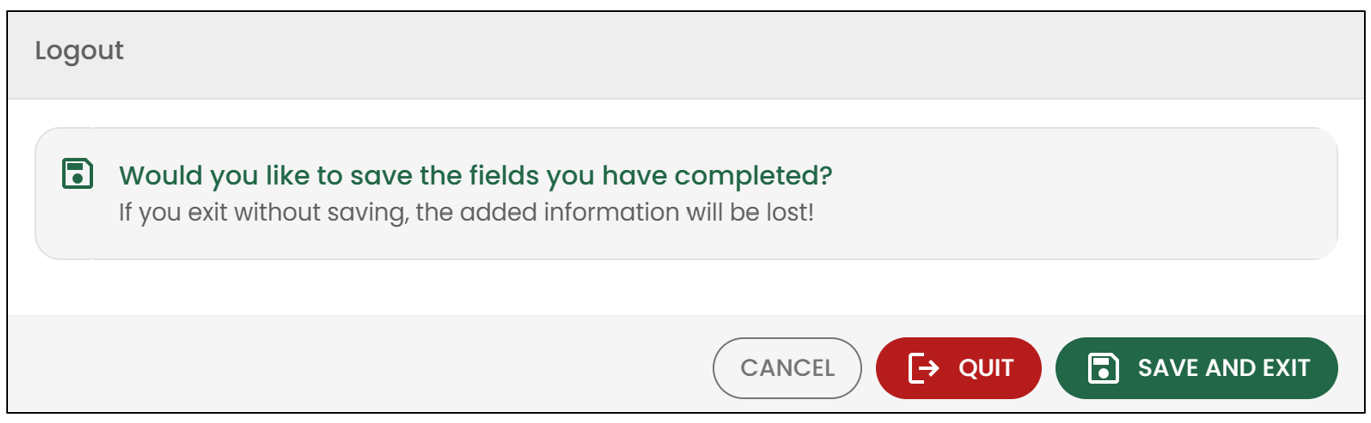
Logging Out Without Saving
When you click "Log Out " in eZsign, a page will offer you several options:
- Cancel
- Quit
- Save and Exit
If you click "Quit ", the information you entered will be lost.
Tip to Avoid Losing Your Information
You can save your progress at any time. You can then return later and resume exactly where you left off:
- Click "Log Out " and select the "Save and Exit " option.
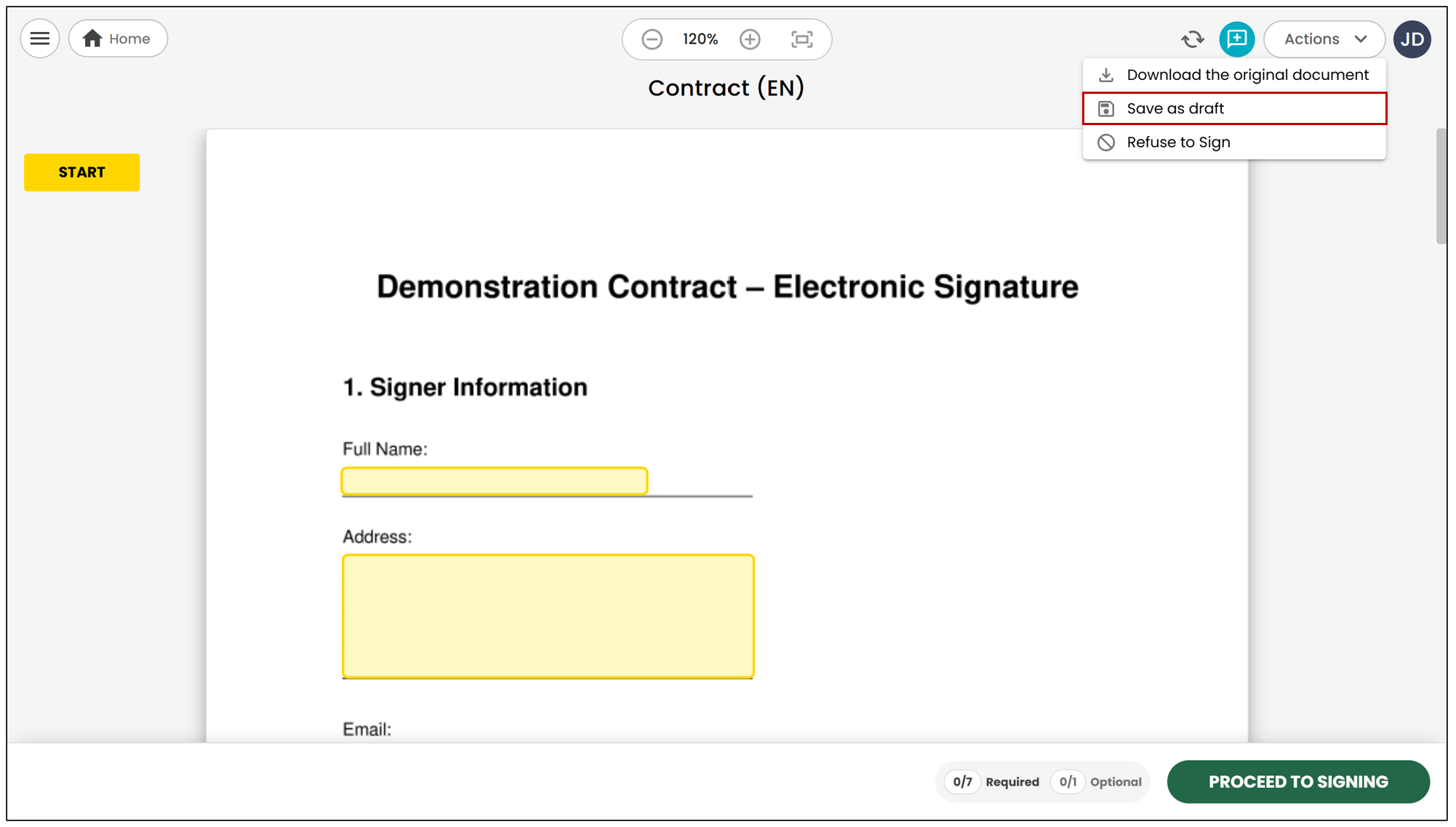
- Another option is to click the "Actions " button, then select "Save as draft ".
Can’t See the Document Clearly? Here’s What to Do:
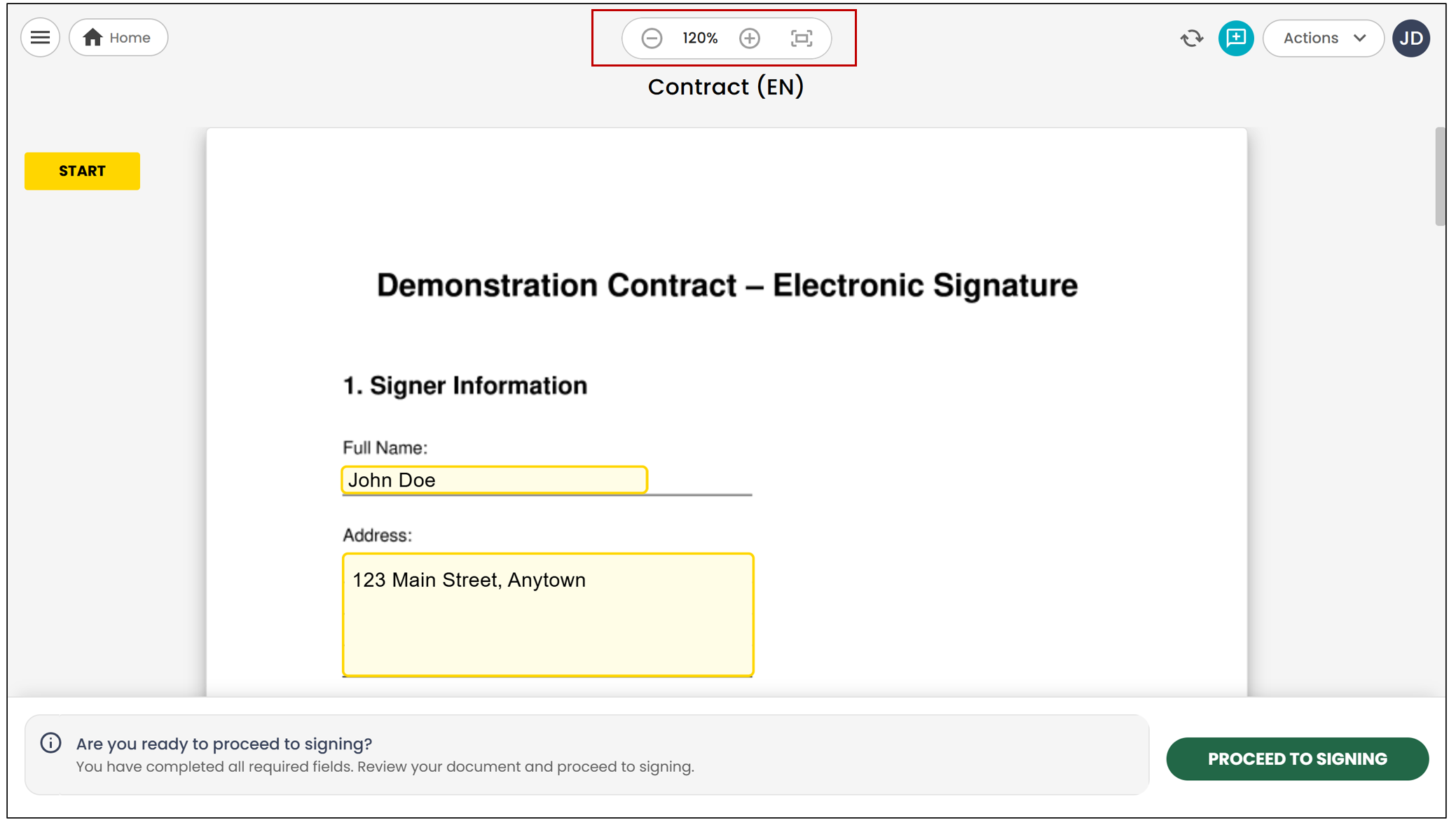
- Adjust the Zoom: Use the zoom tool located at the top of the document (in the centre) to increase or decrease the display size.
- Navigate the Document: Use the scroll bars to navigate up and down and from left to right.
Depending on your device, screen size, and document format, these options will help you view the content more easily.
Received a Document but Don’t See Where to Sign?
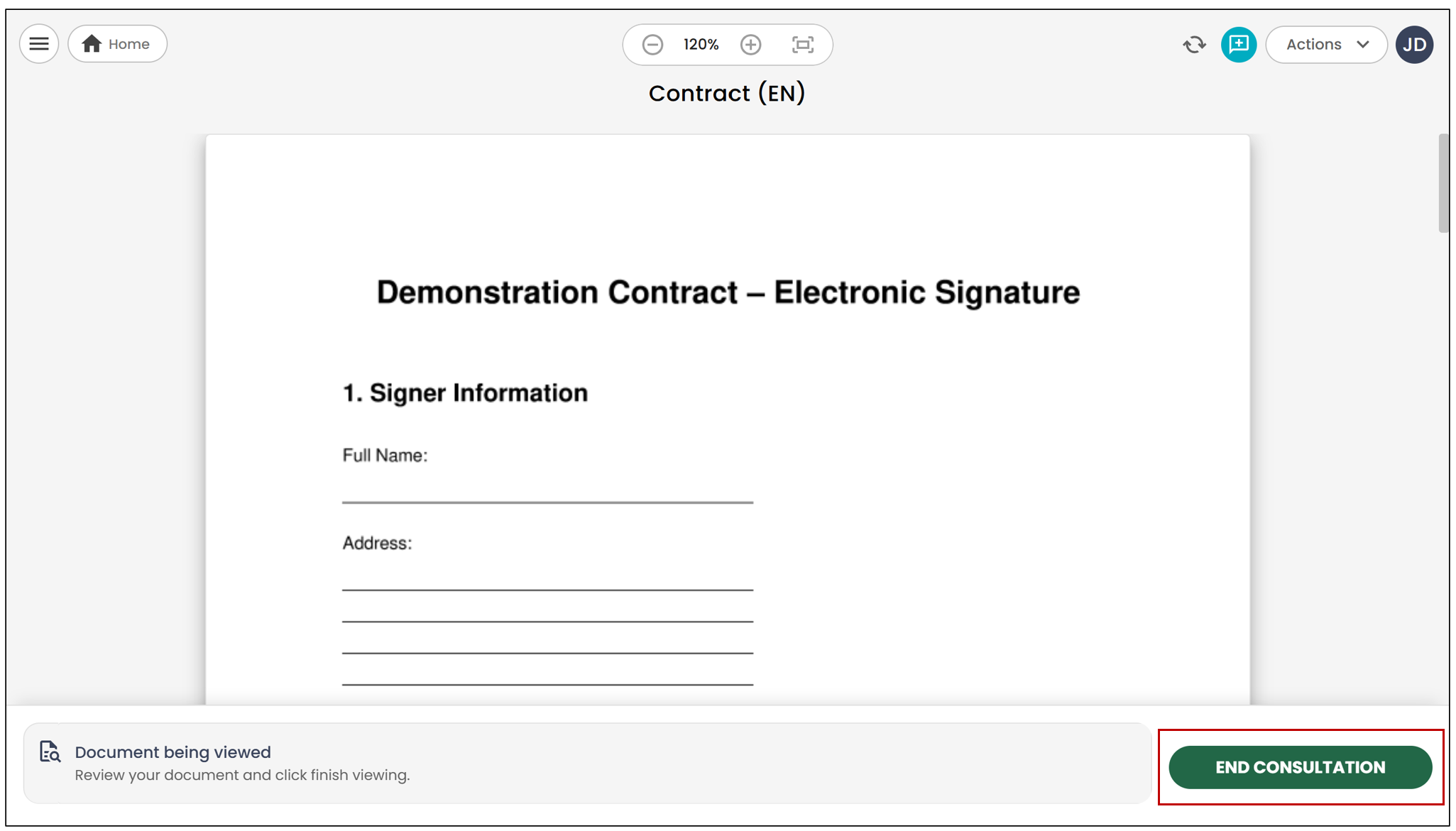
In this case, it is likely that your role is simply to review the document.
Review the Document
You simply need to review the content. No signature or other action is required.
Click "End Consultation "
Once you have finished reviewing the document, you can click the "End Consultation " button in the top right corner.